
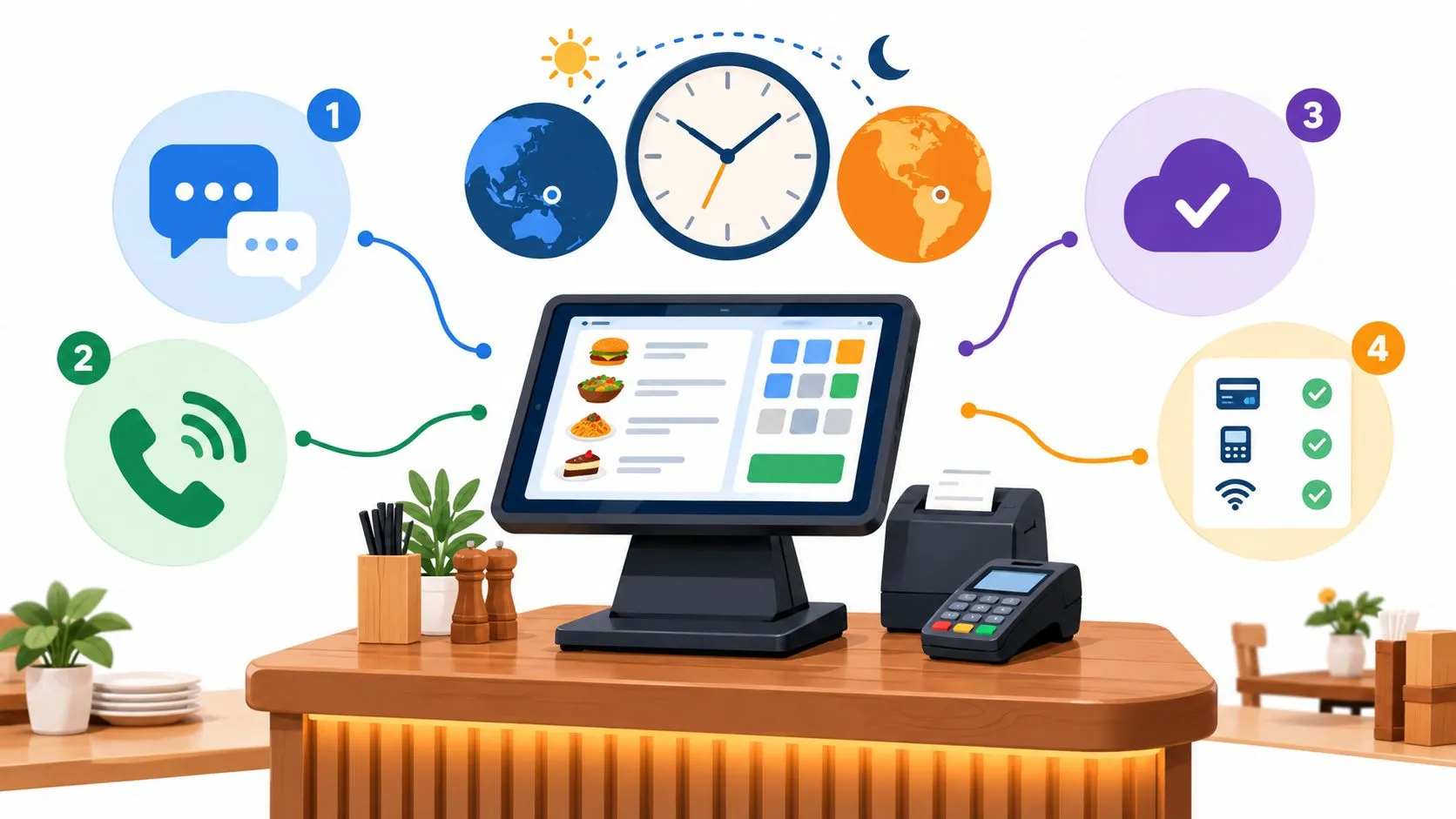
Square phone support is not guaranteed for every seller, and live messaging is generally available Monday through Friday, 6 a.m. to 6 p.m. Pacific Time. That single fact changes how you staff a Friday night, because finding a Square POS contact number in a blog post doesn’t mean an agent will answer when your reader stops taking cards. The popular advice, save the number and call when something breaks, fails when your plan doesn’t include phone, when your dining room runs later than Pacific business hours, or when the missing ticket never belonged to Square in the first place.
Square POS Contact Channels and Hours
A published Square phone number is a directory listing, not coverage. The Square support article on contacting Square Support says phone access is not guaranteed for every seller, varies by subscription, and may involve a wait, while live messaging is generally Monday to Friday, 6 a.m. to 6 p.m. Pacific Time. Sign in and check which options your account shows before you brief a closer, because the channels below do different jobs and only some of them will appear for you.
| Channel | Best for | Hours | Who can use it |
|---|---|---|---|
| In-app or live messaging | Account and transaction questions | Monday to Friday, 6 a.m. to 6 p.m. Pacific Time | Generally available to signed-in sellers |
| Phone or callback | Funds, device activation, or payment acceptance down | Not guaranteed, a wait is possible | Only when the subscription includes phone |
| Status page | Platform-wide incidents | Check any time, no agent | Any seller |
| Sales assistance | Hardware and plan questions | Separate from technical support | Prospects and plan changes, not outage triage |
| Restaurant 24/7 marketing claim | Broad support promise on restaurant pages | Advertised as 24/7 | Confirm against the support article before relying on it |
Messaging Is the Default Working Channel
Use messaging for questions attached to one account, one transaction, one payout, or one device. It creates a written thread you can hand to the next manager, and it lets you paste an identifier instead of reading it aloud over a noisy line. If you’re inside the Pacific window, start there unless card acceptance is fully down and your login offers something faster.
The window runs on Pacific time, and that trips up closers in every other zone. A shop closing at 10 p.m. Eastern is outside weekday messaging hours, because 10 p.m. Eastern is 7 p.m. Pacific, after messaging closes at 6 p.m. Pacific Time. Convert the window once: on Eastern time it runs 9 a.m. to 9 p.m., and on Central it runs 8 a.m. to 8 p.m. Write both local times on the closing sheet and stop doing time zone math during service.
Weekends have no messaging window at all. A Saturday night failure goes to whatever your signed-in account offers, which for a seller without phone access may be nothing until Monday.
Phone and Callback Are Conditional
Phone or callback fits a live block: money that didn’t settle, a reader that won’t activate, or payments that won’t run at all. It exists as an option only when your subscription includes it and the signed-in account shows it. A number copied from a third-party directory can’t override that eligibility check, and neither can urgency.
Practical rule: If the button isn’t in your signed-in Square account, don’t plan your night around it.
Status Page and Sales Are Different Jobs
The status page answers one narrow question: is Square itself having a platform incident right now. It has no agent, can’t look at your transaction, and can’t release your funds. Check it early during a widespread failure so you don’t open a duplicate case for something already acknowledged.
Sales assistance handles hardware shopping and plan questions. It’s the wrong queue for a down terminal, a short payout, or a declined tap, and a transfer there doesn’t move a technical case forward. Square’s restaurant pages promote 24/7 customer support, but a marketing promise isn’t the same as the messaging hours in the support article. Treat the advertised slogan like a menu photo: it shows the best case, not the shift you’ll work. Trust the narrower, signed-in reality when you write your closing procedure, because that’s the coverage your team can use at 9 p.m. on a Saturday.
Account Details to Gather First
The fastest Square POS contact is the one that doesn’t stall on a follow-up question. Most first replies stop to ask for an identifier you could’ve included at the start. Build the packet before you open any channel, and keep a blank version at the host stand.
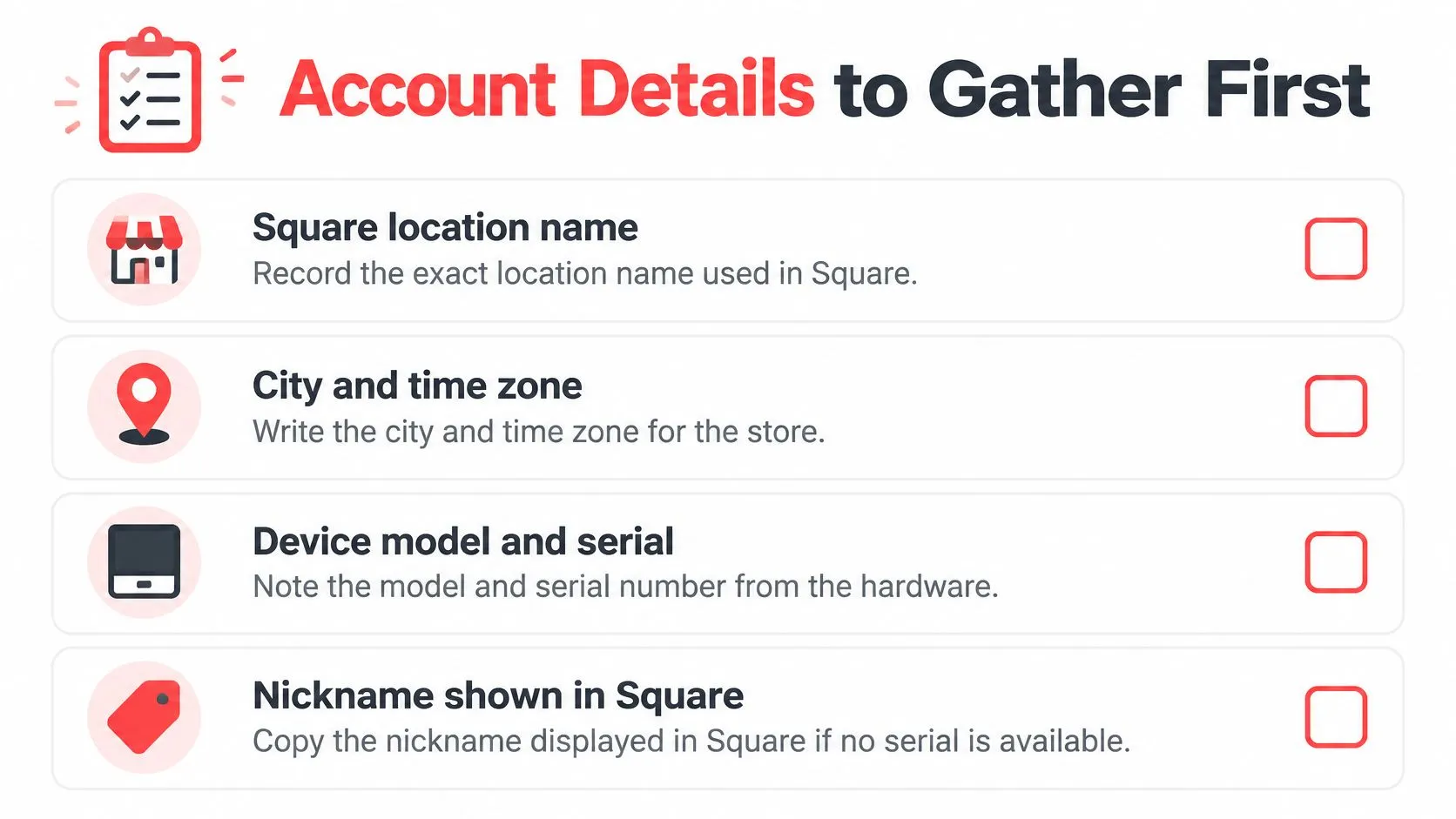
The Host Stand Checklist
- Square location name: Copy the exact name as it appears in Square, not the name on your awning if they differ.
- City and time zone: Write both, so a timestamp can’t be misread across regions.
- Device model and serial: Note the model and serial number from the hardware itself.
- Device nickname in the app: Use this when no serial is handy, since it’s how the device appears in your account.
- Employee signed in: Name who was logged in when the failure happened, because permissions follow the login.
- How the payment was tried: State whether it was tap, chip, or keyed, since each points to a different fault.
Payment and Funds Details
For a specific payment, record the local time, the amount, the last four digits only, the tender type, and the transaction or payment identifier from the Square receipt or transactions list. That identifier is the thread an agent pulls to see the same record you’re seeing. Without it, you’re describing a sale from memory.
For a funds question, note the transfer date and the bank account’s last four digits. For a reader problem, note the battery level, whether it’s on Wi-Fi or Ethernet, and the last time that device was online. Those three facts separate a dead reader from a dead network in one line.
One Filled Example
Say a guest tapped at 8:14 p.m. Central on the front Square Stand and the payment declined. Your packet reads: location name, city and Central time, front Stand nickname, the cashier signed in, tender type tap, amount, card last four, and the payment ID copied from the transaction detail. That’s a complete case in one message.
Never write down a full card number, photograph a customer’s card, or share a login password with anyone, including someone claiming to be support.
Send the last four and the payment ID, nothing more. A complete packet matters because it’s the difference between an agent investigating on the first reply and an agent asking you to go find the identifier while the line grows. It also protects the next manager, who can pick up the case from your notes instead of re-interviewing staff who’ve gone home. Keep the template short enough that a closer will fill it in during a rush.
Square POS Contact by Symptom
Start from what you see, not from a phone number you saved months ago. The symptom tells you whether you’re looking at a platform incident, a single record, or a live block. Picking the wrong branch costs you the rush, because each channel can only act on certain kinds of problems.
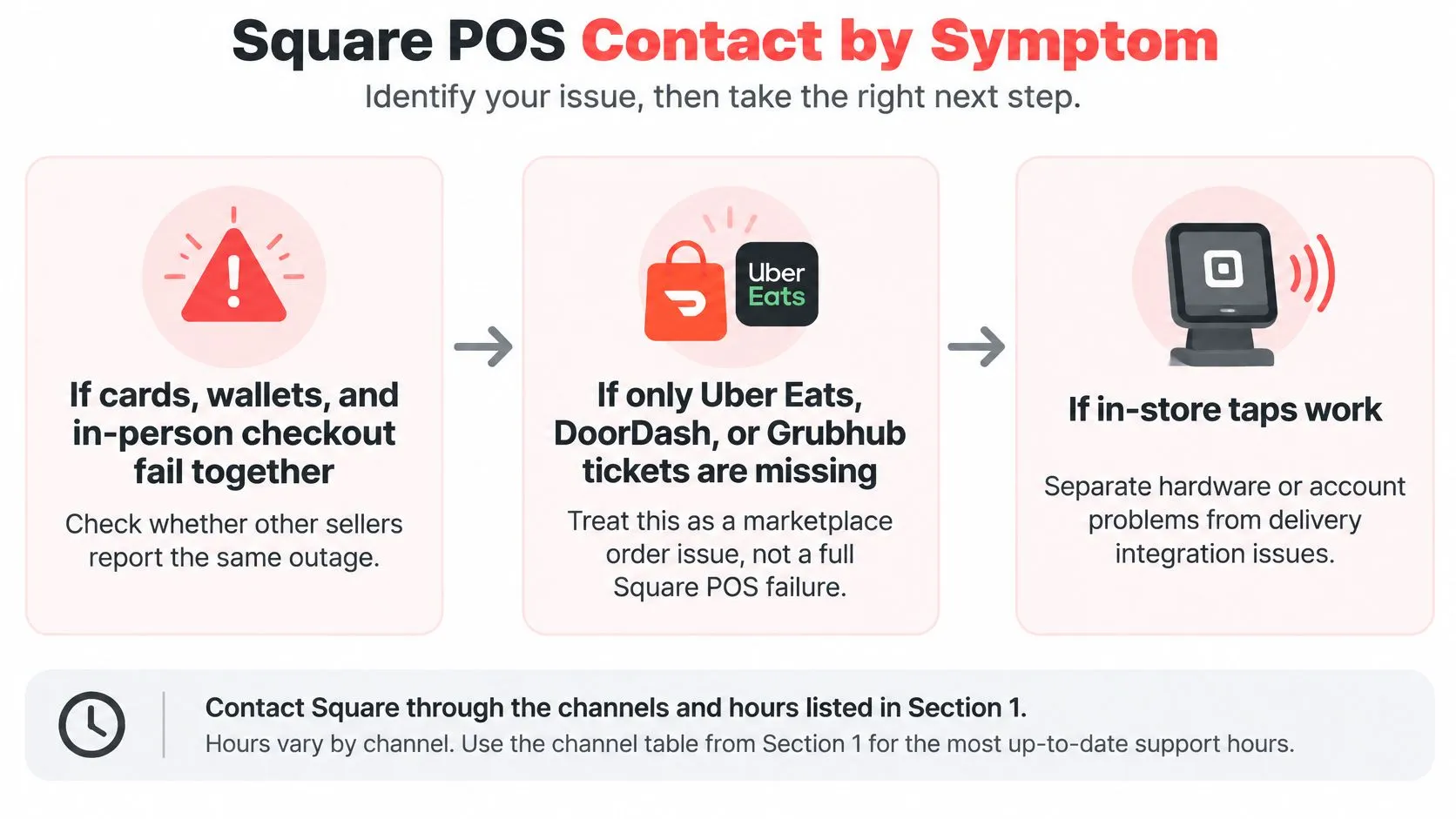
Three Branches Before You Open Anything
If cards, wallets, and in-person checkout fail together and other sellers report the same failure, open the status page before any queue. A platform incident won’t be fixed faster because you filed the hundredth identical case. Note the incident name and watch it instead.
If one ticket, one payout, or one reader is wrong, open in-app messaging and stay there unless the app itself offers a phone or callback button. That written thread becomes your record. If in-store taps still work, separate hardware and account problems from delivery problems early, because they have different owners.
Use phone only for money that didn’t settle, a device that won’t activate, or acceptance that stopped entirely, and only after your subscription shows phone as available. Hardware shopping and plan changes go to sales, never the outage queue. Sending a pricing question into a technical channel, or a down terminal into sales, just adds a transfer.
Case One a Friday Payout That Looks Short
Your Friday dinner deposit lands and it’s lower than the sales report suggests. Open messaging with the transfer date and bank last four from your prep packet, plus the specific payments you expected in that transfer. Don’t use the status page, because your checkout is working and nothing is platform-wide.
Don’t reach for phone first either. A payout question is a records question, and an agent needs to compare identifiers, which messaging handles in writing. Your artifact from this case is a messaging case ID tied to that transfer date, so any manager can reopen the same thread on Monday.
Case Two a Stand That Rebooted and Won’t Pair
A Square Stand reboots mid-shift and won’t pair its reader afterward. Check the status page first for an account-wide incident, because a pairing failure during a platform problem isn’t your hardware. If the status page is clear, treat it as a single-device block.
If your signed-in account offers phone or callback, this is the kind of live block it’s for, since you can’t take cards at that station. If it doesn’t offer phone, open messaging with the device model, nickname, and last online time. Avoid sales, because a quote for a new Stand doesn’t diagnose the one you have.
While you wait, check what the kitchen sees. A terminal that reboots can also disturb printing, so confirm your setup against our guide to Square kitchen printer routing and checks before you reopen that station. Your artifact here is either a callback window written in both Pacific and local time or a messaging case ID with the device nickname in it.
Case Three a Single Declined Tap
One guest’s tap declines on an otherwise normal night, and the next guest pays without trouble. Open messaging with the payment ID, local time, amount, and tender type. Skip the status page, because one declined card tells you nothing about the platform.
Don’t retry the same card repeatedly while you wait for an answer. Offer the guest another tender, finish the sale, and let the case run on the identifier you already captured. Your artifact is the message thread quoting that payment ID, which is enough for an agent to see the decline reason on Square’s side.
What Messaging Handles Best
Messaging is the default written record for a deposit that needs explaining, a refund that shows on the POS but not in reporting, a team permission that won’t save, or a tax setting that looks wrong. Quote the payment ID or the exact setting name in the first message. Vague openers like “refunds are broken” force the agent to interrogate you before any work starts.
Phone or callback is for a live block, and not every login is offered that button. The status page has no agent and its real value is stopping duplicate cases during a regional incident. Knowing which of those three you’re in saves more time than any saved phone number.
Every case should end with an artifact you can hand off, a case ID, a callback window in two time zones, or an incident name to watch.
Nights and Weekends Change the Move
If messaging is closed when the problem hits, file a complete in-app case with the full prep packet and check the status page. Redialing a number from a blog doesn’t create coverage that your plan doesn’t include. A complete packet filed at midnight gets worked faster in the morning than a vague one filed at dawn.
Write down what still works, not just what failed. “Bar Stand takes taps, front Stand won’t pair, one case filed with device nickname” tells the opener exactly where to start. That habit matters more than memorizing any Square POS contact directory, because directories go stale and your signed-in options don’t.
Offline Payments and Outage Deadlines
An offline payment is a stored payment, not a completed one. Start a clock as soon as connectivity drops: Square says an offline payment can be declined if the device does not reconnect within 24 hours, according to Square’s offline payment guidance.
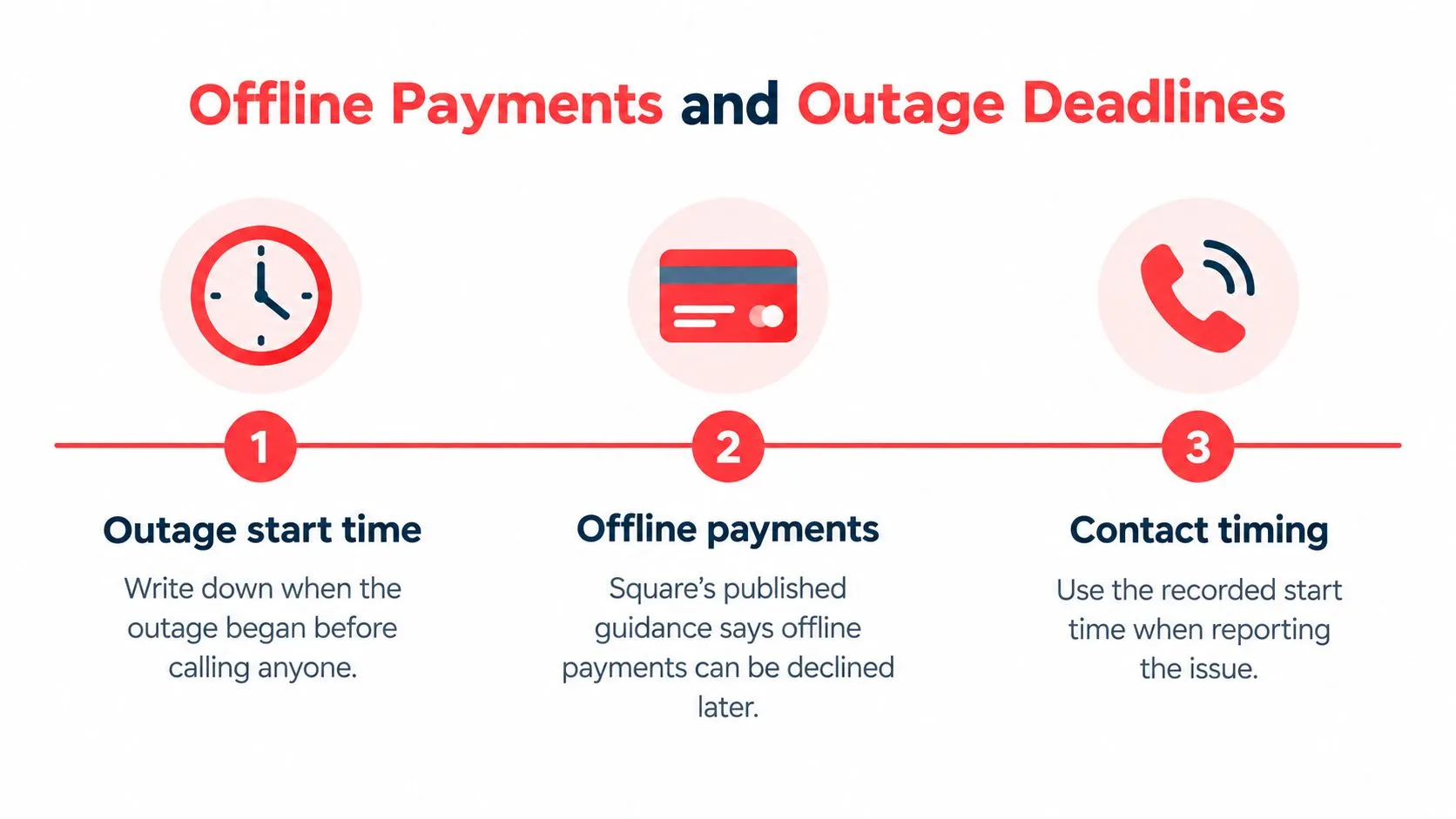
The Recovery Sequence
- Record the start time: Note when the connection dropped and identify the offline terminal by its nickname.
- Use an existing fallback: If another connected device is already part of your setup, use it. Avoid creating a new payment process during the outage.
- Treat stored taps as unconfirmed: The payment still needs to upload and clear.
- Reconnect the same device: Once the network returns, bring the terminal that stored the payments back online.
- Check the result: Confirm that the payments uploaded rather than assuming reconnection completed the process.
- Ask for help before the deadline: If a batch remains pending, contact Square with the outage start time and device name ready.
| Clock | Limit |
|---|---|
| Offline payment reconnect | A payment can be declined if the device does not reconnect within 24 hours |
| Stored payment expiry | The device and Square’s guidance determine how long a stored payment remains available |
Separate Your Network From Their Platform
Check Square’s status page to distinguish a store network problem from a platform incident. If the router is down, Square cannot restore the store’s internet connection. If Square reports an active incident, follow its updates while keeping track of the pending payments.
A clock is already running on stored payments. If your account offers phone support, use it rather than waiting for messaging to reopen. Give the agent the outage start time and terminal nickname at the outset.
Review POS system requirements for network and hardware readiness before an outage, so you know which devices and fallback options are part of your setup. Keep the offline device charged, and avoid deleting or resetting its app while payments are pending. Once the payments clear, compare the batch with your order records to catch duplicates or orders that still need attention.
When the Order Never Reached Square
If in-store taps work and only Uber Eats, DoorDash, or Grubhub tickets are missing, you don’t have a Square hardware case. Square support can’t see a delivery tablet queue, and bouncing between agents wastes the rush while the actual fault sits in the order path. Name the owner before you dial.
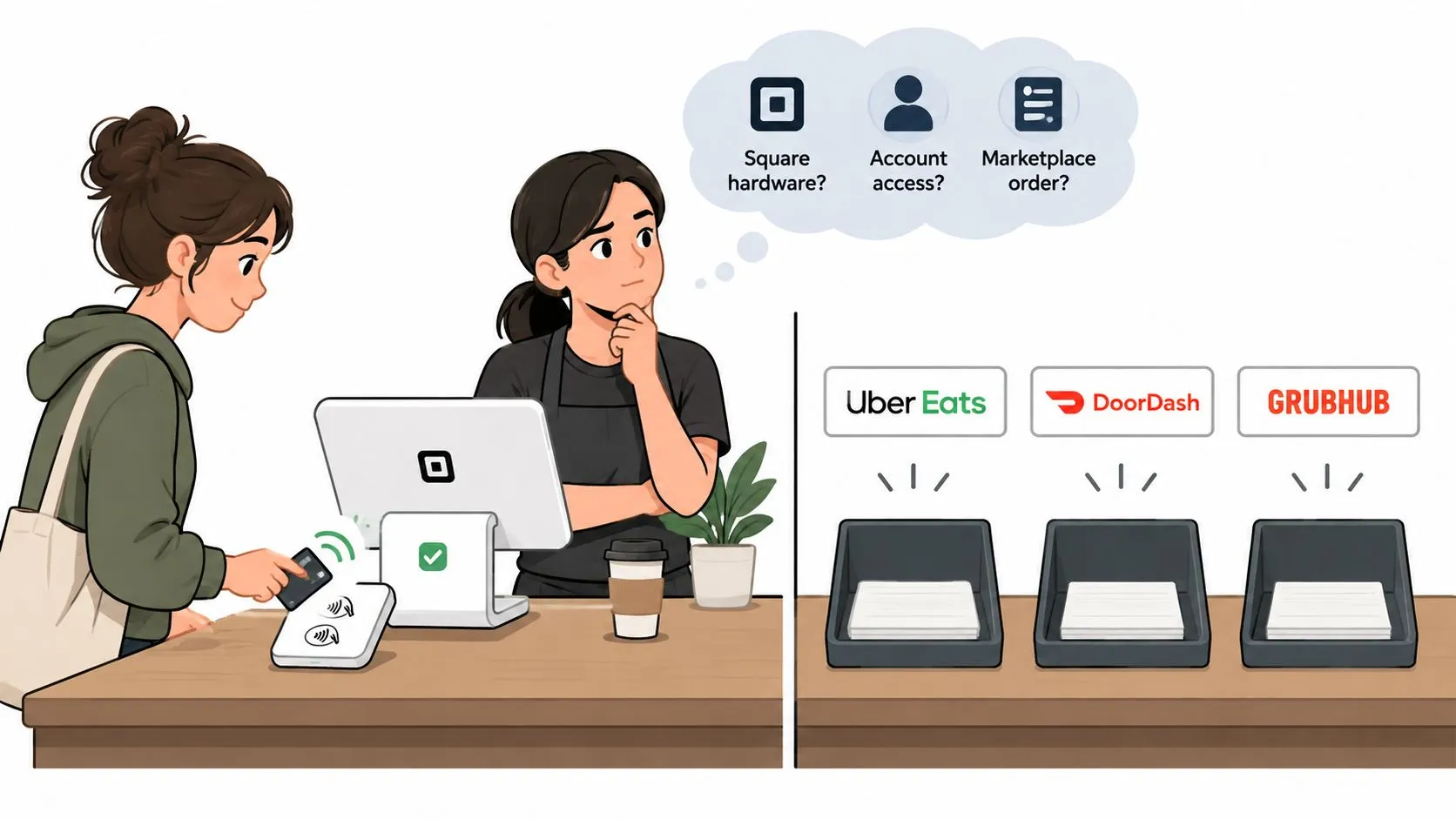
Restaurants connect Square so online orders land in the same workflow as in-store sales. A marketplace order should become a normal Square ticket your kitchen already knows how to fire. OrderOut connects DoorDash and Uber Eats to a Square POS account so orders land in Square automatically as standard tickets, with no extra tablet and no re-keying. When that chain works, the delivery ticket prints on the same kitchen hardware as a walk-in order.
A Modifier Mismatch Is Not a Reader Fault
Say a DoorDash burger carries a cheese modifier that doesn’t match the Square item it’s mapped to. The kitchen ticket comes out wrong, or doesn’t appear at all, even though every tap at the register works perfectly. No Square agent can fix that mapping, because the mismatch lives between the marketplace menu and your POS items.
That’s why menu hygiene matters after any price, item, or availability change. OrderOut syncs prices, item availability, and out-of-stock (86) changes from Square to the Uber Eats menu automatically, which removes one common source of stale menus. If you’re evaluating how tickets should move from screen to kitchen, find digital kitchen ticket systems that fit your ticket flow. Our explainer on Square online ordering for restaurants covers how first-party orders travel the same path.
Route the Order Instead of Re-Keying It
With OrderOut’s Square delivery integration, marketplace orders inject straight into Square as standard tickets, so staff stop re-keying from a separate tablet. The third-party order engine for marketplace to POS routing handles that translation across channels, including the specific DoorDash on Square integration path. Square stays your operational source of truth, and the kitchen sees one queue.
Keeping orders out of manual re-entry reduces the order-entry errors that happen when a busy cashier copies modifiers by hand. The Free plan costs $0 forever and covers one Square location with one POS connection and one delivery channel, so routing a single channel like DoorDash or Uber Eats into Square costs nothing. Setup runs on the OrderOut side: create an account, connect Square, add your menu, and start taking orders.
The dividing line is simple. Reader, payout, or account trouble belongs to Square. Missing marketplace tickets with healthy in-store checkout belong to the integration path. Sending each problem to its actual owner is the fastest Square POS contact decision you’ll make all night.
Escalation Paths After the First Reply
The second step is where most cases fall apart, usually because someone opens a new channel and splits the history. Keep one thread. Answer on the existing messaging case and quote the case ID, so the next agent sees everything the first one saw.
Stay in One Thread
If phone was offered and you requested a callback, write the window in both Pacific and local time on the closing sheet. A callback missed because a closer misread the time zone restarts the whole case. Name one manager who owns that case ID overnight, especially across multiple locations, so the callback reaches a person who knows the story.
Escalate inside Square only when the symptom changed. If messaging confirms a platform incident that the status page now shows, your job shifts to watching that incident. If a pending offline batch is still inside its upload window and hasn’t cleared, that’s a genuine escalation, because the clock is running.
What Isn’t an Escalation
A sales transfer isn’t a technical escalation. A hardware quote must not close a payout case, and a plan conversation can’t release your funds. If you end up in a sales queue with a technical problem, get back to your original case ID instead of starting over there.
Don’t escalate a missing DoorDash or Uber Eats ticket to Square at all. Send it back to the integration path, where the mapping can be checked. Teams building their own tooling around Square can review our notes on the Square developer API for integration work, but a mapping fix still belongs with whoever owns your order feed.
Resolved means something specific you can point to, not just an agent saying the case is closed.
Know What Resolved Looks Like
Call it resolved when the payment identifier shows the expected status, when the reader takes a live test tender, or when the status incident has cleared and your pending offline payments have uploaded. Test with a real small transaction before you put the station back into full service. Note the outcome and time on the same sheet where the case started.
That closing note protects you twice. It proves the fix if the same symptom returns next week, and it gives the next manager a pattern instead of a fresh mystery. Escalation isn’t about finding a more senior phone number, it’s about keeping one clean thread and knowing which changes justify reopening it.
Frequently Asked Questions
Does every Square seller get phone support
No. Phone access depends on your subscription and can involve a wait, so check what your signed-in account offers before planning around it. Messaging is the channel generally available to sellers. For privacy questions about OrderOut, you can reach us at support@orderout.co, while Square account access problems still belong with Square’s own support channels.
What hours is Square live messaging open
Live messaging is generally open Monday through Friday, 6 a.m. to 6 p.m. Pacific Time. That window is narrower than the 24/7 support language on Square’s restaurant marketing pages suggests. Convert the Pacific hours to your local time and put them on your closing sheet so night staff know when messaging is staffed and when it is not.
Should I contact Square when delivery orders are missing but checkout works
Start with the integration path, not Square hardware support. If taps and in-store sales run normally while Uber Eats or DoorDash tickets do not appear, the fault usually sits in how marketplace items map into Square. OrderOut’s Square delivery integration and the DoorDash on Square path handle exactly that handoff, injecting marketplace orders as standard Square tickets.
What should I do if offline payments are still pending
Keep the same device, restore its connectivity, and confirm the pending payments upload instead of assuming they cleared. Reach support before stored payments age out, with your outage start time and device nickname ready. A stored tap is not guaranteed money until it shows as cleared, and a device reset while a batch is still pending can wipe the queue.
What should I never send to support
Never send a full card number, a photo of a customer’s card, or your login password. The last four digits and the payment identifier give an agent everything needed to find the record. Anyone asking for the full number or your password is asking for something legitimate support does not need.
Fix the Square Ticket Path Next
Name the owner of the problem before you open another ticket. That one decision, Square or the order path, determines whether your next hour fixes anything. Most wasted support time in a restaurant isn’t spent waiting, it’s spent waiting in the wrong queue.
If Square Itself Failed
If taps, payouts, or the reader failed, use the Square channel that fits the symptom and send the prep packet with your first message. Include the payment identifier, device nickname, local time, and time zone. A complete first message is the closest thing to a fast lane that Square POS contact offers.
If the symptom comes back, reopen the same thread instead of starting cold. Our rundown of common problems with orders and how operators trace them can help you sort a recurring ticket issue from a payments issue before you file. Keep the case ID on the closing sheet until a live test tender proves the station healthy.
If Marketplace Orders Are the Failure
If the Square terminal still rings in-store sales while delivery tickets go missing, fix the feed instead of the phone tree. We connect DoorDash to Square so orders land in the Square POS automatically, with no extra tablet and no re-keying. The same routing removes the separate tablet scramble for Uber Eats and Grubhub, keeping one ticket queue for the kitchen.
Owners can start onboarding free in a few clicks through the OrderOut onboarding dashboard. Connect Square, map your marketplace menu to your POS items, and let orders arrive as standard tickets. If you want to read before you connect, OrderOut’s restaurant FAQ answers the common setup and POS questions operators ask first.
Your Practical Next Step
Copy the payment or order identifier for the problem in front of you right now. Decide whether it belongs to Square or to the marketplace feed, then pick the one channel that owns it. Either message Square with a complete packet, or connect the marketplace feed so the ticket reaches Square on its own.
Do that before the next rush, not during it. A closer who knows which queue owns which symptom, and who has the identifier ready, will get a useful answer while a neighboring shop is still redialing a number from a search result. That’s the whole advantage, and it costs nothing but a checklist at the host stand and the discipline to use it.
If missing marketplace tickets are your real problem, we inject Uber Eats, DoorDash, and Grubhub orders straight into your Square POS so your kitchen works from one queue with no extra tablets and no re-keying. Connect your Square account and stop sending integration problems to a payments queue. Visit OrderOut to get your delivery orders flowing into Square today.