
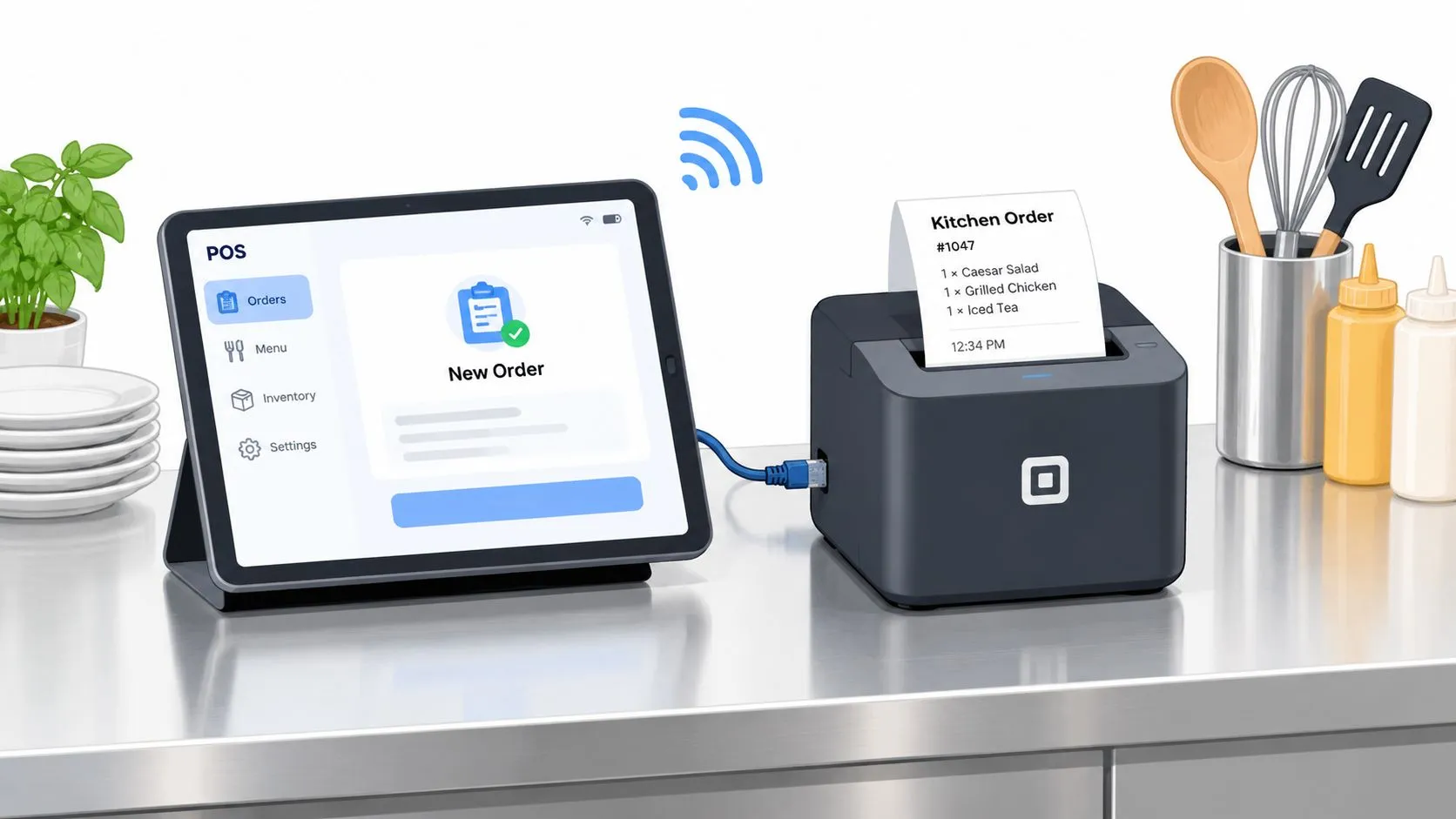
A Square kitchen printer prints the tickets your team needs from Square, and the primary job is keeping those chits flowing cleanly to the right station when service gets loud, hot, and messy. In a busy room, the printer is usually not the problem by itself, it’s the device profile, the station assignment, the network path, or the routing rule behind it.
If you’ve ever watched a dinner rush turn into a pile of missing tickets, duplicate tickets, or a printer that suddenly “disappeared,” you already know the pain point. The fix is less about chasing hardware and more about building a Square print setup that survives the way restaurants run, including third-party delivery orders that now need to land in the same kitchen flow.
What a Square Kitchen Printer Does
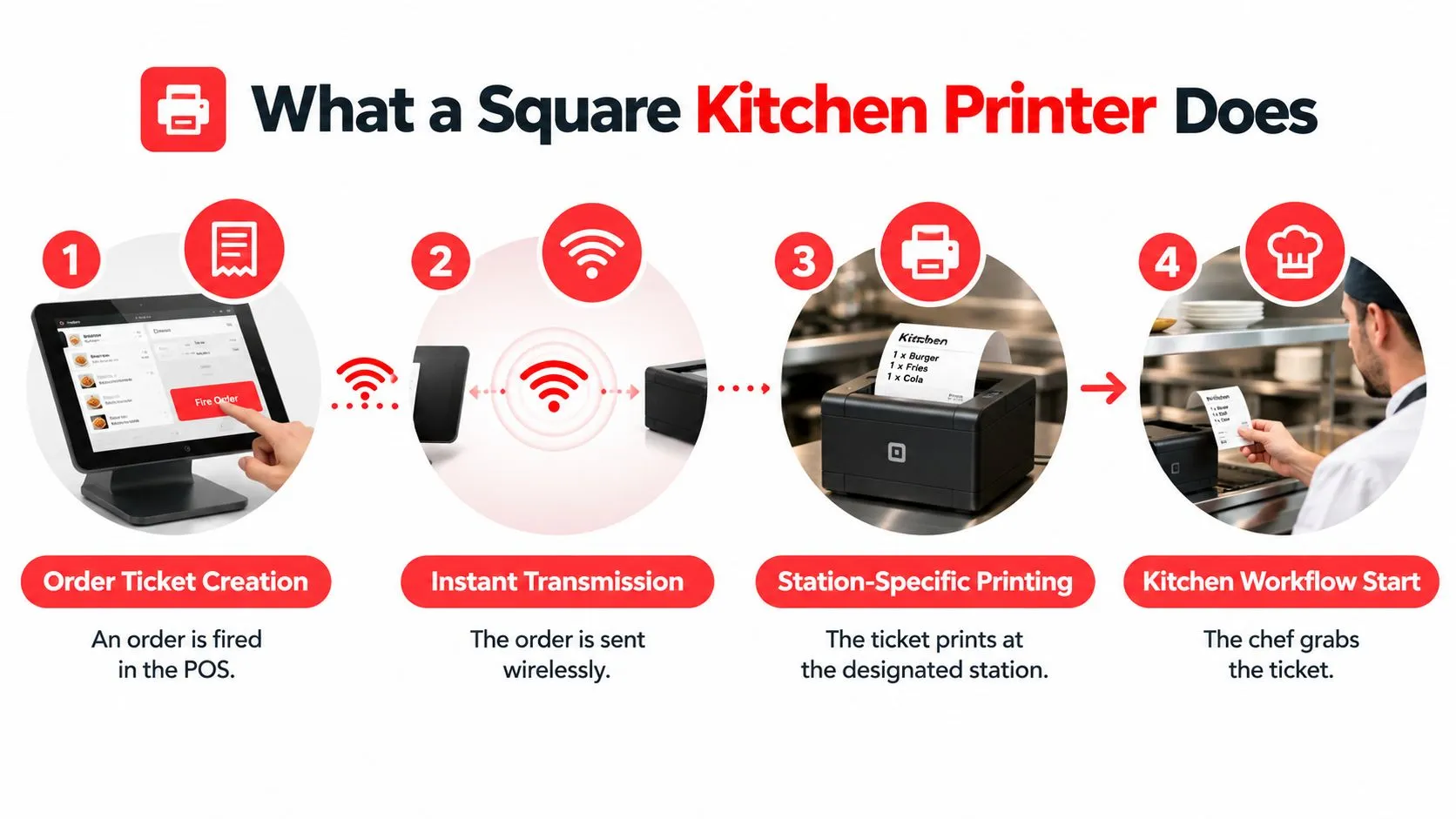
A Square kitchen printer turns Square orders into paper chits for the line, and the useful part is how it fits into service flow. Square’s compatibility documentation covers printers for receipts, in-person order tickets, online and kiosk tickets, ticket stubs, void tickets, and barcode labels, which is a good reminder that the same setup can support more than front-of-house receipts when the routing is built correctly. It also supports Ethernet, Wi‑Fi, USB, and Bluetooth, so the printer can receive tickets from different ordering sources without forcing the kitchen to rely on one path alone. Square printer compatibility documentation
The printer is the last link, not the brain
Square routes the order first, then the printer receives it. That makes the printer the final output point, while the decisions live in the POS, the station profile, and the routing rules. If a category prints in the wrong place, or tickets stop altogether, the printer usually gets blamed before anyone checks the setup upstream.
I start teams on three things: device profile, station, and routing rule. A printer can be perfectly fine and still fail the room if one of those pieces is off. During dinner rush, the line only cares that the right ticket lands fast, and the kitchen does not have time to sort out a misnamed profile or a missing station mapping.
Practical rule: if the ticket is wrong, check configuration before hardware.
For a broader look at how printers fit into the POS stack, Square’s own overview of point-of-sale printers is useful. In real service, the printer is one part of a larger workflow that also has to handle delivery orders, voids, and station-specific output without making cooks guess what belongs where.
Choosing the Right Hardware
A kitchen printer has to fit the room it serves. A fast-casual make line, an expo rail, and a full-service hot line all punish hardware in different ways, so the right choice depends on how tickets move during service. Square works with kitchen impact printers and kitchen thermal printers, and kitchen guidance from operators usually points to impact or dot-matrix models where heat, steam, and grease can shorten the life of thermal output. That is why durable ticketing models like the Epson TM-U220 and Star SP700 show up often in busy restaurant setups. A practical shortlist starts with the Square supported printer guide, then narrows to the printer that can survive your service environment. Square printer compatibility documentation
Match the printer to the station
A hot line that spits out tickets all shift needs different hardware than a quiet pickup counter. If the printer sits on a station that handles constant volume, a networked unit with a clean cable run usually holds up better than a setup that depends on staff remembering to reconnect it.
A quick comparison helps:
| Printer Class | Best Fit | Key Trade-Off |
|---|---|---|
| Ethernet thermal | High-volume lines and expo | Fast and quiet, but heat can be rough on output |
| Impact / dot-matrix | Kitchens that need durable chits | Louder, but better in harsh kitchen conditions |
| Bluetooth receipt printer | Low-volume counters | Compact, but range and battery are real limits |
Buy for the room you actually run
Square’s compatibility list cuts down on guesswork, but the room still decides the final setup. If cable runs are available, Ethernet is usually safer than Wi‑Fi in kitchens because it avoids the interference that comes from metal surfaces, appliances, and the traffic around a prep line. If you are financing a full refresh, a resource like best restaurant equipment loans can help you budget for the printer without treating it as a leftover purchase.
One rule I keep repeating: do not bury the printer behind the station screen. Put it where the ticket gets read, grabbed, and acted on.
For model matching and hardware compatibility, Square’s supported printer guide is the cleanest way to sanity-check the shortlist before anyone drags a consumer-grade device into the kitchen.
Connecting the Printer to Square
Dinner rush exposes bad printer setups fast. Tickets either flow cleanly to the right station, or they stall while staff start guessing at cables, IP addresses, and dashboard settings. The cleanest Square setup still follows a simple sequence. Power and network the printer, confirm it self-prints, add it in Square Dashboard, then assign it to a printer profile. Square’s setup guidance says to confirm the printer is plugged into power and Ethernet, then run an IP test by holding Feed while powering on. If the test slip shows 0.0.0.0, the printer is not getting an IP address and needs reprogramming. If it shows a valid IP, that address has to match the iPad’s network so both devices sit on the same network. Square printer troubleshooting guidance
Ethernet, Wi‑Fi, USB, and Bluetooth each fail differently
Ethernet is the least dramatic choice when the run is done right. Plug it into the router or a managed switch, then confirm the printer keeps the same address after reboots. Wi‑Fi gives more placement flexibility, but kitchens expose its weak points fast, especially around access points, thick walls, and metal surfaces near the line. USB works as a straightforward fallback for a single terminal, but it stops helping once tickets need to reach more than one station. Bluetooth stays useful mainly for a dedicated counter device, where range and reconnection are manageable.
Test the full path, not just the printer. Send a test order from Square and watch whether the chit lands where it should, then check the network path if it misses. A printer can be healthy and still fail service because the routing path is wrong.
The dashboard is where that path becomes visible. Open the dashboard devices view to bring the printer into the POS side of the workflow, confirm it appears correctly, and verify the device is tied to the right station.
What I check before I blame the printer
- Network identity: the printer and POS have to live on the same network.
- Address stability: the printer should hold its IP after rebooting.
- Station assignment: the printer must be tied to the right profile in Dashboard.
- Live ticket test: a test order should print where expected without a manual restart.
For teams building around multiple order sources, the Square developer API overview is the cleaner reference for how printer events sit inside broader POS behavior. That matters once delivery apps, in-house orders, and kitchen routing all have to land in the same flow.
Mapping Printer Profiles and Order Routing
A Square kitchen printer only helps if the ticket lands in the right place. Set up one printer profile per station, then route categories, modifiers, or specific items so each printer sees only the work it should print. Keep the station map simple enough that staff can explain it on a busy line. Square Orders API overview
Build the station map first
Hot line, cold line, bar, expo. Those are the usual stations, and each one should have a clear profile if the room needs it.
Test from the menu side, not just the hardware side. Send a sample item from each category and confirm it prints at the right station. A mislabeled item can make a good printer look unreliable during service, even though the routing is the underlying problem.
Third-party delivery changes the print path. Square says online and mobile orders can be pushed into Square POS and KDS through connected services, which means delivery tickets still need to land in the same station logic as in-house orders. Square also describes restaurants using its POS as an order fulfillment hub for connected online and app orders, so the routing plan has to account for marketplace tickets before the first rush hits. Square delivery integrations for restaurants
For operators who want delivery tickets to show up as standard Square orders, OrderOut’s Square delivery integration fits into that workflow. Its third-party order engine is built to inject marketplace orders into the POS path, which helps replace separate tablets and re-keyed tickets with one routed stream. For a broader look at how routing software fits into the kitchen flow, see this order routing software guide.
Keep delivery items inside the same print logic
DoorDash, Uber Eats, and Grubhub orders should follow the same station rules as anything entered at the counter. Modifiers, special instructions, and item splits have to survive the trip intact, or the printer setup just creates more handwork for the line.
The cleanest test is still boring. Send one item from each category, one delivery order, and one void if your workflow allows it, then confirm the right station prints the right ticket every time. If the menu map is clean, the printer stops being a mystery and starts acting like a predictable endpoint.
Designing a Resilient Routing Workflow
Too many kitchens add printers to solve confusion, then create more confusion. The better move is to design routing as a service flow, not a hardware count, because every extra printer adds another place where paper runs out, paper jams, profiles drift, or staff choose the wrong station under pressure.
More printers are not automatically better
If two stations share most of the same items, separating them can create duplicate prints and staff confusion. If the expo already acts as the central coordinator, a centralized print path may be simpler than spreading tickets across the room. The right answer depends on who reads the ticket, who fires the food, and how much cross-checking the line already does by habit.
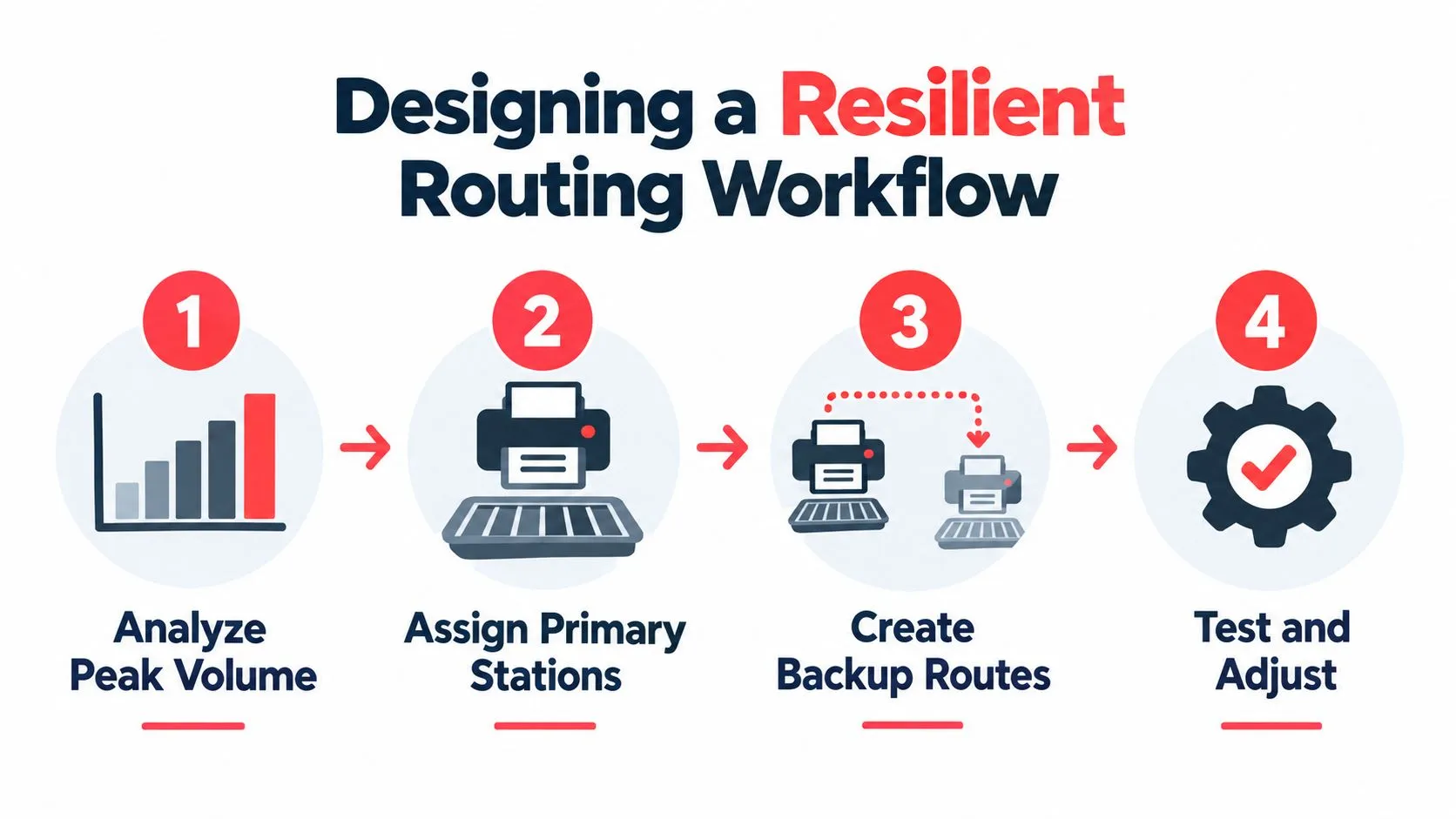
A useful way to think about resilience is failure mode first. Paper jam, network drop, and power loss should each have a clear response, because service doesn’t stop politely while someone argues about the printer. I’ve seen kitchens waste more time debating which printer “should” have printed than they spent fixing the actual route.
Practical rule: if the line can’t explain where a ticket should go in one sentence, the routing is too complicated.
Build backup routes before dinner starts
Square’s printer profile logic lets you make a station assignment in advance, which means you can also plan what happens if the primary station fails. The safer approach is to assign a backup profile to the next-busiest station so tickets reroute in a controlled way instead of vanishing into a dead queue. That’s especially useful when delivery, in-house dining, and bar tickets are all hitting the same POS in the same window.
For broader order-routing architecture, OrderOut’s order routing software guide is a helpful companion when you’re deciding whether the problem is printer sprawl or routing design. The hard truth is that a simpler print tree usually beats a clever one during peak service.
Troubleshooting Printer Failures
Dinner rush exposes weak links fast. A printer that worked at lunch can fail once the line starts pushing full ticket volume, so start with the simplest checks and move outward only when each layer passes.
Work from the physical layer up
Check power, paper, and the lid first. Thermal printers can go silent if the roll is flipped or seated badly, and that kind of mistake often looks like a network problem until someone opens the cover. If the printer will not produce a clean self-test or the feed feels off, fix that before touching the POS.
Then verify the network path. Square’s troubleshooting flow focuses on Wi‑Fi, Ethernet, printer discovery, and restarts, which is the right order because a router reboot or IP change can strand an Ethernet printer. If you can, ping the printer from a laptop on the same network, then re-enter the IP in Square Dashboard and send another test page. Square printer troubleshooting guidance
Check the queue before blaming the printer
A printer can be online while the job is stuck upstream. If tickets are not landing, look at the Dashboard queue for paused or errored jobs, then retest after any router change, iPad swap, or station edit.
For a broader reference, IT Cloud Global’s printer troubleshooting guide is useful for sorting out whether the fault sits in the device, the network, or the queue. I also keep this guide to printer connection issues handy because many “printer failures” are really connection problems that show up at the worst possible time.
Routing errors often look like hardware faults
If one station suddenly stops printing, inspect the category and modifier mapping before touching the cable. A new menu item in the wrong category can make a station look dead, or send the wrong items to the wrong printer. That is where routing setup and profile assignment matter most, because those settings drift when menus change and delivery channels are layered on top of dine-in tickets.
Third-party delivery adds another failure point. If those orders share the same print path as counter service, one bad mapping can choke the whole station. Keep delivery tickets routed with intent, and verify that the printer profile still matches the way the room runs.
Kitchen printers fail in patterns, not mysteries. Power, paper, network, queue, routing, then the delivery feed. That sequence keeps you from swapping hardware too early and helps you find the break before the line starts guessing.
Service-Ready Checklist and Next Steps
A restaurant-ready print setup is the one your team can trust at 6 p.m. without a manager hovering over it. That means the physical layer, software layer, and resilience layer all need a quick check before service, because printer problems rarely start where they’re noticed.
Use one pre-rush checklist
- Power and paper: the printer is plugged in, paper is loaded correctly, and the lid is fully seated.
- Network path: the printer shows a valid connection and stays on the same network as the POS.
- Profile assignment: the correct printer profile is tied to the correct station.
- Test ticket: a sample ticket reaches the right printer without delay.
- Failover plan: if the main station fails, the backup route is already defined.
Square’s setup guidance and printer profile logic make that checklist practical, not theoretical. The point isn’t to make the manager do extra work, it’s to make dinner rush boring in the best possible way. If the team can tick through those checks quickly, you’ve reduced the odds of discovering a routing issue while the ticket rail is already full.
Keep the setup visible and current
A weekly printer test in Square Dashboard is a small habit that catches drift before it turns into a service failure. I also like having firmware versions and station assignments written on a wall sheet near the line, because the information should be visible when someone new jumps onto the shift. If delivery platforms feed different prep stations, document that mapping in plain language where the team can see it.
Once the printers are stable, the next layer is usually KDS screens, cleaner modifier workflows, and reviewing how tickets move through the room during busy periods. Square’s restaurant tools, including printer profiles and delivery routing, give you the base, but the key win comes from keeping that base simple enough for every shift to run it the same way.
If your Square kitchen keeps losing tickets, printing to the wrong station, or forcing staff to juggle third-party delivery tablets, OrderOut can route Uber Eats, DoorDash, and Grubhub into Square as standard tickets and keep the print flow inside one POS. Visit OrderOut to see how delivery-to-POS integration fits into a kitchen setup that needs to stay stable during service.