
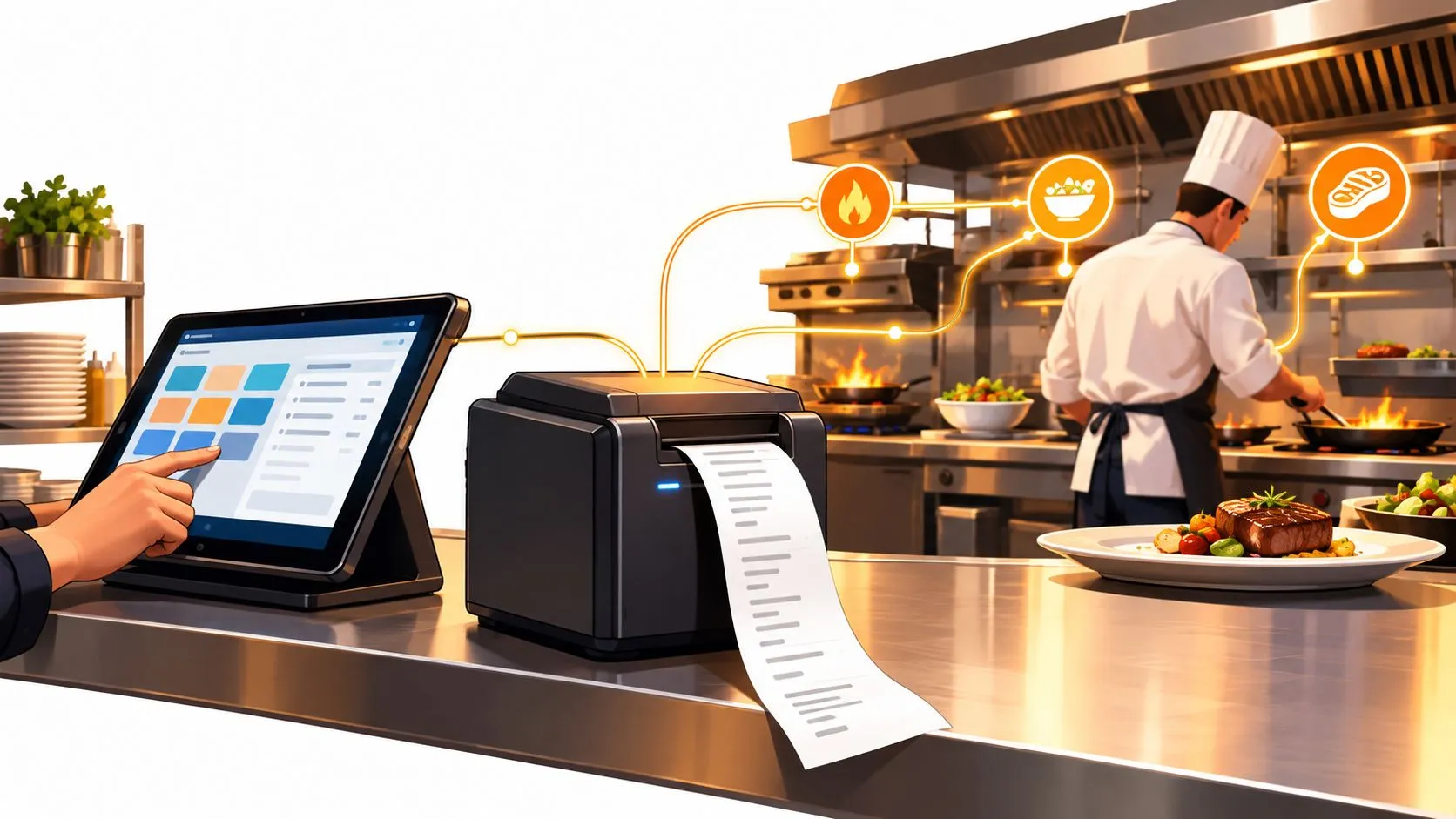
A kitchen ticket printer is a specialized restaurant printer that turns POS orders into paper tickets in the kitchen, and Uber Eats confirms a printer is not required to accept marketplace orders. It’s an optional convenience the restaurant buys separately. That challenges the usual advice to pick the fastest thermal model and be done. Speed doesn’t fix a ticket that fades over a fryer, routes to the wrong station, or arrives garbled because a marketplace modifier never mapped to your POS catalog.
What a Kitchen Ticket Printer Does in a Restaurant
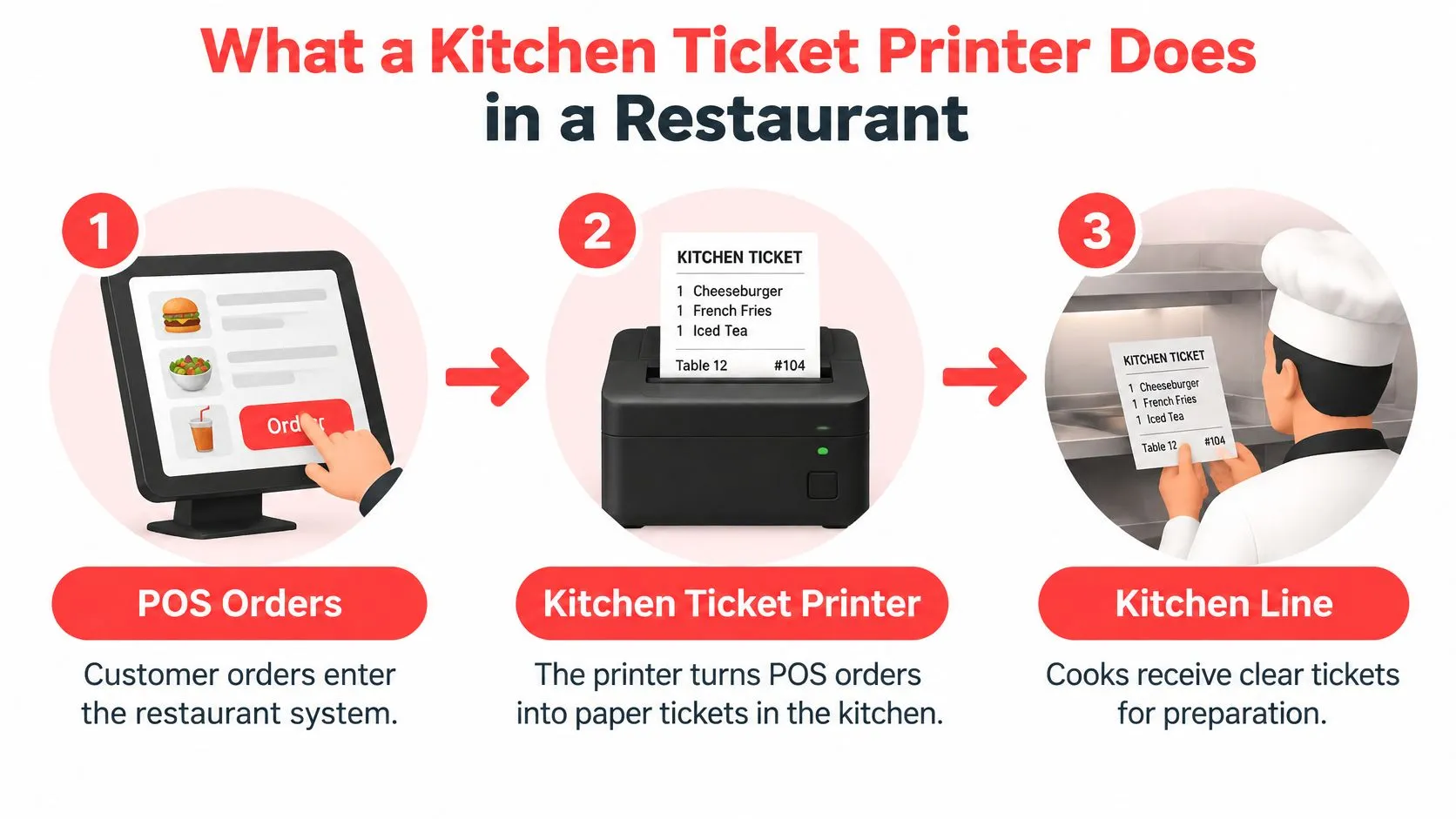
A kitchen ticket printer sits at the end of your order flow. Staff ring an order at a terminal, your POS sends it to the back, and the printer produces the paper ticket your cooks work from. It’s not the receipt printer at the counter, and treating it like one causes most early mistakes.
That workflow is older than most operators realize. A history of restaurant kitchen printing systems identifies 1981 as the year the first restaurant order printing system was patented, before kitchen display system became common language in the late 1990s. The core job hasn’t changed. Front-of-house staff enter an order once, and it prints where the food gets made.
Why It Counts as Automation
The gain is simple. Servers stop handwriting tickets and stop carrying paper to the cooking area. Orders reach the line legibly, with modifiers in a consistent format, so cooks aren’t decoding handwriting during a rush.
It also explains why kitchen hardware diverged from counter hardware. Direct thermal paper can perform poorly around grease and heat, which is why many older installations used impact printers on plain paper. Some impact models printed in black and red from a two-part ribbon, so modified or urgent items stood out. That design history still shapes what belongs near a grill today.
Optional Hardware and Honest Expectations
You don’t need a printer to sell on a marketplace. Uber Eats states in its printer requirement guidance for merchants that restaurants can run without one by keeping the tablet in the kitchen with the volume up. So frame the purchase correctly. You’re buying fewer missed details and a cleaner handoff, not permission to take orders.
Where screens fit is a separate operational decision, covered in this overview of restaurant kitchen display systems. Paper and displays can also coexist, with paper anchoring stations where a ticket needs to travel with the food.
Practical rule: buy a printer to fix a specific handoff problem you can name, not because a marketplace implied you had to have one.
Thermal and Impact Printers by Station Environment
Most buying guides ask the wrong question. It’s not which technology wins. It’s which stations need different technologies, because your expo pass and your fry station are different environments with different failure risks.
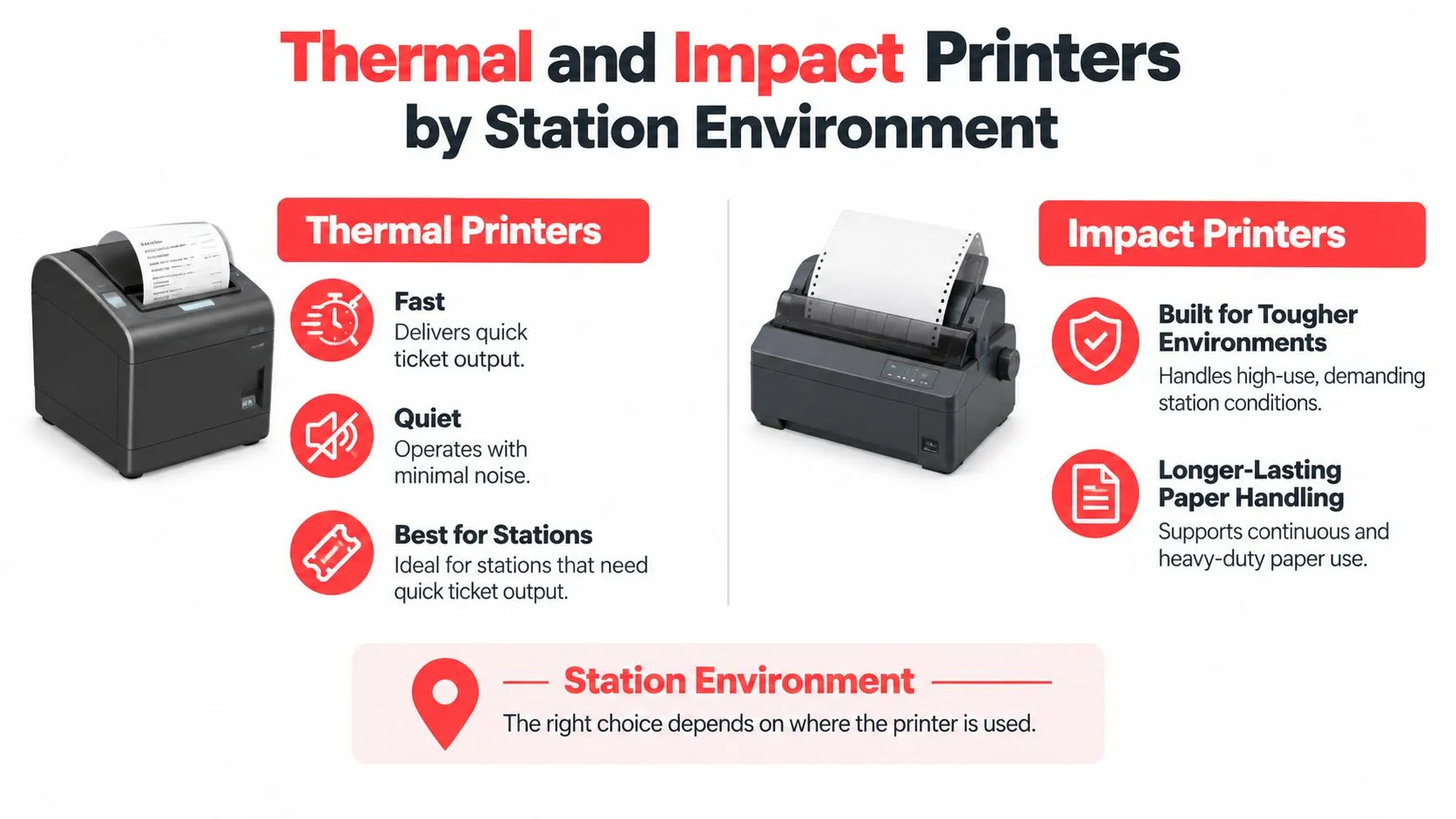
Thermal is the dominant choice now. A kitchen printer market report from MarketIntelo puts thermal at 52.3% of global kitchen printer market share in its 2025 estimate, with restaurants at roughly $422 million in annual revenue and 35.2% of demand. The appeal is operational. There’s no ink or ribbon to replace, and output is fast in high-volume service.
Matching Technology to Microclimate
Thermal printers are quiet and fast, but heat, grease, steam, and moisture can reduce ticket readability. Impact printers are slower and louder, yet they often hold up better near cooking equipment. A station-based kitchen printer selection guide supports splitting the decision by location rather than standardizing blindly across the whole kitchen.
A workable default looks like this:
- Protected stations: use thermal at expo, beverage, or assembly, where tickets stay away from direct heat and get handled quickly.
- Hot stations: consider impact near grills and fryers, or anywhere a ticket must remain legible through a longer prep interval.
- Wet stations: keep either technology out of direct steam paths, because placement often matters more than the print mechanism itself.
Run the Environmental Failure Test
Don’t judge legibility at the moment the ticket prints. Record your hottest and wettest spots, place sample tickets there during an actual rush, and check them after the longest realistic prep time. That’s the condition your cooks face, and it’s the test most spec sheets never simulate.
Consolidated delivery volume makes this test matter more, not less. When marketplace orders stack onto dine-in tickets, tickets wait longer and get touched more. A ticket that printed correctly can still become unreadable before the order is finished, and your team pays for that with a remake or a shouted clarification across the pass.
Specifying the Complete Print Path Before You Buy
Speed is the easiest spec to sell and the least useful one to buy on alone. What fails in production is the complete print path, meaning paper width, feed mechanism, cutter, network connection, and how the printer behaves when ten tickets land at once. Specify all of it before you spend anything.
Start with paper. If your tickets carry modifiers, allergy notes, and routing metadata, 80 mm rolls give the line room to read without truncation. Selecting 58 mm stock for long modifier strings is a classic self-inflicted wound. It saves nothing and costs you clarifications on every complex order.
| Specification | Target | Why It Matters |
|---|---|---|
| Paper width | 80 mm | Fits modifiers, allergy notes, and routing detail |
| Print speed | At least 250 mm/s | Clears ticket bursts during peak service |
| Paper thickness | About 0.053 to 0.085 mm | Matches feed and cutter tolerances |
| Loading style | Drop-in with friction feed | Faster reloads with fewer jams mid-rush |
| Connectivity | Ethernet at install point | Stable delivery from POS to printer |
For a concrete reference point, the Epson TM-T20III specification sheet lists 250 mm/s printing, 80 mm paper, a 360,000-hour MTBF, 60 million lines MCBF, and a 1.5-million-cut cutter rating. Treat those as manufacturer laboratory ratings, not promises about your kitchen. They help you compare models. They don’t guarantee your Friday night goes smoothly.
Test Under Load and Not One Ticket
Your acceptance test should measure what breaks service. Fire simultaneous tickets from every ordering channel and check end-to-end latency, missing characters, duplicate tickets, cutter jams, and recovery after a network interruption. A single test order tells you almost nothing, because printers rarely fail on the easy case.
Placement belongs in the same test. A printer parked where steam or grease contaminates the mechanism will degrade no matter how good the spec sheet looks. Validate connectivity at the exact installation point too, not from the office. These checks connect directly to the broader POS system requirements for restaurants, since the printer only performs as well as the system feeding it.
A printer that handles one clean test ticket has proven nothing. Burst it, interrupt it, and watch how it recovers.
How Delivery Orders Reach the Printer Through POS Integration
The printer is the last step, not the first problem. Before any ticket exists, a delivery-to-POS integration has to translate marketplace menu data into the catalog structure your POS understands. If that translation is sloppy, the printer faithfully prints bad information at high speed.
The working sequence is consistent across platforms. Systems get authorized, menu items and modifiers get mapped, the order routes, and status events get confirmed back. For Square, a restaurant POS API overview notes integrations are enabled through the App Marketplace or Dashboard, and incoming delivery items must associate with Square catalog objects before they enter the normal workflow.
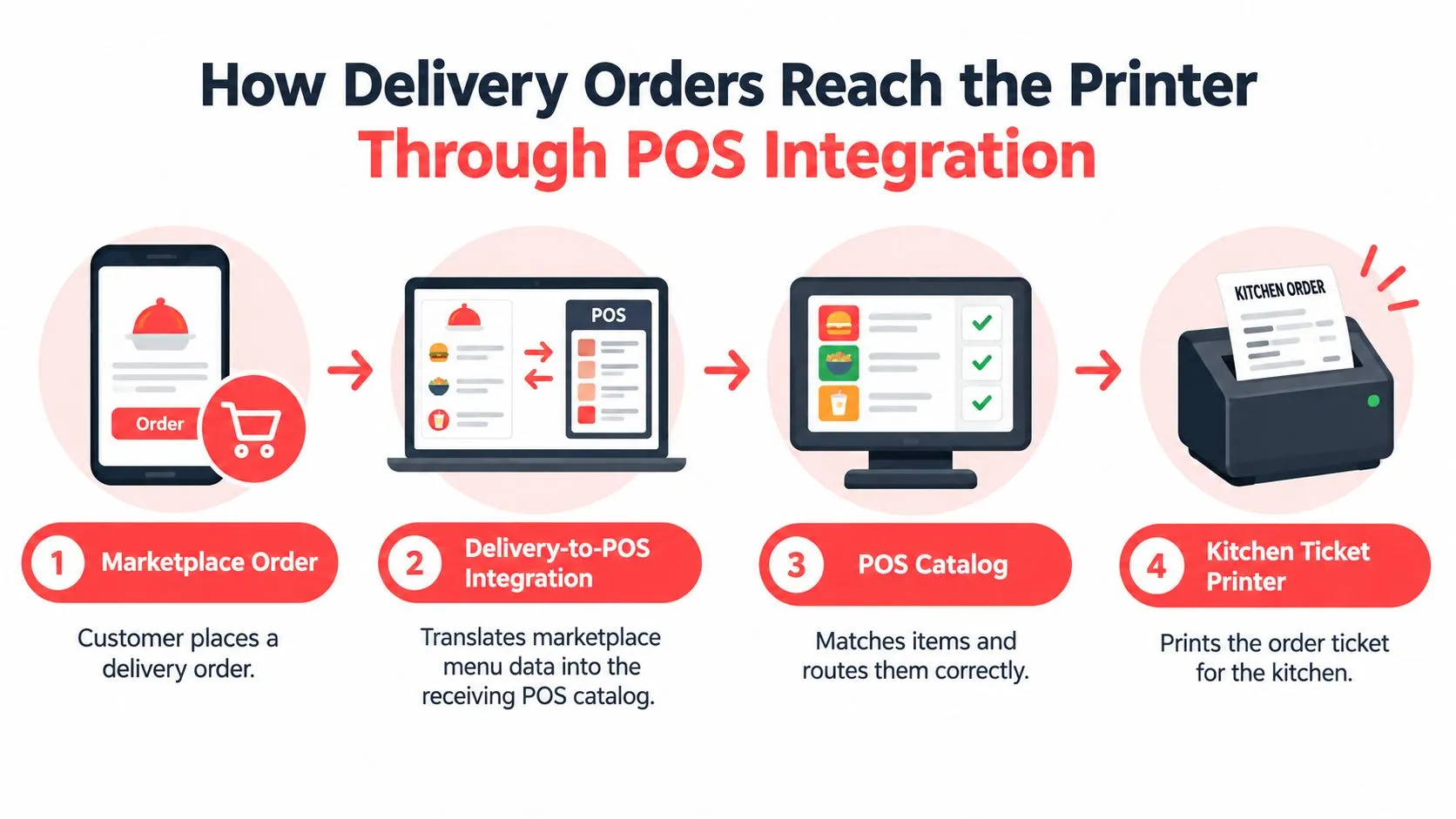
On Clover, a consolidated order integration explanation describes how the Orders API supports in-store and online orders, with line items, modifiers, discounts, and service charges carried in a single request. That’s what turns a DoorDash or Grubhub order into a Clover-compatible ticket instead of a re-keying task. If the underlying concept is new to your team, understanding business systems integration is a useful plain-language primer before you wire anything together.
Tablet Workflows Versus Injection
Compare that with the tablet model. An order lands on a dedicated device, someone reads it, then someone re-keys it into the POS so the kitchen ticket exists. Every manual touch is a chance to drop a modifier or transpose a quantity, and during a rush those touches are exactly what your staff don’t have time for.
OrderOut fits at the mapping layer. It normalizes each marketplace menu to your Clover or Square schema so orders inject into the POS your kitchen already runs on. That’s why menu hygiene matters before a printer ever fires. Clean item names and mapped modifiers produce readable tickets, and the details of that connection are covered in this guide to POS integration with Uber Eats.
Installing and Routing Tickets to the Right Station
Installation is mostly decisions, not tools. Decide which prep areas get their own printer and which share one, based on where food gets made. A single shared printer sounds cheaper until two stations are fishing through each other’s tickets during service.
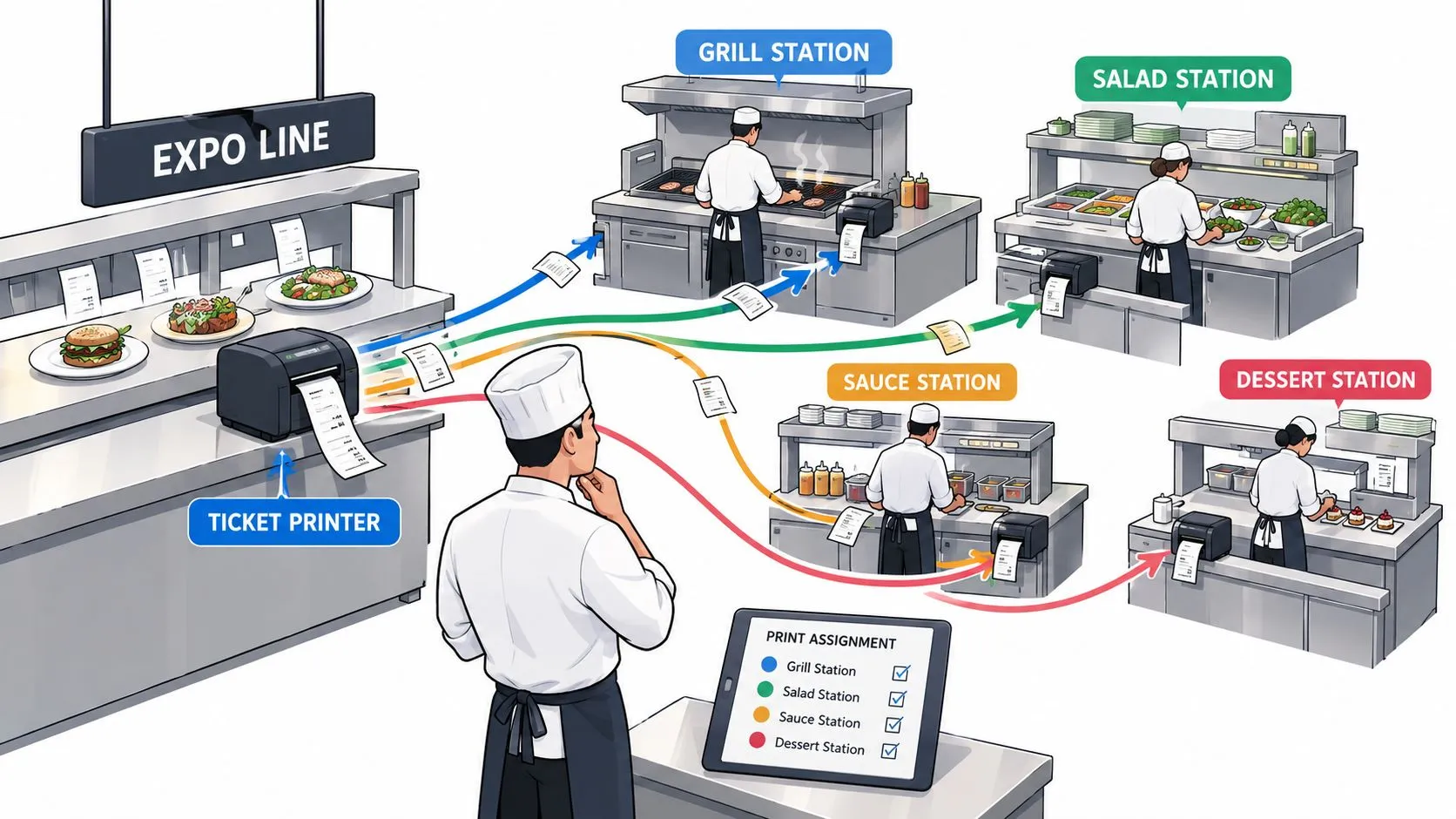
Routing is what makes multiple printers pay off. An HP overview of kitchen printer capabilities notes that items from one POS order can print to separate stations, so a burger prints to the kitchen while a beer prints to the bar. Set those routes deliberately, then test them with mixed orders, not single-item tickets.
Network Placement and Menu Hygiene
Validate Ethernet or equivalent connectivity at each install point, keep units out of steam and grease zones, and confirm queued tickets survive a brief network interruption. A printer that loses its queue during a blip creates silent missing orders, which surface as angry customers rather than error messages.
Menu mapping is the other half. Your printer can only route what your POS catalog describes correctly, so unmapped modifiers and ambiguous item names produce tickets that print fine and still confuse the line. The routing principles behind this are laid out in this order routing definition and explainer.
The walkthrough below shows how an integrated setup behaves once routing is configured.
Paper also handles jobs screens don’t, including the takeout bag-and-ticket workflow where the ticket travels with the order. Printers also carry a lower upfront cost than a full display setup. When you’re ready to connect delivery channels to that hardware, start from the OrderOut listing on the Clover App Market or the OrderOut listing in the Square App Marketplace.
Troubleshooting Reliability with a 30-Day Ticket Audit
Replace vague maintenance advice with counters you can track. Record printed lines, cutter operations, and paper-roll changes as three separate numbers. Together they tell you how hard each printer is working, which is the only honest basis for deciding when to service or replace a unit.
Start with baseline daily ticket volume, project your annual lines, and compare that workload against the printer’s rated MCBF. Don’t treat MTBF as a failure guarantee, because it isn’t one. Inspect print density and cutter performance weekly, and act on early symptoms instead of waiting for a complete outage during service.
What the Ratings Do and Do Not Tell You
The Epson TM-m30III specifications list 300 mm/s printing, 203 dpi resolution, 65 million lines MCBF, a 360,000-hour MTBF, and a 2.2-million-cut cutter rating. Those figures support capacity planning. They don’t give you a field failure percentage, and they can’t account for heat, humidity, grease, incompatible paper, power interruptions, or network faults in your specific kitchen.
That gap is why your network practices deserve the same scrutiny as the hardware. Printers are network devices, and the fax security insights from RDE Technologies make a good reminder that unattended print hardware carries risks beyond paper jams.
Running the Audit
Run a 30-day ticket audit. Sample every printer, reconcile POS orders against printed tickets, and sort each failure into printer, network, configuration, or human handling. Calculate missing-ticket and duplicate-ticket rates separately, because they have different causes and different fixes.
The pitfall to avoid is reporting printer uptime alone. A ticket can print and still be a failure if it’s unreadable, truncated, routed to the wrong station, or delayed past your service threshold. When the audit points at the connection layer, work through this breakdown of printer connection issues in restaurants before you replace hardware that was never the problem.
Measure tickets, not uptime: a printed ticket your cook can’t read is a failed ticket, and your audit should say so.
Choosing Paper and Taking the Next Step
The most overlooked decision isn’t the printer. It’s the paper. Swapping BPA-free stock for BPS-containing stock may not resolve chemical concerns, since BPS is widely used as a BPA substitute and has drawn attention for skin absorption and potential endocrine effects, as discussed in a Perpetual summary of BPS receipt paper advocacy.
California settlement language published in 2025 defines BPS Free thermal paper as containing less than 200 parts per million of BPS or BPA, with neither substance intentionally added. Keep your checklist short and enforceable:
- Request documentation: get a current certificate or compliance statement from your supplier.
- Verify both chemicals: never assume BPA-free means bisphenol-free.
- Train handling habits: have staff minimize unnecessary contact with printed tickets.
The good news is that changing paper media generally doesn’t require replacing a compatible thermal printer, though formulation and supplier documentation still matter. So the full picture comes together like this. Match printer technology to each station, specify the complete print path, route delivery orders through POS integration instead of re-keying, audit tickets monthly, and buy paper you can verify. Do those five things and the humble kitchen ticket printer stops being a point of failure and starts being the most reliable device on your line.
Put the printer to work on orders that arrive correctly in the first place by connecting Uber Eats, DoorDash, and Grubhub straight into your Clover or Square POS, so tickets print from clean, mapped data instead of hurried re-keying. Start onboarding for free in a few clicks through OrderOut and let the dashboard at dashboard.orderout.co handle the delivery channels while your kitchen handles the food.