
Square POS integration for delivery sends DoorDash, Uber Eats and Grubhub orders straight into the Square register as tickets, with no extra tablet and no re-keying. Square POS integration with QuickBooks is an accounting topic outside this guide’s scope; this guide addresses the nearest operational need, getting delivery orders into Square correctly.
During the dinner rush, a connected account isn’t enough if the cook never receives the ticket. The useful test is whether the customer’s item, modifier and fulfillment choice reach the right kitchen station without someone translating an order from a tablet.
Why Square POS Integration Removes Tablet Re-Keying
Say your cashier is helping a walk-in customer when a DoorDash order arrives. Another employee reads the delivery order aloud while the cashier enters it into Square, leaving room for a missed sauce, an incorrect variation or a ticket nobody sends to the kitchen.
Restaurants connect Clover or Square so online orders land in the same workflow as their in-store sales. Square stays the operational source of truth for the check and kitchen workflow instead of becoming a second record that staff must recreate.
Automatic order entry removes the transcription task, not the need to check setup. Our explanation of manual delivery order entry errors covers why copying between screens creates avoidable mistakes.
A connection is ready for service when the kitchen can prepare the order from its ticket without checking another screen.
That requires an authorized Square account, correctly mapped menu items and working printer assignments. If any part is wrong, the account can look connected while the service workflow remains broken.
Keep the accounting project separate. Bookkeeping and Accounting of Florida Inc.’s resource on accounting software connections for growing companies is useful context for that work. For the distinction, Intuit’s Square integration documentation describes an import into QuickBooks, not an operational connection that changes Square menus or routes delivery orders.
Menu and Prerequisite Checklist Before Connecting Square
A connection can be authorized while the menu still sends the wrong choice to the kitchen. Before linking a delivery marketplace, check who can approve access, whether the relevant store accounts are active, how menu selections match Square items, and where tickets print. Do the checks at the restaurant, with the Square account manager available.
Pre-connection checklist for Square and delivery marketplaces
| Prerequisite | What to Verify | Why It Matters |
|---|---|---|
| Square owner or admin access | The login can authorize third-party apps and manage the location | Without approval, the connection cannot be completed |
| Delivery store accounts | Active merchant logins for DoorDash, Uber Eats and Grubhub, for the channels you use | Orders cannot route from an inactive marketplace store |
| Menu completeness | Every sellable item has a name, price and category in Square | Unmapped items may not reach the expected ticket workflow |
| Modifier structure | Groups for sizes, add-ons and sauces are clearly named and consistently arranged | Mismatched modifiers can produce incorrect or incomplete tickets |
| Kitchen printers | Ticket printers are powered, online and assigned to the right prep station | A ticket can enter Square without reaching the line |
| Order types | Pickup and delivery settings match how the team fulfills orders | Incorrect order types can confuse staff at handoff |
Prepare Square items for delivery menu mapping
The integration must identify which Square item each marketplace selection represents. A similar display name alone does not confirm a match. Separate records may look identical to staff while referring to different items, and a modifier may be attached to the wrong group despite having the right wording.
Use names the kitchen can distinguish, and keep each menu selection connected to its intended Square item. Before removing a duplicate, check whether another active menu or workflow still uses it. For a closer look at keeping delivery listings aligned with the restaurant menu, see delivery menu synchronization.
- Item names: Make the base item clear before adding promotional descriptions. A cook should be able to tell a Turkey Club from a Turkey Melt without opening another screen.
- Variations: Keep sizes and other product variations attached to the right item. A free-text note is not a substitute for a required selection.
- Modifier groups: Use consistent groups for bread, sauces and add-ons so the customer’s choice appears in the right place.
- Required choices: Check that marketplace options include the decisions the kitchen needs, such as a side selection.
Menu mapping affects what staff prepare, so treat the menu as operational data, not just customer-facing copy.
For example, Square may offer “no mayo” for a Turkey Club while the marketplace does not. The connection cannot be assumed to infer the customer’s intent. Align the available selections, confirm which Square item and modifier each one maps to, and check how the instruction appears on the kitchen ticket.
Check the reverse case as well. If a marketplace has an add-on that is absent from Square, the label alone does not provide a valid destination for the order. Resolve the mismatch before accepting orders, or the requested choice may not reach the ticket as intended.
Check Square printer routing at the counter
A menu category does not confirm where a ticket will print. Review the printer or printer-profile settings for the restaurant location, including which categories go to each prep station. Then send a local ticket through the hardware before adding marketplace orders.
Use these checks at the counter:
- Station assignment: Confirm that sandwiches go to the sandwich station and drinks go to the intended beverage station.
- Ticket readability: Check that long item names and modifier details remain easy to distinguish on paper.
- Fulfillment labels: Make sure staff can identify pickup versus delivery and tell which order is being handed off.
- Physical readiness: Check power, paper, connectivity and whether staff will notice incoming tickets.
A printer that fails on an in-store ticket will not become reliable when delivery orders are connected. Fix the hardware or routing issue first.
Finally, review the customer-facing menu on a tablet or phone. Read each item as someone choosing lunch, then check whether the resulting ticket gives the kitchen the details needed to prepare it. After menu edits, verify prices and availability on the published marketplace listing rather than assuming every change has appeared.
How to Connect DoorDash and Uber Eats to Square
Keep the restaurant’s location name and marketplace store details beside you during authorization. The connection must point to the kitchen fulfilling the order, not just the first location shown in an account.
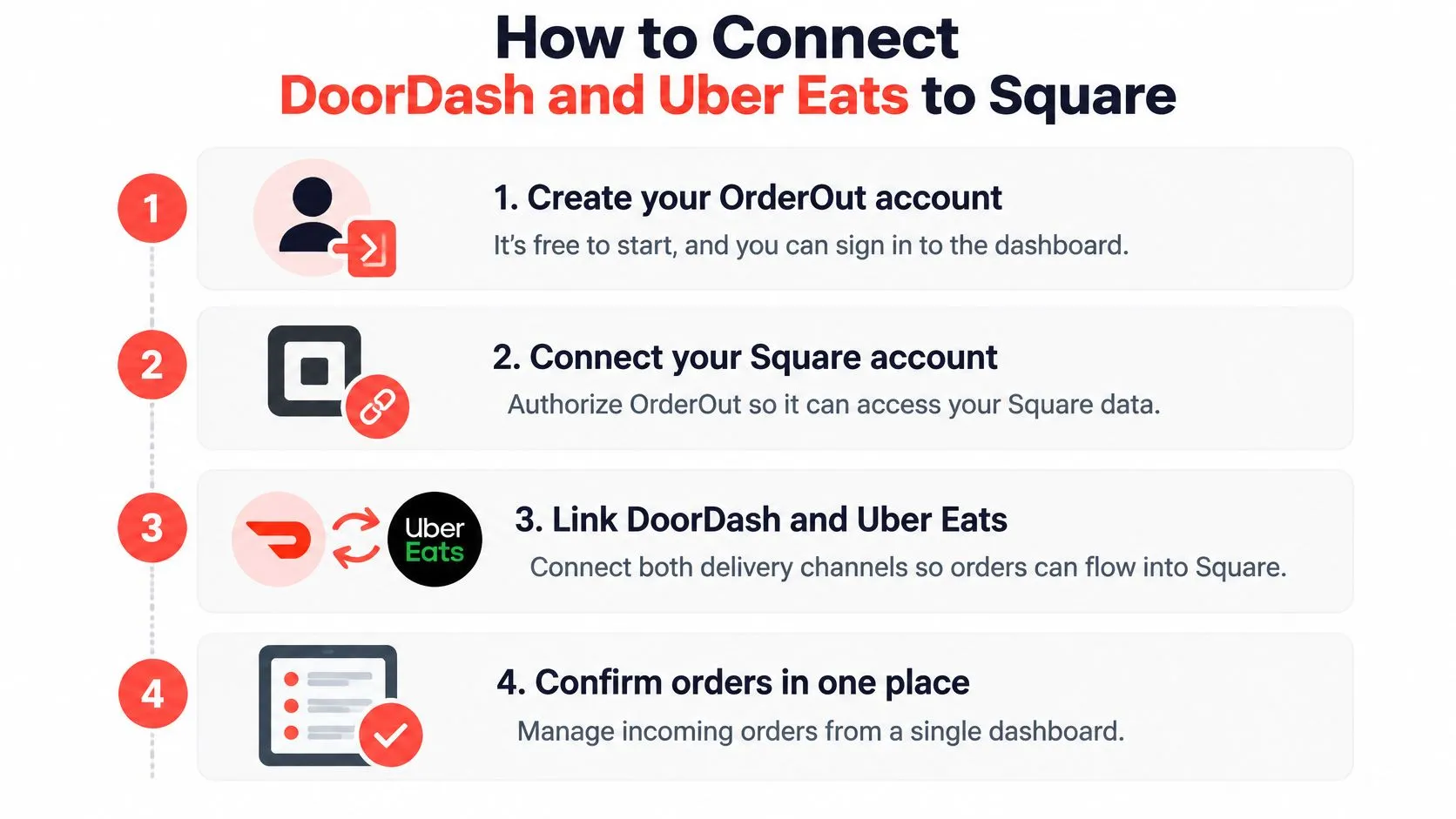
This visual summarizes the connection sequence; the menu and printer checks still determine whether it’s ready for service.
Authorize Square and connect marketplace stores
- Create your OrderOut account and sign in. It’s free to start. Use an account the restaurant can continue to access rather than credentials tied to an employee who won’t manage the connection.
Before authorizing Square, open OrderOut’s Square App Marketplace listing to start the installation.
-
Connect Square and authorize access. Use the owner or administrator login checked earlier, then verify the intended restaurant location. Selecting the wrong branch can leave staff looking for an order at the correct register while it’s associated with another location.
-
Add or confirm the menu. Check that sellable items and their modifiers have the intended mappings before accepting delivery traffic. Don’t mistake a menu appearing in the dashboard for confirmation that every customer choice is mapped correctly.
-
Connect each marketplace store you use. Match the DoorDash, Uber Eats or Grubhub store to the Square location that prepares its orders. Similar store names deserve an address check, especially when an owner manages several branches.
-
Enable the first channel you want to route. Leave the others out of the initial test so you can isolate the source of a problem. Enabling every marketplace together makes a routing fault harder to diagnose.
-
Submit a test order through the enabled marketplace. Confirm that it appears in Square and prints at the expected station, then inspect the item, variation, modifier and fulfillment details. Repeat that acceptance check as you enable each remaining channel.
Verify the intended Square delivery workflow
Use OrderOut’s Square delivery integration page for the Square connection context and DoorDash-to-Square order routing for that specific channel. For broader routing context, the third-party order engine overview explains the delivery-to-POS approach.
For Uber Eats-specific preparation, consult the guide to connecting Uber Eats with a POS. Keep marketplace order routing distinct from direct online ordering: creating an account, connecting Square and adding a menu are shared setup tasks, but a branded ordering page doesn’t replace authorization of your marketplace stores.
Use the accompanying walkthrough while checking the connection against your own restaurant’s settings.
Start With One Marketplace Before Going Live
Start with DoorDash, or whichever marketplace your team can monitor most closely during the first service. A controlled rollout gives the manager a clear source to investigate if something doesn’t match.
After the test ticket passes, inspect incoming live orders from that channel. Compare the marketplace order with the Square record and the paper the cook receives, not just the dashboard’s connection status.
Accept the channel only after checking the ticket
- Customer selection: Confirm that the item, variation and modifiers preserve what the customer ordered.
- Price: Compare the order with the published marketplace price, accounting for any intentional channel-specific pricing.
- Prep destination: Check that each station receives what it needs without unnecessary duplicate production tickets.
- Handoff: Verify that staff can identify the order and its fulfillment method without returning to a delivery tablet.
Go-live rule: Don’t expand the rollout while staff still need to translate or repair the first channel’s tickets.
Once that workflow is dependable, enable Uber Eats and then Grubhub, applying the same acceptance checks to each. The deliberate start isn’t wasted effort. It prevents a manager from changing menu mappings, printer settings and channel connections at the same time without knowing which change helped.
The guide to connecting multiple delivery apps to a single POS provides additional rollout context. If an order looks wrong, return to the specific customer choice and its destination before disconnecting an otherwise working account.
Fixing Missing, Duplicate and Mismatched Delivery Orders
When a delivery order never appears in Square, establish whether it’s absent from Square entirely or merely missing from the kitchen printer. Those are different failures, and reconnecting the channel won’t repair an offline printer.
Check the channel connection first, then item mapping, then printer routing. After changing a setting, send a test order that reproduces the original problem rather than assuming a normal-looking dashboard proves the repair.
Delivery order symptoms, likely causes and fixes in Square
| Symptom | Likely Cause | First Fix |
|---|---|---|
| Order never appears in Square | Item not mapped or channel disconnected | Check item mapping and the channel connection, then send a test order |
| Duplicate ticket prints | Same order routed twice or printer set to reprint | Review channel routing and printer settings for that station |
| Wrong or missing modifier | Modifier names or mapped groups differ between Square and the marketplace menu | Align modifier names and groups, then verify the actual mapping |
| Sold-out item still accepted | Availability change hasn’t reached the customer-facing marketplace listing | Mark the item out of stock in Square, then confirm the marketplace updated |
| Kitchen printer stays silent | Printer offline or assigned to the wrong prep station | Check printer power and connection, then correct the station assignment |
| Price on order differs from menu | Square price change hasn’t reached the published listing, or channel pricing differs intentionally | Review the intended channel price, refresh or republish as appropriate, and verify the listing |
Separate printer faults from Square order faults
For a duplicate ticket, compare the order identifiers before changing anything. Separate Square records suggest a different problem from the same order printing at several stations, and a deliberate station copy isn’t necessarily an unwanted duplicate.
Avoid immediately re-entering an apparently missing order. First search Square and confirm whether the kitchen has already started it; otherwise, a recovery attempt can cause duplicate preparation.
Printer power, paper and station assignments can often be corrected directly at the counter. Modifier problems need a more careful menu audit because renaming a label doesn’t necessarily repair the underlying item relationship.
Keep a useful delivery error log
Record the marketplace, store location, order identifier, affected item and time the problem occurred. Include what appeared in Square, what printed, and the setting you changed before retesting.
A photo of the ticket paired with the marketplace order detail is more useful than a note saying the integration failed. Remove customer information that support doesn’t need, and avoid making unrelated changes while investigating.
If the ticket is correct but the totals you’re comparing still differ, use the guide to reconciling delivery order differences to structure that comparison. Don’t alter kitchen mappings merely to make unrelated reporting figures agree.
Frequently Asked Questions
Does OrderOut work with Square?
Yes. Square is a native integration alongside Clover. Authorize the correct location and validate its menu mappings and kitchen output before treating the connection as ready for service.
Do I need an extra tablet for DoorDash orders?
No. DoorDash orders route into the connected Square POS as standard tickets and can print on existing kitchen hardware without manual re-entry. The printer still needs the correct station assignment and a working connection.
Can I connect Uber Eats and Grubhub as well as DoorDash?
Yes. The delivery-to-POS integration supports Uber Eats, DoorDash and Grubhub. Validate each marketplace store separately because its menu selections and location association still need checking.
What should I do if an item doesn’t show up in Square?
Use the missing-order row in the symptom table to check item mapping and the channel connection before repeating the test.
Does a working Square connection mean the kitchen is ready?
No. Authorization confirms access, but it doesn’t demonstrate that a complex order reaches the intended prep station correctly. Test customer choices and printed output, and consult OrderOut’s delivery integration FAQs for further setup questions.
OrderOut routes marketplace orders into Square so staff can work from POS tickets instead of copying delivery orders between screens. Visit OrderOut to explore the connection, then onboard free in the OrderOut dashboard in a few clicks. Start with a prepared menu and an observed test ticket before expanding to the rest of your delivery channels.