
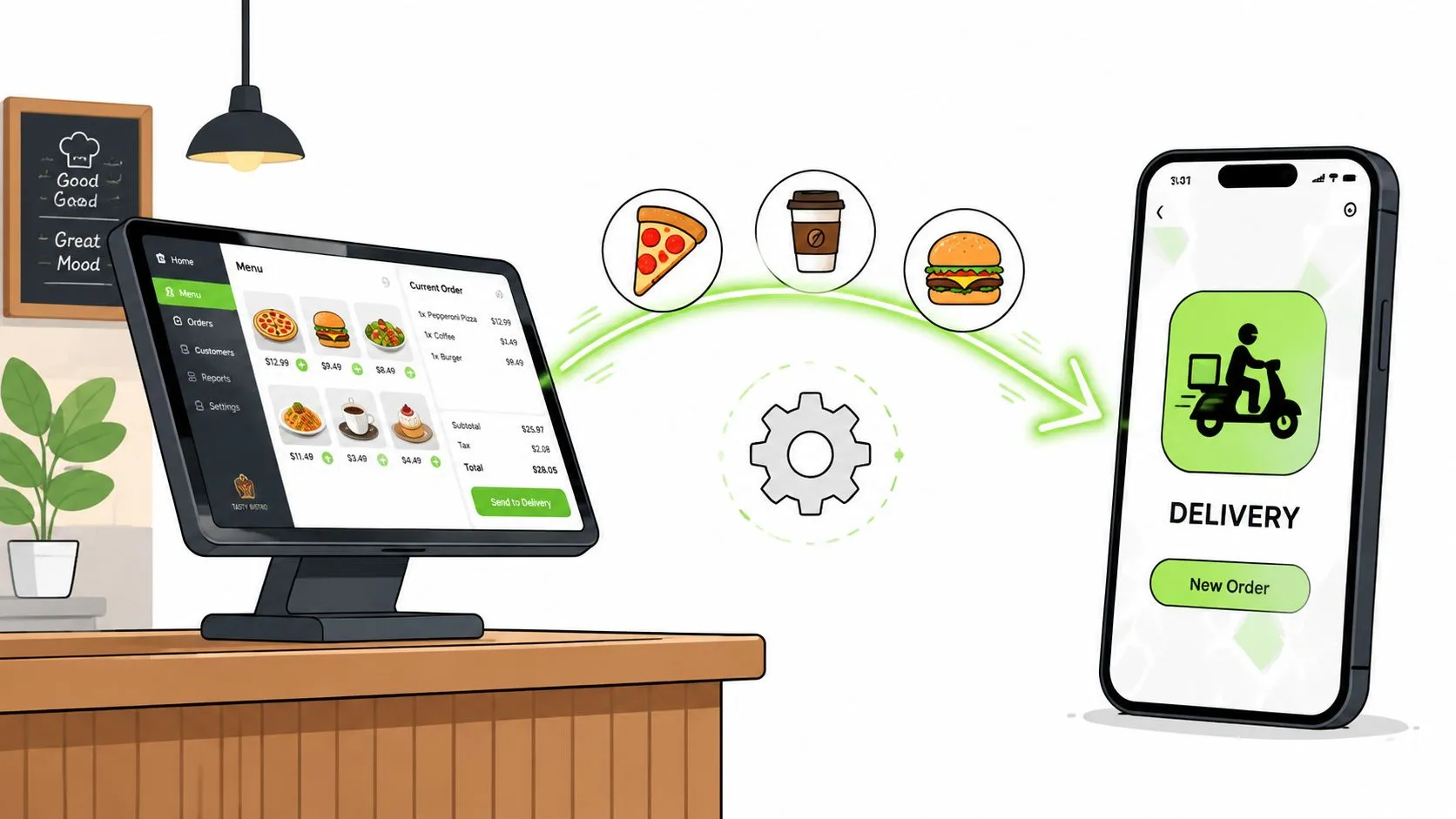
POS integration with Uber Eats connects Uber Eats orders directly to a restaurant’s POS, so they flow in automatically without a separate tablet or manual re-keying. For large operators, that coordination matters: Uber Eats reported working with more than 400,000 restaurants and merchants across more than 6,000 cities in 2020, including 9,500+ grocery merchants in over 30 countries. (Uber)
The practical difference appears during a busy shift. Instead of watching an Uber Eats tablet, copying every item into Clover or Square, and hoping modifiers, prices, and availability match, the restaurant receives a structured ticket inside its normal POS workflow. That sounds like a simple connection, but production reliability depends on much more than order import. Menus, modifiers, store status, authentication, webhooks, kitchen routing, and cancellation paths all have to agree.
What POS Integration With Uber Eats Actually Does
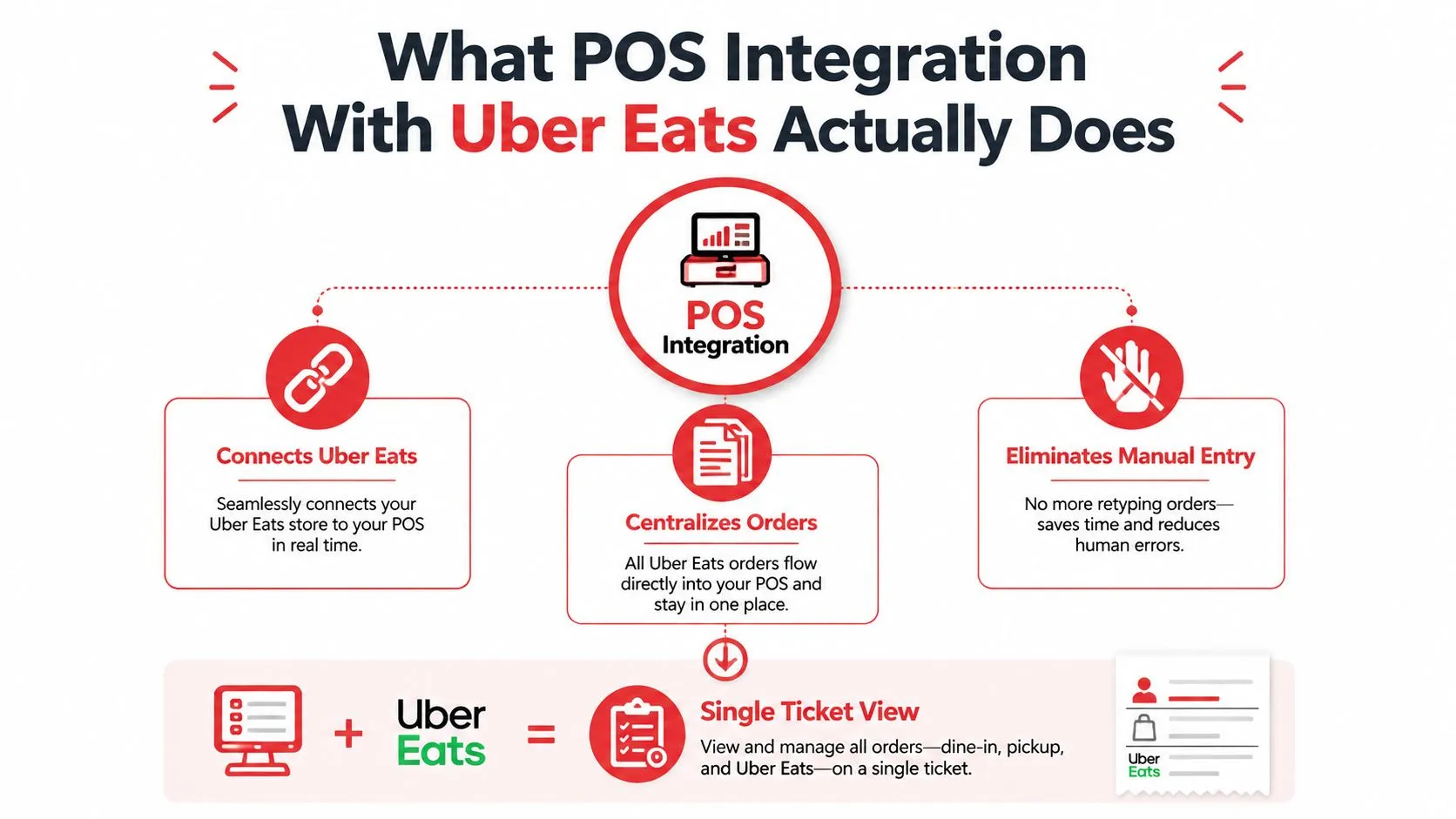
A POS integration with Uber Eats connects the marketplace to the restaurant’s point-of-sale system. When a customer places an order in Uber Eats, the integration sends the order into the POS, where staff can process it alongside the restaurant’s other tickets. The POS remains the operational source of truth instead of forcing employees to maintain a separate delivery workflow.
Without that connection, a team member usually watches the Uber Eats tablet, reads the order, and re-enters it into the POS. That creates opportunities for missed modifiers, incorrect quantities, mistyped special instructions, and delays between customer approval and kitchen production. The problem gets worse when staff are also handling dine-in guests, phone calls, pickup orders, and other delivery marketplaces.
After integration, the order arrives with mapped menu items and modifiers. The connection can also send operational responses back to Uber Eats, including acceptance, denial, cancellation, and store availability. Uber’s merchant guidance describes integrated menus or catalogs with pricing and stock, along with automatic order acceptance without manual transcription. (Uber Eats merchant POS guidance)
The tablet is only one symptom
Removing an extra tablet is useful, but it isn’t the full objective. The aim is to create one dependable flow from marketplace order to kitchen ticket, then back to marketplace status. That requires matching Uber Eats products to POS products, preserving modifier logic, keeping unavailable items off the marketplace, and ensuring the right location receives the order.
Uber Eats first introduced POS integrations with Toast and Clover in 2022, enabling restaurants in the United States and Canada to sign up through POS partner platforms. (Uber Eats Toast and Clover announcement) For operators comparing marketplace workflows, the Uber Eats guide for restaurants provides useful context on how the channel fits into day-to-day restaurant operations.
Operators who are still evaluating the physical and operational realities of opening or expanding a restaurant may also benefit from this introduction to building restaurants, particularly when technology decisions need to fit the broader site and service model.
Integration Methods and Which One Fits Your Restaurant
Uber Eats integration is a coordination choice, not just a connection setting. The right method depends on your POS, delivery channels, menu complexity, location count, and how much maintenance your team can handle.
| Method | Best For | Setup Effort | Trade-offs |
|---|---|---|---|
| Direct marketplace integration | A restaurant mainly using one supported marketplace and POS combination | Usually the most straightforward path | Coverage and controls depend on what the marketplace and POS expose |
| Middleware connection | Operators using Uber Eats with DoorDash or Grubhub, or needing a shared menu and order layer | Requires account, menu, and location configuration | Adds another system that must stay synchronized |
| Tablet and manual entry | Temporary fallback during integration trouble or unsupported configurations | Minimal technical setup | Re-keying takes staff time and increases ticket and modifier errors |
A direct integration fits a restaurant with a supported POS, one primary marketplace, and a fairly stable menu. Clover’s setup process, for example, moves from the Clover dashboard to Uber Eats account access, store selection, menu confirmation, and activation date selection. The Uber Eats Clover setup instructions show the configuration path. The trade-off is limited control when the POS or marketplace does not support a needed menu, modifier, or status behavior.
Middleware fits better when several delivery apps must feed one POS. It can provide a normalized menu and order layer, but the restaurant still owns the mappings, store settings, and exception handling. OrderOut, for example, maps marketplace menus to a shared POS structure and routes Uber Eats, DoorDash, and Grubhub orders into Clover or Square through its third-party delivery order engine.
Manual entry belongs in the contingency plan. Uber’s support guidance recommends entering orders into the POS as an interim response when integration problems occur, as described in its Uber Eats POS order issue guidance. It keeps service running, but repeated re-keying creates opportunities for missing modifiers, incorrect pricing, and delayed kitchen tickets.
Before choosing, list every delivery channel, confirm the POS connection available for each, and assign ownership for menu and store-status updates. If several apps feed one Clover or Square system, this guide to connecting multiple delivery apps to one POS addresses the coordination work directly.
How Orders Actually Flow Into Your POS
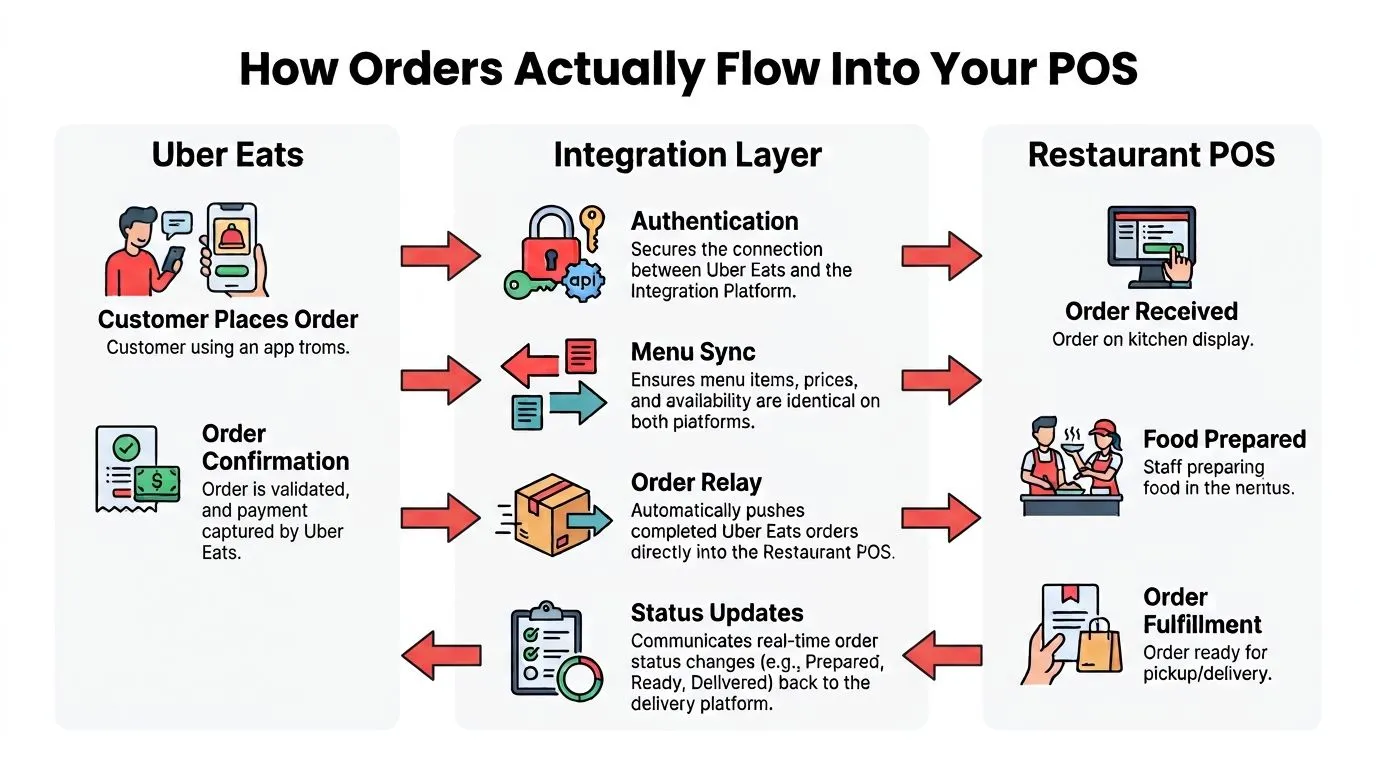
In plain language, Uber Eats sits on one side, the restaurant POS sits on the other, and an integration layer translates information between them. That middle layer handles account authorization, menu relationships, order formatting, event delivery, and status updates.
The flow is event-driven. When a customer submits an order, Uber Eats sends an order notification to the integration endpoint. The integration reads the notification, extracts the order_id, requests the complete order details, converts the marketplace structure into the POS format, and sends the ticket into the restaurant’s workflow.
Uber’s developer documentation describes the sequence in more technical terms:
- Receive the webhook. The integration listens for an order notification rather than repeatedly checking for new orders.
- Read the order ID. The
order_ididentifies the order that needs to be retrieved and processed. - Request order details. The integration calls the Get Order Details endpoint to obtain items, modifiers, customer information, and other order data.
- Respond to the event. The endpoint acknowledges the inbound notification so the delivery platform knows it was received.
- Accept or deny the order. The restaurant’s system sends an explicit POST Accept or Deny action.
- Handle later changes. Cancel actions, order failure webhooks, menu updates, and store-status endpoints keep both systems aligned.
(Uber Eats order integration documentation)
Practical rule: Treat every status change as part of the order, not as an afterthought. A ticket that reaches the kitchen but remains unaccepted on Uber Eats can create confusion for the restaurant, courier, and customer.
Why reliability matters more than the initial push
The visible success case is the ticket appearing in Clover or Square. The harder cases happen when the store closes unexpectedly, an item sells out, a webhook is delivered more than once, a token expires, or Uber Eats sends a cancellation after the kitchen has started preparing the order.
A dependable integration needs idempotent handling, meaning the same event can be received again without creating duplicate tickets. It also needs synchronized menu, prep-time, and store-availability states. The order-entry automation guide offers additional operational context on replacing manual transcription with automated routing.
A visual walkthrough can help managers explain the sequence to staff:
Setting Up POS Integration With Uber Eats Step by Step
A connection can authenticate and still fail during service. Start with the menu, because mismatched products, modifiers, and availability rules create incorrect tickets before the first order reaches the kitchen.
1. Map the menu
Match every Uber Eats item with its POS product. Review modifier groups, required selections, option names, prices, taxes, and availability rules. If a POS item was renamed while Uber Eats still uses the old name, update the mapping or create a new relationship rather than assuming the systems will reconcile it.
Uber’s merchant onboarding guidance describes menu mapping as the step that connects POS products with marketplace products before launch planning begins. (Uber Eats POS integration process)
2. Configure each location
Set the correct store ID, operating hours, menu schedule, printer or kitchen routing, and online availability. Review these settings separately for every location. One restaurant may have the correct catalog and service state while another points to the wrong menu or remains available after closing.
3. Activate the connection
The activation sequence varies by POS, but the practical checks remain similar. Authorize the marketplace account, select the correct store, confirm that the intended menu is available, and set the activation timing. On Clover, review the account and store selection carefully before completing activation.
Square follows the same broad sequence, although its controls appear in different marketplace and account settings. Confirm which account owns the connection, particularly when an agency or POS partner manages several restaurants.
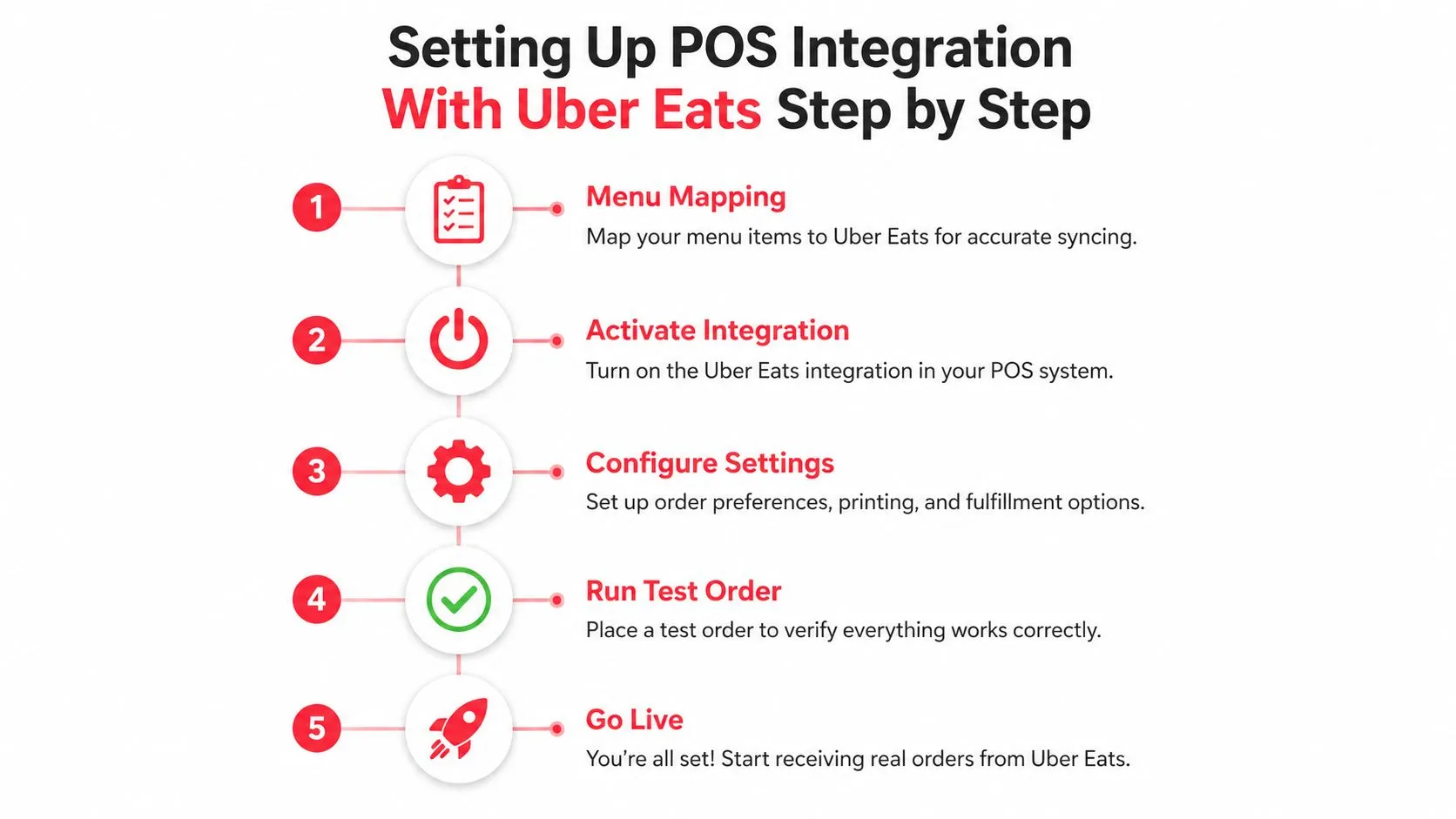
4. Run a controlled order
Use the available test environment first, then place a real order while a manager watches both Uber Eats and the POS. Confirm that the ticket appears once, reaches the right location, prints the correct modifiers, and includes the kitchen instructions staff need. Test acceptance and denial, not only the successful path.
5. Sign off before launch
Use this checklist:
- Menu accuracy: Products, modifiers, prices, taxes, and availability match the intended marketplace menu.
- Location accuracy: Store ID, hours, and service state point to the correct restaurant.
- Kitchen routing: The ticket reaches the correct printer or display.
- Status behavior: Accept, Deny, Cancel, and failure events update the order correctly.
- Fallback plan: Staff know how to enter an order manually if the connection is unavailable.
OrderOut supports this operating model for Clover and Square by normalizing marketplace menus before sending orders into the POS. Restaurants using Clover can start with the OrderOut listing in the Clover App Market. For a channel-specific reference, review the Uber Eats and Clover POS integration workflow.
Testing and Common Pitfalls Before You Go Live
A test order can succeed while production still fails. The usual problems involve mismatched state: a menu changes, credentials expire, one system marks the store closed, or a webhook is acknowledged without being processed. Treat the connection as coordination across menus, events, and store availability, not as a one-time plug-in.
Run tests in stages. Start in the sandbox or another controlled environment with a complete order. Then place a low-value live order while a manager watches Uber Eats and the POS. Test acceptance, denial, cancellation, item unavailability, and an unexpected store closure. The check is whether every system reaches the same final state, including the customer-facing status and the kitchen ticket.
| Pitfall | Likely Cause | Signal to Watch |
|---|---|---|
| Menu mapping drift | Items or modifiers were renamed, removed, or reorganized | Orders contain unmapped products or incomplete options |
| Duplicate tickets | The same webhook was processed more than once | Matching orders appear repeatedly in the POS |
| Missed webhook | Endpoint failure, timeout, or unacknowledged event | Uber Eats shows an order that the kitchen never received |
| Authentication failure | Expired or invalid partner credentials | New orders stop arriving while older configuration remains visible |
| Incorrect store status | Availability changed in one system but not the other | Marketplace visibility conflicts with actual operating hours |
| Denial or cancellation mismatch | The response did not reach Uber Eats or was applied late | Customer-facing status differs from the kitchen’s ticket state |
The integration uses separate Accept, Deny, and Cancel actions, along with order-failure events and store-status controls. Managers should therefore monitor acceptance latency, rejected orders, duplicate tickets, and failed menu updates during the first live shifts. Confirm that a retry does not create a second ticket and that a recovery procedure does not cause staff to enter the same order twice.
Watch the edge cases, not just the happy path. A successful test order proves that the main route works. It does not prove that the restaurant can recover when a product sells out or the store closes unexpectedly.
Keep a written fallback procedure beside the POS. Uber’s support guidance identifies manual POS entry as a temporary workaround for integration problems, so staff should know when to use it, how to label the order, and who verifies that it was not already received. Once the connection recovers, reconcile the marketplace order against the POS before resuming automatic processing. (Uber Eats POS issue support)
Operational Benefits and Reporting After Launch
Once the connection is stable, the biggest operational gain is a single ticket workflow. Staff no longer read an Uber Eats tablet, switch to the POS, and retype the order while guests wait. Orders follow the same production path as other channels, which makes handoffs clearer and gives the kitchen a more consistent queue.
That improves staff productivity, while leaving delivery-specific work in place. Someone still has to maintain menus, review exceptions, respond to cancellations, and pause marketplace ordering when capacity or availability changes. Integration removes repetitive entry. It does not replace operational judgment.
Uber’s help center says most POS-integrated restaurants do not need an onsite tablet, and the tablet can often be turned off without affecting visibility on Uber Eats. (Uber Eats tablet guidance)
Cleaner data creates better decisions
Consistent delivery tickets let managers reconcile sales through the same reporting workflow as other channels. They can compare item performance, find modifier issues, review voids, and see which menu changes create kitchen friction. That supports menu engineering and prep planning more reliably than scattered tablet records.
The useful post-launch check is operational, not only financial. Track acceptance latency, duplicate ticket rate, failed menu updates, cancellation reasons, and the time required to correct an exception. Review these measures by location and shift. A rising duplicate rate points to retry or staff-entry problems, while slower acceptance may indicate webhook delays, an overloaded POS, or unclear ownership at the expeditor station.
Consolidated ticket data also exposes recurring bottlenecks, such as a modifier that confuses staff or an item that repeatedly sells out during delivery periods. The restaurant data analytics guide explains how unified operational data can support more informed decisions.
OrderOut maps Uber Eats, DoorDash, and Grubhub menus into a normalized Clover or Square POS structure and routes orders into the POS. That reduces re-keying, while the restaurant remains responsible for accurate menus, store availability, and reviewing exceptions. Use the reporting period after launch to confirm that the integration is reducing correction work rather than merely moving it into a less visible queue.
Frequently Asked Questions
Does POS integration with Uber Eats remove the tablet?
Usually, yes. A POS-connected restaurant can often stop using the Uber Eats tablet as its primary order screen, while keeping a documented manual fallback for outages. Staff should monitor the POS and integration alerts instead of watching a redundant tablet during normal service.
How long does Uber Eats POS integration take?
The timeline depends on the POS, menu condition, location count, and integration scope. Uber’s developer guidance describes full automation and real-time synchronization as a 4–8 week implementation window, so a customized or multi-location operation should plan for setup, mapping, and testing rather than treating the connection as an instant plug-in. (Uber Eats developer introduction)
What happens if the integration goes down?
The marketplace can remain active while orders stop reaching the POS. Check integration status, store availability, authentication errors, and webhook activity first. Manual POS entry is a temporary fallback, not a fix, and managers should record every order entered this way so duplicate tickets do not appear when service recovers.
How do menu changes and 86ing work?
Menu synchronization depends on stable mapping between marketplace products and POS products. Marking an item unavailable must reach the Uber Eats catalog through the integration’s menu or stock workflow. Renaming an item, rebuilding a modifier, or changing a price can break that mapping, so test high-volume items before a busy shift and verify the customer-facing menu afterward.
Do Uber Eats prices have to match in-store prices?
No. The POS and Uber Eats may use channel-specific menus and pricing when the integration supports them. Keep product and modifier mappings clear, review the displayed customer total, and check whether fees or channel pricing create unexpected amounts.
How do Accept, Deny, refunds, and cancellations work?
Acceptance and denial are order actions sent through the integration, not just labels inside the POS. Uber’s developer documentation also distinguishes Cancel actions from order-failure handling, so the connection must keep the marketplace status and kitchen ticket status aligned. Refund ownership varies by issue and marketplace workflow. Managers should confirm the case in Uber Eats instead of assuming every adjustment belongs in the POS.
Does OrderOut work with Clover and Square?
OrderOut routes third-party delivery orders from Uber Eats, DoorDash, and Grubhub into supported Clover and Square workflows. Its menu mapping still depends on accurate products, modifiers, prices, and availability. The software can reduce re-keying, but it cannot resolve an ambiguous menu or an incorrect store status on its own.
Where can a Clover restaurant install OrderOut?
OrderOut is free to install on the Clover App Market. Clover operators can find the app there and then configure the connected marketplace and POS workflow.
A successful connection is an operating process, not a one-time plug-in. OrderOut can route delivery orders into Clover or Square, while the restaurant remains responsible for menu accuracy, store availability, exception handling, and outage procedures. Visit OrderOut to review the delivery-to-POS workflow, then start onboarding FREE in a few clicks at the OrderOut dashboard.