
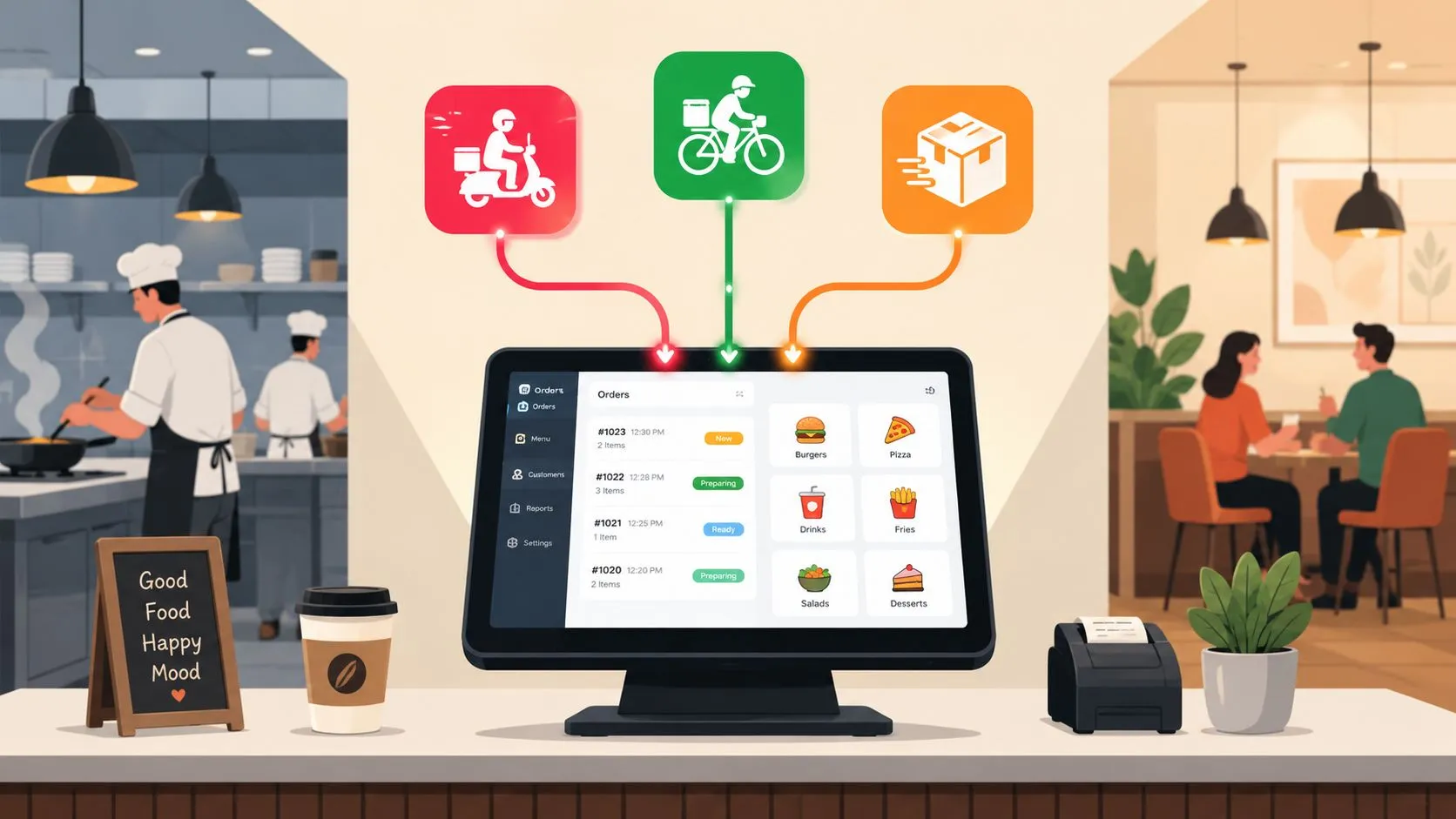
You connect multiple delivery apps to one POS by using middleware that pulls orders from Uber Eats, DoorDash, and Grubhub into Clover or Square, which can reduce manual order entry errors by up to 80%. The reason this works is simple: staff stop re-keying orders from tablets, and the POS becomes the single place where the kitchen, reporting, and menu logic stay aligned.
Most operators don’t struggle with the idea of integration. They struggle with the part most guides skip: making those incoming orders usable. If the order lands in the POS with the wrong modifier, wrong combo structure, or the wrong tax behavior, you haven’t solved much. You’ve just moved the chaos.
The practical goal when you connect multiple delivery apps to one POS is to turn marketplace language into clean, kitchen-ready tickets. That’s where delivery POS integration either works or breaks.
Understanding Your POS Integration Options
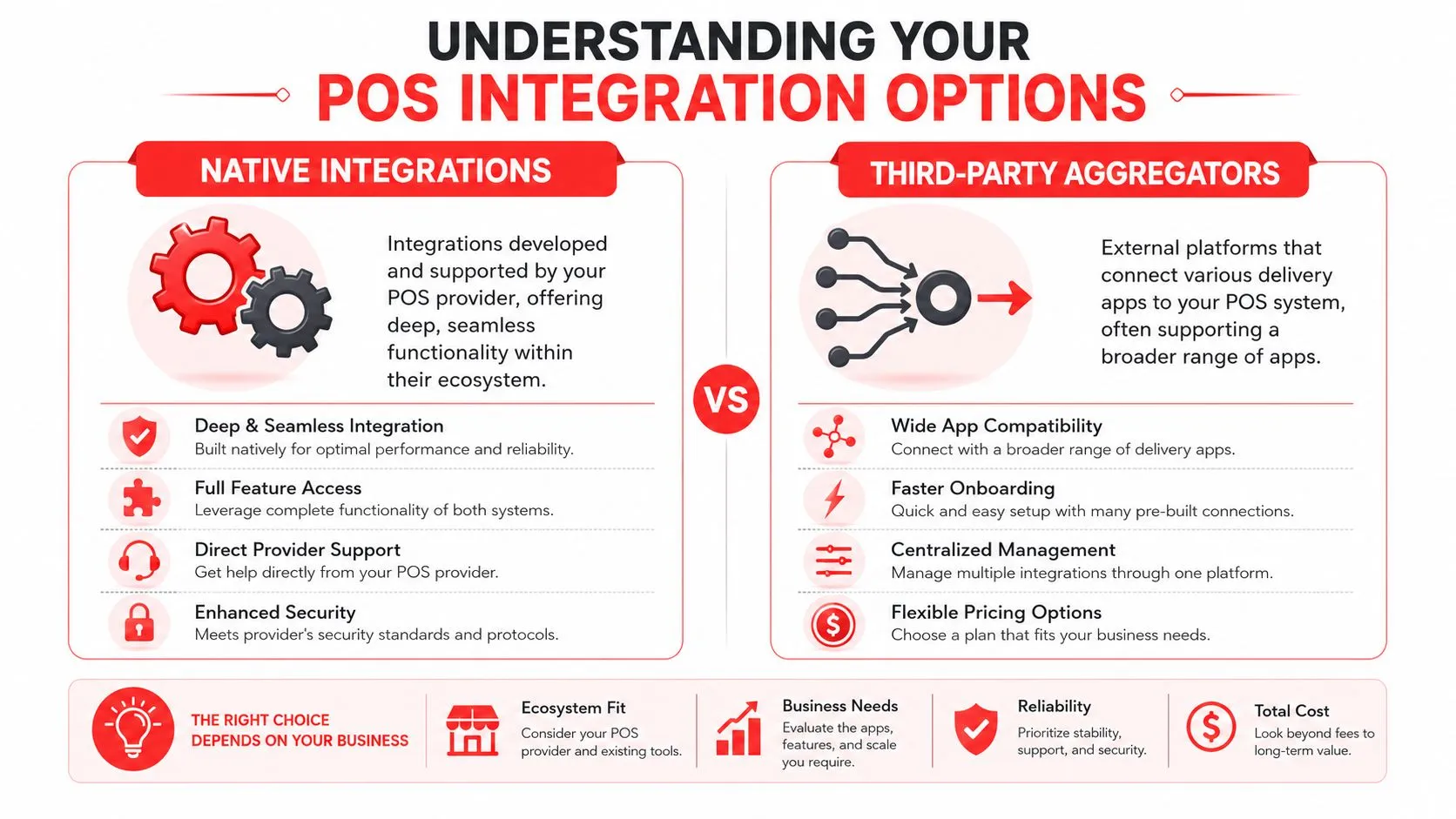
There are two real ways to connect delivery apps to your POS.
The first is a native POS integration. That means your POS provider connects directly to one or more marketplaces. The second is middleware, where a separate integration layer sits between your delivery apps and your POS and acts as the bridge.
Native integrations
Native integrations can be fine if you’re running a simple setup and only care about one app. They usually feel more direct because they come from the POS side. The trade-off is coverage. One connection might work well, while the rest of your delivery stack still lives on tablets.
That creates a split workflow. Staff trust the POS for some orders and still babysit devices for others.
Middleware aggregators
Middleware solves the broader operational problem. According to FavorPOS’s guide to restaurant POS delivery integrations, most restaurants now get broader and more reliable coverage through middleware aggregators rather than relying only on direct native POS integrations. That matters because most restaurants aren’t managing one channel. They’re managing Uber Eats, DoorDash, Grubhub, and sometimes regional partners at the same time.
A middleware layer gives you one dashboard tied to the POS instead of a patchwork of separate app behaviors. That’s the practical difference between “connected” and “operationally controlled.”
Practical rule: If you use more than one major delivery app, choose the setup that keeps your POS as the source of truth, not the apps.
Middleware also gives you more room to standardize the way orders flow. That’s why teams looking at broader AI-driven application integration often land on the same principle: centralize the logic so people aren’t doing translation work by hand.
For a deeper look at the architecture behind restaurant system connections, OrderOut’s guide to point-of-sale integrations is useful background.
Planning for a Smooth Integration Rollout
A clean rollout starts before anyone clicks “connect.”
Most integration problems aren’t connection problems. They’re menu problems, permission problems, and workflow problems that show up after orders start flowing. If your POS menu is messy, the integration will expose that mess fast.
Clean the POS menu first
Start with the menu inside Clover or Square, not the marketplace menus. The POS menu is the structure everything else should map into.
Check these first:
- Item names: Make sure one item has one clear name. If your POS says “Chk Sand Combo” and DoorDash says “Chicken Sandwich Meal,” someone has to decide whether those are the same item.
- Modifier groups: Sizes, add-ons, sides, sauces, and substitutions should be organized consistently.
- Combo structure: If a meal includes an entree, side, and drink, build that cleanly in the POS before trying to sync it outward.
- Archived clutter: Old seasonal items, duplicate buttons, and test entries should be removed.
A kitchen can work around a messy menu when a cashier knows the shortcuts. Integration can’t.
Gather the right access
Before rollout, make sure you have admin access to each delivery marketplace and the POS account. That sounds obvious, but it’s a common stall point. A manager often has enough access to use the app, but not enough to authorize the connection or approve menu sync behavior.
Have these ready:
- Marketplace logins: Uber Eats, DoorDash, Grubhub
- POS admin access: Clover or Square owner-level credentials
- Menu decision-maker: One person who can answer, “What should this item map to?”
- Store-level routing details: Which printer, KDS, or prep station should receive each order type
The fastest rollout I’ve seen always has one operator owning menu decisions. When three people debate modifier logic in real time, setup slows down and errors multiply.
Decide how orders should route
Don’t wait until go-live to answer basic kitchen questions.
If a DoorDash order for a salad and a pizza comes in, where should that ticket land? On one printer? Two stations? A kitchen display? Should delivery orders print differently from in-house tickets? Those decisions affect trust in the system.
A simple preflight checklist looks like this:
| Area | What to confirm |
|---|---|
| POS menu | Clean item names, modifiers, combos |
| Delivery accounts | Active logins and permissions |
| Routing | Printer or KDS destination by order type |
| Store rules | Prep timing, order acceptance, ticket formatting |
If you want to connect multiple delivery apps to one POS without creating new confusion, this prep work is what makes the rest go smoothly.
How to Connect Delivery Apps to Your POS
The connection process is straightforward when the groundwork is clean. For a Clover operator, the easiest starting point is that OrderOut is free to install on the Clover App Market, and Square operators can access it through the Square App Marketplace.
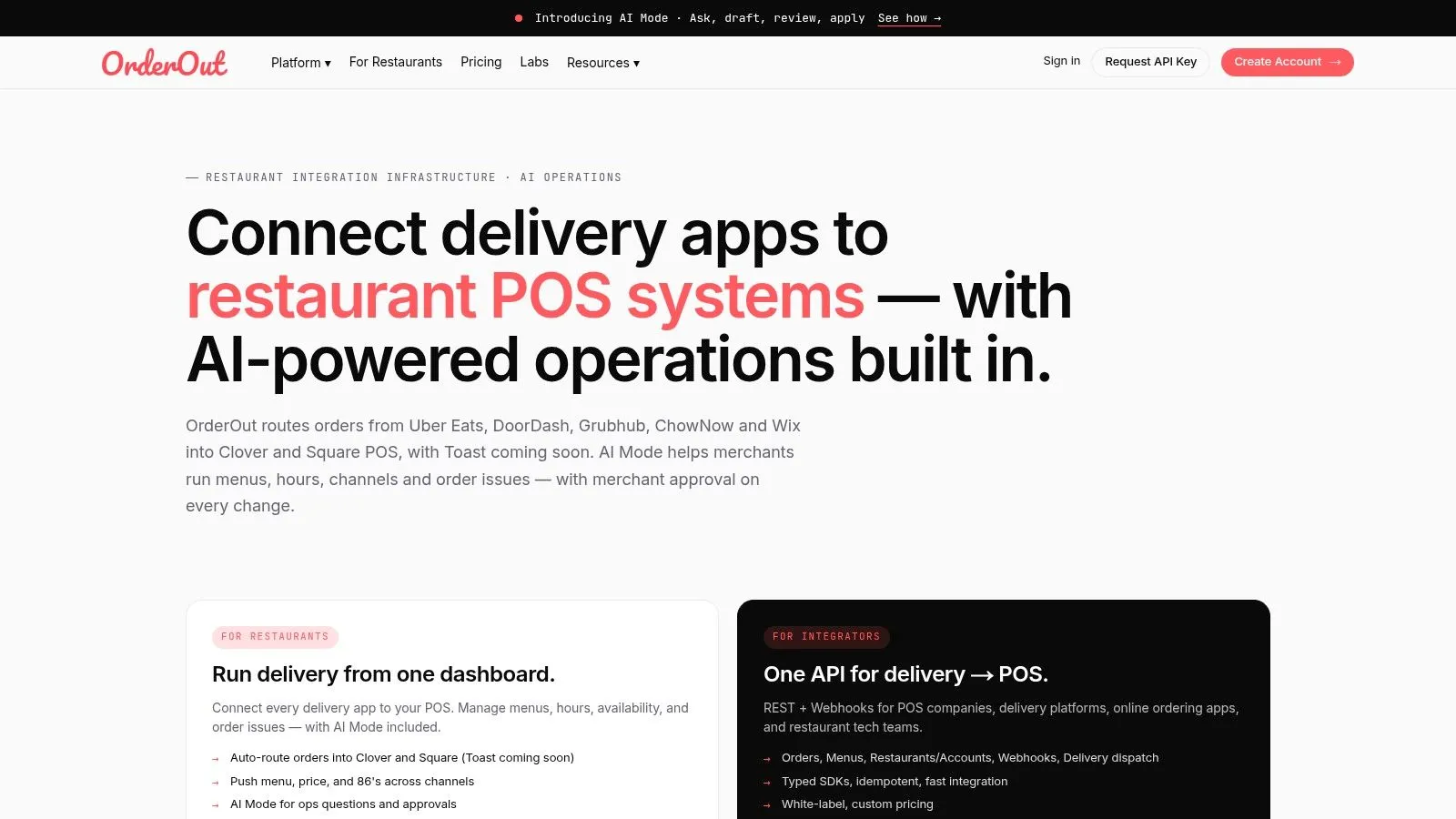
A real example helps. Say you’re running Clover and want DoorDash orders to enter the POS automatically instead of having someone copy them from a tablet.
Start with one high-volume app
Don’t connect every channel at once. Start with the app that sends the most orders. For many stores, that’s DoorDash or Uber Eats.
The workflow is usually:
- Install the integration app in Clover or Square.
- Open the integration dashboard.
- Go to the integrations area and link your marketplace account.
- Connect the POS.
- Confirm the store location and menu source.
- Test one order before adding the next channel.
That phased approach is important. According to Otter’s guide to POS systems with delivery integration, restaurants that follow an audit, menu-mapping, and pilot sequence reach 94% order accuracy within the first month, compared with 76% for manual tablet reconciliation, and they reduce order-entry errors by an average of 68%.
Use Clover or Square as the operational hub
The key is not just connecting accounts. It’s making sure Clover or Square remains the working system your staff trusts.
That means:
- Orders should appear in the POS automatically
- Kitchen tickets should print or route where the team expects
- Staff shouldn’t need to monitor extra tablets
- Reporting should flow from the POS record, not from scattered app dashboards
If you’re specifically working through a Clover setup, this guide to Clover POS integration gives extra context.
Midway through setup, the most useful next step is to install from the marketplace you already use. Clover operators can start with the OrderOut app on the Clover App Market, and Square users can start with the OrderOut app in the Square App Marketplace.
Connect the next channels only after the first one works
Once the first app is sending clean orders, add Uber Eats or Grubhub one at a time. At this stage, many operators rush, creating avoidable troubleshooting.
A stable launch usually means asking a few blunt questions after each connection:
- Does the ticket read the way the kitchen expects?
- Are modifiers charging and printing correctly?
- Does the order land under the right tender and order type?
- Can the staff ignore the tablet completely?
If the answer to any of those is no, stop there and fix the structure before moving on.
For operators evaluating options, OrderOut’s 3rd-party order engine, the DoorDash to Clover delivery integration page, OrderOut’s Clover delivery integration for partners, and OrderOut’s Square delivery integration for partners show how channel-to-POS routing is set up around Clover and Square.
Mastering Menu and Modifier Mapping
This is the part that decides whether your integration helps the kitchen or annoys it.
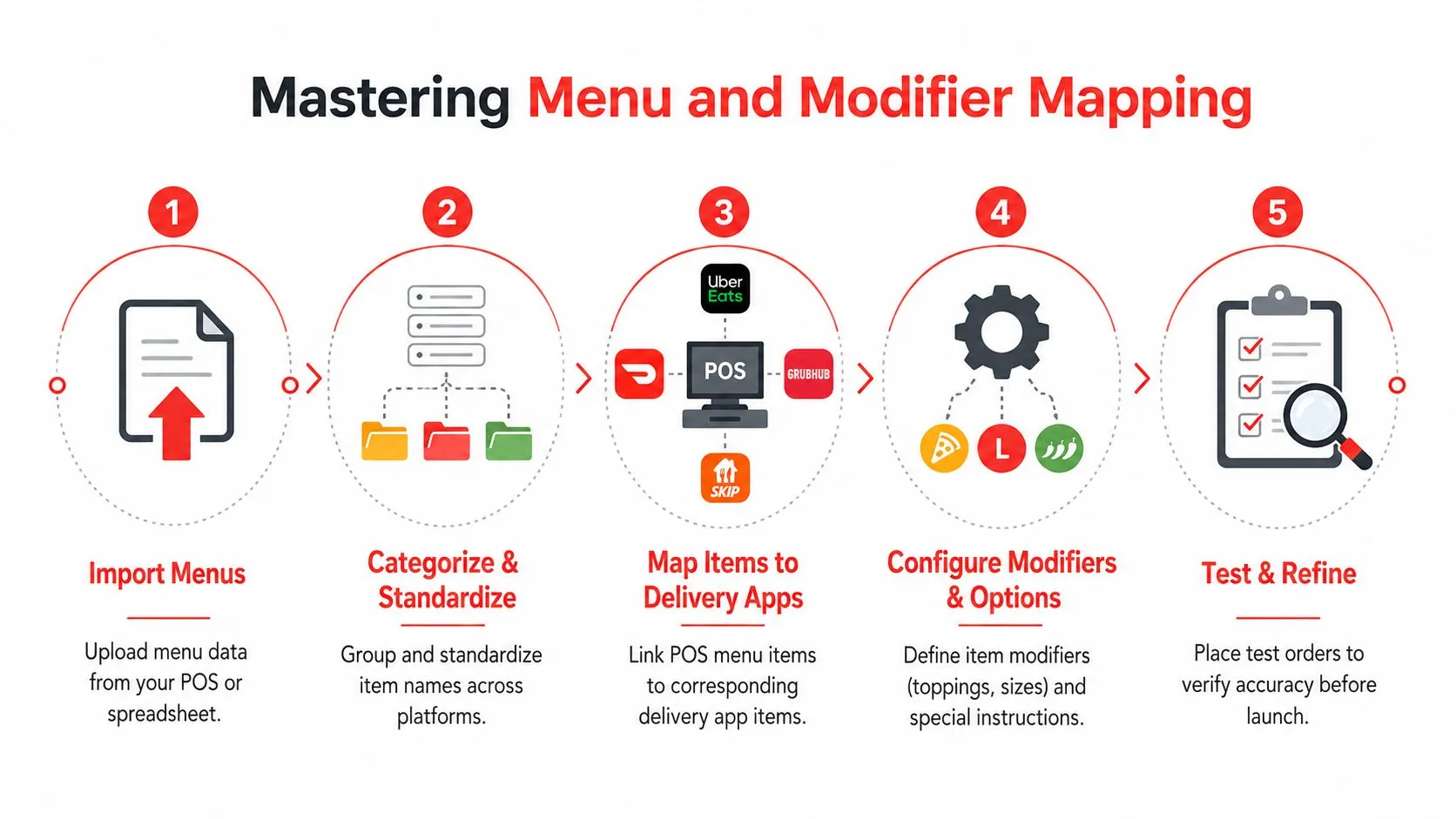
A delivery POS integration doesn’t work because two companies shared an API. It works because every marketplace item is translated into the exact structure your POS and kitchen already understand. According to OrderOut’s guide to DoorDash Clover integration, the process relies on mapping marketplace items, modifiers, combos, and tax behaviors into a normalized Clover or Square menu structure before the order hits the POS.
What menu normalization actually means
In plain language, normalization means different app wording becomes one consistent POS instruction.
A customer might see:
- “Add cheese”
- “Extra cheese”
- “w/ cheese”
Your kitchen doesn’t need three versions of that request. It needs one correct modifier tied to one item.
That’s the hidden value in connecting multiple delivery apps to one POS. You’re not just consolidating incoming orders. You’re translating inconsistent marketplace phrasing into a clean house standard.
If your kitchen ticket still reads like the marketplace wrote it, the mapping isn’t finished.
What to review before you approve the map
The best mapping review is practical, not technical. Read it like an expo or line cook would.
Check these areas closely:
- Modifiers: Make sure add-ons, removals, and substitutions land under the right item
- Combos: Confirm meal deals break out the way the kitchen expects
- Upcharges: Verify paid modifiers charge correctly in the POS
- Special instructions: Decide what should pass through and what should stay structured
- Tax behavior: Make sure the order type aligns with the way your POS handles third-party delivery
This is also where menu hygiene matters more than most operators realize. A useful companion read is OrderOut’s guide to restaurant menu management.
Why this matters more during the rush
A cashier can often catch a weird order when the dining room is slow. The kitchen can’t do quality control on bad structure during a rush.
That’s why normalized order routing matters. If a DoorDash burger order enters Clover with the correct bun choice, no-onion modifier, add-bacon upcharge, and delivery tender behavior already aligned, staff can cook. They don’t have to interpret.
That reduction in friction is the primary gain. Fewer clarifying questions. Fewer remakes. Less second-guessing about what the customer meant.
Testing and Launching Your Integrated System
Going live should feel controlled, not dramatic.
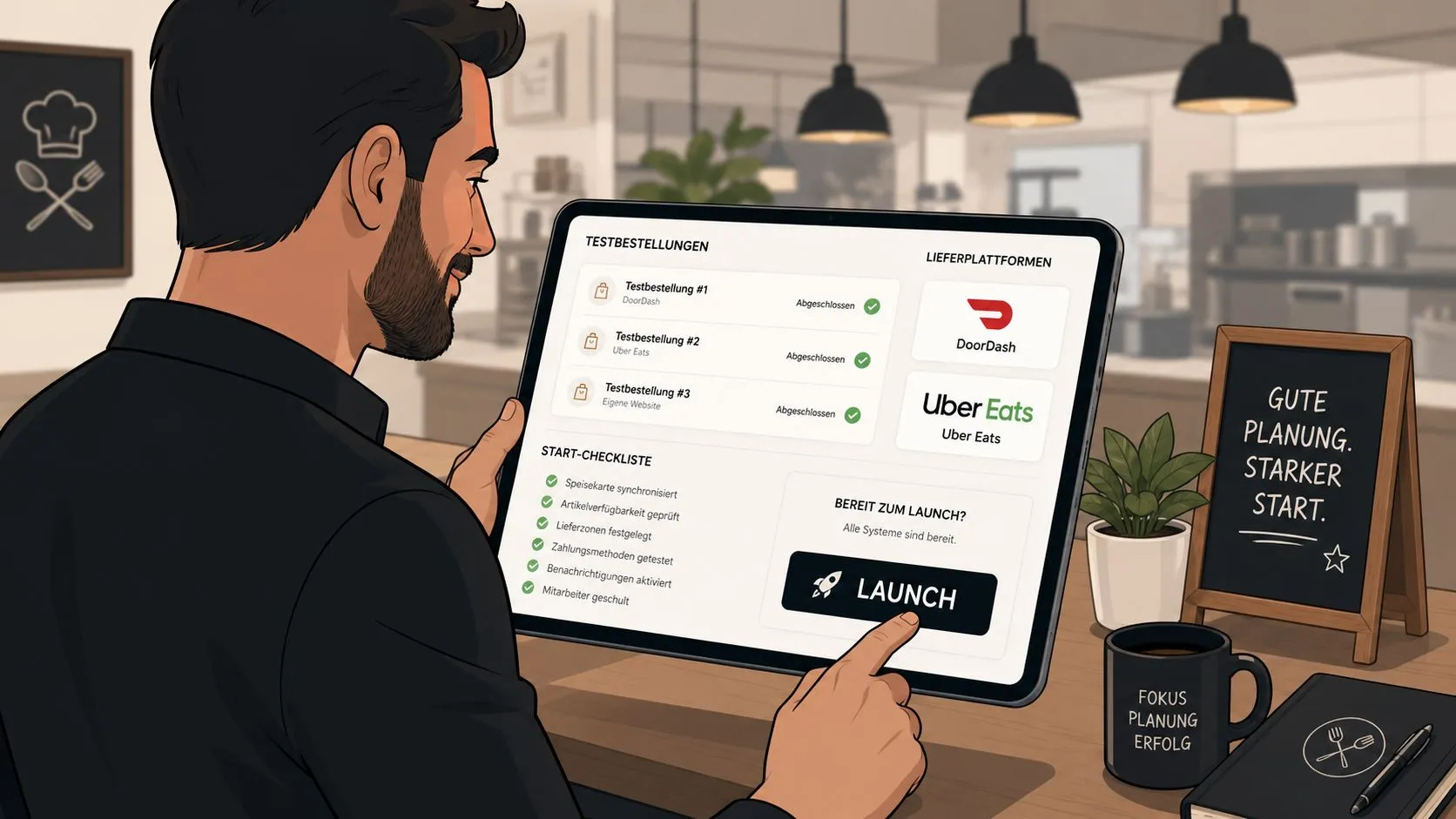
Once the apps are connected and the menu map is in place, run a short launch sequence before telling the team to trust it fully. The point is to prove that the order arrives correctly, routes correctly, and closes correctly.
Run live-fire test orders
Use each connected app to place real test orders with common customizations.
Include things like:
- A standard item: This confirms the base item maps correctly
- A modifier-heavy item: This tests the kitchen-readable structure
- A combo or bundled meal: This reveals whether components break out properly
- A sold-out item check: This verifies that menu changes behave the way you expect
According to Bytes’ explanation of order aggregation with POS systems, connecting delivery apps directly to the POS can reduce manual order entry errors by up to 80%. That kind of error reduction only matters if the launch testing confirms your setup is replacing manual work cleanly.
Train staff on the new source of truth
The most important staff message is simple: the POS is now the source of truth.
Don’t train the team on abstract technology. Train them on changed behavior.
Tell staff exactly what changes: “Don’t re-enter the order. Don’t watch the tablet. Watch Clover or Square and trust the ticket.”
A short launch checklist works well:
- Show one test order entering the POS
- Show where it prints or appears on the KDS
- Explain what staff no longer need to do
- Assign one manager to monitor the first live shift
- Keep one rollback plan ready in case a route needs adjustment
For more on replacing manual re-entry with automation, OrderOut’s article on order entry automation is a helpful reference.
Watch the first shift closely
The first live shift tells you what the setup docs never will.
Look for hesitation. If staff still glance at tablets “just in case,” they don’t trust the routing yet. If the expo has to reinterpret ticket language, the menu map needs work. If managers can’t tell which channel produced which order type, your tender and reporting setup needs cleanup.
A good launch isn’t just technically live. It’s operationally boring. That’s the target.
Frequently Asked Questions
Does OrderOut work with Clover?
Yes. OrderOut connects third-party delivery orders into Clover, and it’s also free to install on the Clover App Market. For restaurant operators who want a broader overview, the OrderOut for restaurants page explains how the workflow fits into day-to-day operations.
Does OrderOut work with Square?
Yes. Square operators can connect delivery channels through the Square App Marketplace version of the app. If you’re comparing setup paths or support details, the OrderOut FAQ about POS integration is a useful starting point.
Do I need extra tablets?
The goal of this setup is to remove extra delivery tablets from the working flow. Orders inject into Clover or Square so staff don’t have to manually re-key them into the POS. Some operators still keep tablets available for backup visibility, but they shouldn’t be the system the line depends on.
Which delivery apps can connect to one POS?
The core use case here is connecting Uber Eats, DoorDash, and Grubhub into one POS workflow. The important detail isn’t just app availability. It’s whether each app’s menu, modifiers, and order structure are mapped correctly so the ticket is usable in the kitchen.
Is connecting the apps the hardest part?
Usually, no. The harder part is menu mapping and order routing. The account connection itself is often straightforward. The main work is making sure incoming orders land in the POS in a clean format that the kitchen can act on without translation or manual fixes.
If you’re ready to stop re-keying delivery orders and start with a clean Clover or Square workflow, create a free OrderOut onboarding account. That’s the fastest practical next step for connecting your delivery apps, checking your menu map, and getting the first channel live.