
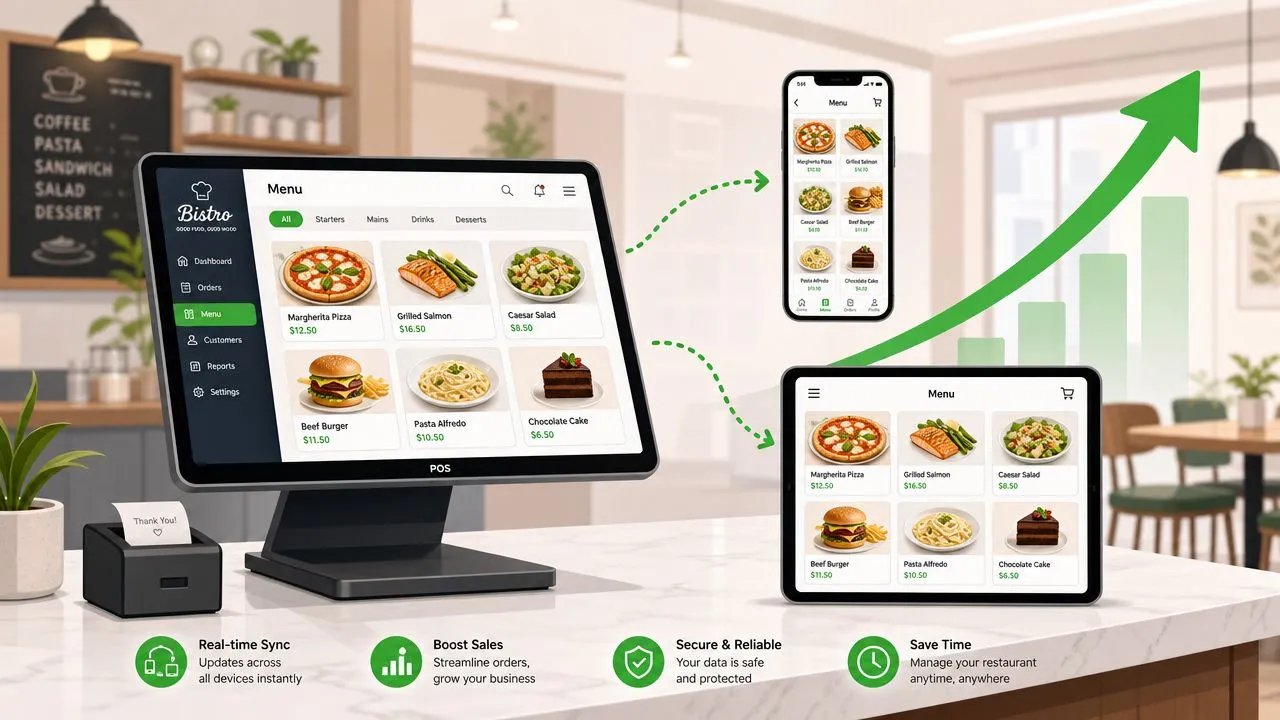
Restaurant menu management means building one master menu in your POS and syncing it to delivery apps like Uber Eats and DoorDash through an integration tool so you don’t have to update every channel by hand. If you’re juggling marketplace tablets, re-entering orders into Clover, and finding out too late that a sold-out item is still live online, the fix is to make your POS the single source of truth.
What Is Restaurant Menu Management
Restaurant menu management is the operational process of creating, updating, pricing, and controlling your menu from one central system so the same menu appears correctly in your POS, your kitchen flow, and your delivery channels.
In practice, many restaurants get bogged down by these operational challenges. A manager is trying to eighty-six a sold-out item on several tablets. A cashier is retyping a complicated DoorDash order into Clover while guests are waiting at the counter. Someone notices the weekend special has one price in-house and another price on a delivery app, and neither one was updated consistently. None of that is a menu design problem. It’s a workflow problem.
Manual menu management breaks in predictable places:
- Availability changes get missed because staff update one channel and forget the others
- Modifiers get lost when someone re-keys an order under pressure
- Prices drift when in-store and delivery menus are edited in different places
- Staff time disappears into admin work that adds nothing to hospitality
Practical rule: If your staff has to touch the same menu change more than once, your menu process is too manual.
A lot of operators spend time reading about menu copy, photos, and layout. That matters. But the harder operational question is how menu data moves. If your kitchen, cashier, and delivery channels aren’t all pulling from the same menu structure, the system creates errors even when the menu itself is well written.
That idea isn’t limited to restaurants. The same discipline shows up in broader digital operations, which is why EvergreenFeed’s guide to 9 essential content practices is useful here. The takeaway is simple: one source of truth beats scattered updates every time.
The practical answer is to run your menu from the POS, then use a delivery-to-POS engine to map each marketplace menu into a clean POS structure. That turns menu management from a daily scramble into a controlled process.
Build Your Menu Foundation in the POS
A synced menu only works if the POS menu is clean first. Clover or Square shouldn’t be the last place you tidy up your menu. They should be the place where the menu starts.
Start With Structure
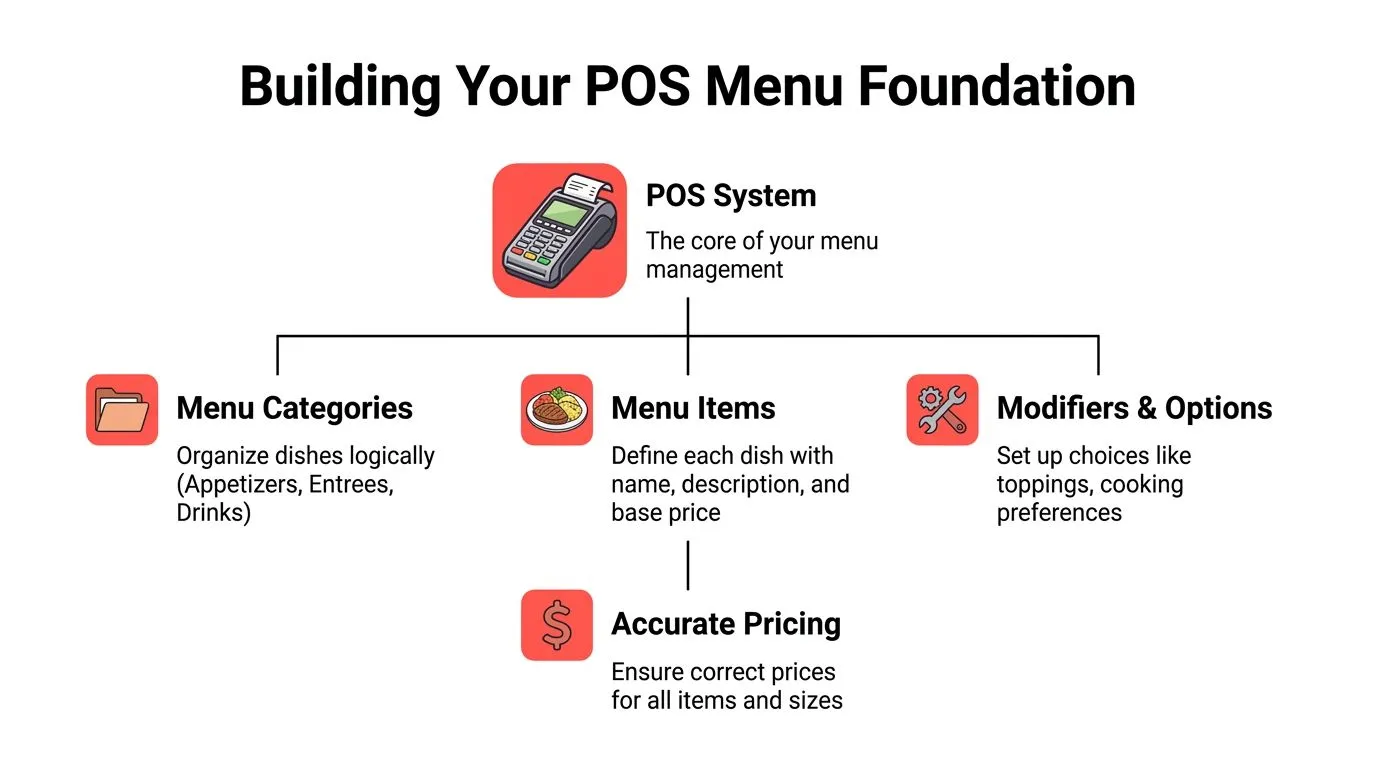
A strong POS menu has clear categories, predictable item names, and modifier groups that match how guests order.
Compare these two burger menu setups.
| Setup | What it looks like | What happens later |
|---|---|---|
| Poor setup | ”Food,” “More Food,” “Misc” | Delivery menus become confusing and hard to map |
| Clean setup | ”Burgers,” “Sides,” “Drinks,” “Kids” | Items land in logical categories across channels |
If you run a burger concept, “Classic Burger” is a better item name than “Burger 1.” “Add Bacon” should live in a modifier group for burger add-ons, not as a separate standalone item. “Cook Temp” should be its own choice group, not buried in notes.
A messy POS menu doesn’t stay contained. It spreads outward into every connected ordering surface.
Build Modifiers Like a Kitchen Ticket Depends on It
Modifiers aren’t just customer choices. They’re instructions that have to survive the trip from app to POS to kitchen.
Use this approach:
- Name groups clearly so staff and guests both understand them, such as “Choose Your Side” or “Burger Add-Ons”
- Separate required choices from optional ones so nobody misses a necessary selection
- Keep labels consistent across similar items instead of creating a new wording pattern every time
- Avoid catch-all modifiers like “Special Request” unless you truly need free-text handling
If two similar items use two different modifier structures, staff will eventually ring one wrong and the kitchen will eventually make one wrong.
Many syncing problems often begin here. Operators often blame the delivery app. The underlying issue is usually weak menu hygiene upstream in the POS.
For a broader look at how POS connections shape restaurant operations, OrderOut’s article on point-of-sale integrations for restaurants is worth reviewing.
Keep the POS as the Source
The goal isn’t to make the POS menu pretty for its own sake. The goal is to make it dependable enough that every outside channel can inherit the same logic.
A clean foundation usually includes:
- Logical categories that match how customers browse
- Clear item names that fit on receipts and kitchen tickets
- Well-built modifier groups for customization
- Accurate prices at the item and option level
- Retired junk items removed so old tests and duplicate listings don’t create confusion
When operators skip this step, every later sync becomes harder than it needs to be.
Connect and Sync Menus to Delivery Apps
Once the POS menu is clean, the next move is to connect it to your delivery channels so staff aren’t managing separate menus by hand. That’s the difference between restaurant menu management as a daily chore and restaurant menu management as a stable system.
Understand Menu Mapping
In plain language, menu mapping means telling the system that the item on a delivery app is the same item in your POS.
If “Classic Burger” on Uber Eats should ring in as the same burger in Clover, the integration has to map those together. The same goes for modifier groups, sizes, add-ons, and special instructions. That mapping is what lets delivery orders arrive in the POS cleanly instead of forcing someone to read a tablet and type the order again.
OrderOut’s 3rd-party order engine provides the solution. It maps marketplace menus to a normalized POS schema so Uber Eats, DoorDash, and Grubhub orders can inject directly into systems like Clover and Square, rather than living on separate tablets.
For a concrete example, a restaurant using Grubhub with Clover can see how that connection is handled through Grubhub to Clover delivery POS integration.
Why Direct Sync Beats Manual Work
The old workflow looks simple until service gets slammed. A tablet dings. Someone reads the order. They enter it into the POS. They hope they didn’t miss the gluten-free crust, no onions, extra sauce, or drink substitution.
That process doesn’t scale. It ties up labor, creates avoidable mistakes, and turns the front counter into a transcription desk.
A direct delivery POS integration changes the job:
- Orders flow straight into Clover or Square instead of stopping on a tablet
- Staff focus on guests and expo rather than duplicate entry
- Menu updates happen centrally instead of app by app
- The POS stays in charge of what the restaurant sells
For operators evaluating change-order workflows, this related piece on restaurant change order integration helps frame the operational impact.
The technical part matters, but the so what is simple. Fewer handoffs usually means fewer mistakes.
Here’s a quick look at the concept in action:
Where to Start
If you use Clover, the easiest next step is to install OrderOut on the Clover App Market. It’s free to install, and it’s built around the practical need operators care about most: getting Uber Eats, DoorDash, and Grubhub orders into the POS without extra tablets and without manual re-keying.
Use Smart Pricing and Category Strategy
A synced menu shouldn’t be a blind copy of your dine-in menu. Good restaurant menu management also protects margin and shapes what customers buy on delivery channels.

Separate Operational Sync From Pricing Strategy
Many operators assume sync means every price and category should be identical everywhere. That’s not always the right call.
Delivery has different economics. Packaging changes costs. Marketplace fees change margin. Some items travel badly, while others become stronger sellers off-premise. A clean sync process gives you control, but you still need a deliberate pricing and category strategy on top of it.
That can mean:
- Using delivery-specific pricing when your setup supports it
- Creating delivery-only bundles that are easier to produce and easier to sell
- Trimming weak travel items instead of forcing the full dine-in menu online
- Grouping high-intent items together so customers can order faster
Use Categories to Guide Better Orders
Category strategy matters more online because guests aren’t getting help from a cashier or server. They need a menu that makes sense at a glance.
A few patterns work well:
| Category move | Why it helps |
|---|---|
| Family meals | Simplifies larger group orders |
| Lunch combos | Speeds up decision-making |
| Add-ons and extras | Encourages attachment without confusing the core menu |
| Limited-time delivery specials | Gives customers a reason to try something new |
Coffee shops are a good example. Their digital menus often get cluttered with size variants, milk options, syrups, and seasonal drinks. Allied Drinks Systems has a useful article on creating an effective coffee shop menu that shows how category logic and offer structure affect purchasing behavior. The same principle applies to restaurants on delivery apps.
Online categories should help a tired customer finish an order quickly, not force them to decode your internal kitchen logic.
If you’re thinking through markup rules and channel pricing, OrderOut’s article on dynamic price strategy for restaurant menus is a practical companion.
Master Modifiers and Inventory Control
Most expensive menu mistakes don’t come from the main item. They come from the details around it. That’s why modifiers and availability deserve their own operating discipline.
Get Modifiers Right
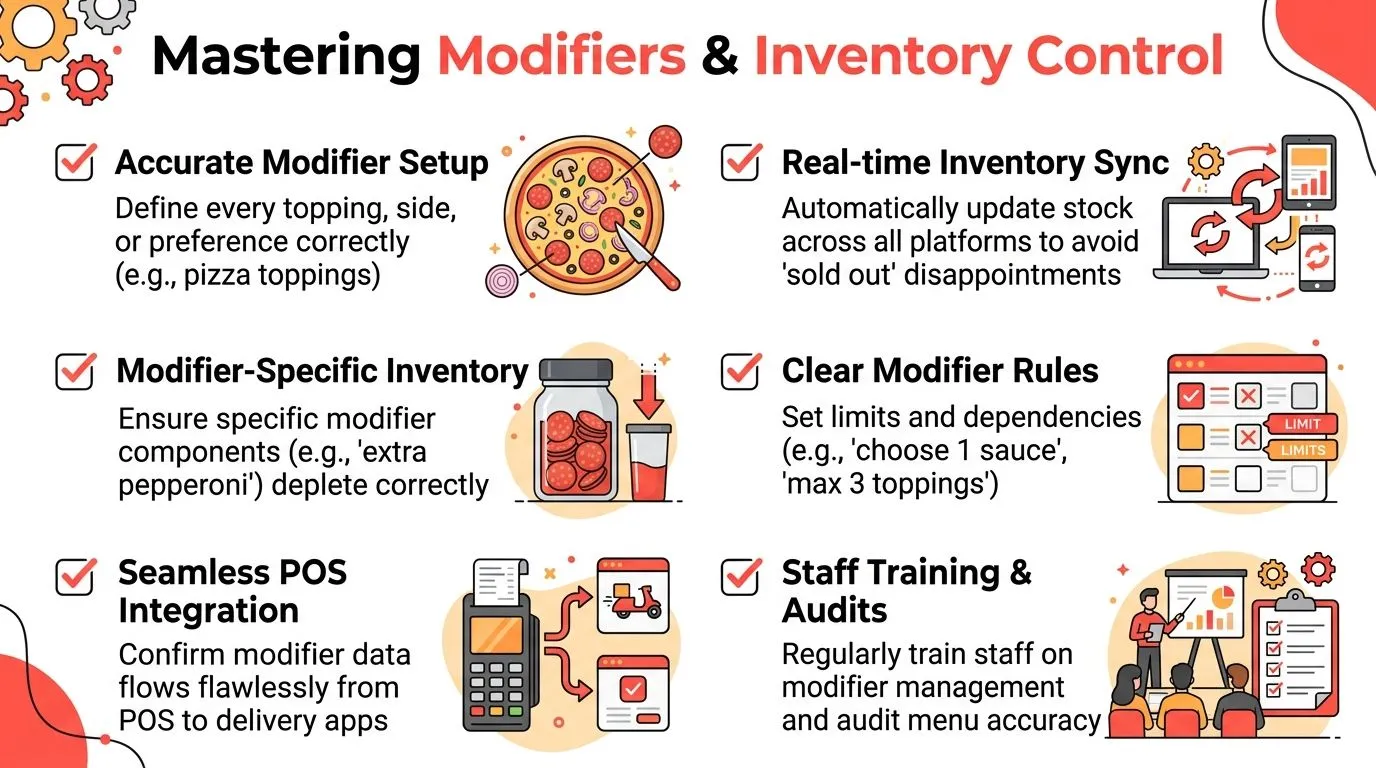
Take a build-your-own pizza on DoorDash. The customer chooses crust, sauce, cheese level, toppings, and a note about cutting. If a staff member has to retype that order from a tablet into the POS during a rush, mistakes aren’t surprising. They’re built into the process.
A stronger setup keeps modifier rules structured in the POS first, then carries that logic into the delivery menu. That helps the kitchen receive the order as intended.
Use a short audit list:
- Required choices first such as size or protein
- Add-ons grouped logically such as toppings, sauces, and sides
- Selection rules defined clearly such as choose one, choose up to, or optional
- Kitchen-friendly labels that print clearly on receipts and tickets
A modifier group is only finished when the kitchen can read it fast and make the item without asking questions.
Control Availability From One Place
Inventory control gets messy when restaurants manage sold-out status separately on each marketplace. If salmon is gone, staff shouldn’t have to chase Uber Eats, DoorDash, and Grubhub one by one while service is moving.
The cleaner method is POS-based availability. When the item is turned off in Clover or Square, the connected menu should reflect that status across delivery channels so customers stop seeing an item the kitchen can’t make.
This is especially important for:
- Daily specials that run out unpredictably
- Proteins and seafood with tighter availability
- Modifier-level shortages like gluten-free crust or avocado
- Seasonal desserts or drinks that rotate in and out often
For restaurants trying to tighten the connection between menu availability and prep discipline, this guide to par levels in inventory management is useful.
Keep Modifier Logic Simple Enough to Maintain
The trap is overbuilding. Operators sometimes create too many edge-case modifiers, too many duplicate options, or too many custom note paths. That makes the menu harder to map and harder to maintain.
Simple rules tend to survive service better than clever ones. If a modifier path makes sense only to one manager who built it, it won’t hold up on a busy night.
Test and Troubleshoot Your Menu Sync
A synced menu still needs testing. Operators get into trouble when they assume an integration is set-and-forget and stop checking the live customer experience.
Run a Simple Test Routine
Any time you change items, prices, availability, or modifiers, check the live result on the actual ordering apps. Use your phone. Look at Uber Eats, DoorDash, and any other channel you have turned on. Don’t rely on memory and don’t assume the dashboard view tells the whole story.
A practical test routine looks like this:
- Open each live app menu and confirm the item appears in the right category
- Check one recent change such as a price update or sold-out item
- Place a test order with modifiers and verify how it lands in the POS and on the kitchen ticket
- Review the final ticket wording so the line can execute it without interpretation
Fix the Most Common Issues First
Most sync problems fall into a few buckets, and the fix is usually straightforward.
| Problem | Likely cause | First thing to check |
|---|---|---|
| Item missing | Item isn’t published or mapped correctly | Confirm it exists and is active in the POS |
| Price wrong | Channel pricing rule or stale sync | Compare live app price to the current POS value |
| Modifier not showing | Modifier group wasn’t attached correctly | Check whether the option is linked to the item in the POS |
A lot of reconciliation headaches start here. If the menu shown to the customer doesn’t match what lands in the transaction flow, you’ll feel it later in refunds, voids, and support tickets. OrderOut’s article on reconciling the difference in restaurant orders is helpful for understanding those downstream issues.
Check the guest-facing menu, not just the back-office setup. Guests order what they can see, not what you meant to publish.
Don’t Let Old Menu Debris Linger
One hidden source of trouble is old data. Duplicate modifiers, retired specials, hidden categories, and half-disabled items can interfere with sync logic.
When something looks off, check for the boring stuff first:
- Archived duplicates that were never fully removed
- Old modifier groups still attached to live items
- Temporary specials that should have been retired
- Conflicting names that make mapping harder to verify
That cleanup work isn’t glamorous, but it keeps the system dependable.
Frequently Asked Questions
Does OrderOut work with Clover?
Yes. OrderOut connects third-party delivery orders to Clover so orders can inject into the POS instead of living on separate tablets. Restaurants looking for a Clover-specific setup can review OrderOut’s Clover delivery integration.
Does OrderOut work with Square?
Yes. Square restaurants can use OrderOut to connect delivery orders into Square and reduce manual order entry. If Square is your POS, the relevant setup path is OrderOut’s Square delivery integration.
Do I need extra tablets for Uber Eats, DoorDash, and Grubhub?
The point of a delivery POS integration is to remove extra tablets from the operating workflow. Instead of staff watching multiple devices and re-keying orders, orders are sent into the POS so the restaurant can run from a single operational source of truth.
Is OrderOut free on Clover?
Yes. OrderOut is free to install on the Clover App Market. Restaurants can also review OrderOut pricing for restaurant integrations and broader setup details in the OrderOut FAQ for restaurants.
Which delivery apps connect through OrderOut?
OrderOut is positioned around connecting Uber Eats, DoorDash, and Grubhub into supported POS systems such as Clover and Square. Operators who want a broader product overview can visit OrderOut for restaurants.
Take Control of Your Restaurant Menus Today
Restaurant menu management works better when the POS runs the menu and the delivery channels follow it. That shift cuts duplicate work, reduces preventable mistakes, and gives your staff their attention back during service.
The technical side matters, but the business outcome matters more. You want fewer re-keys, cleaner tickets, and one place to manage change. If you’re also cleaning up your digital storefront, Polaris Marketing Solutions has a practical 2026 guide to restaurant web design that pairs well with a stronger ordering and menu workflow.
Ready to simplify delivery menu management and stop re-entering marketplace orders by hand? Start with OrderOut, then create your free onboarding account in the OrderOut dashboard to connect your POS, map your menus, and get your setup live in a few clicks.