
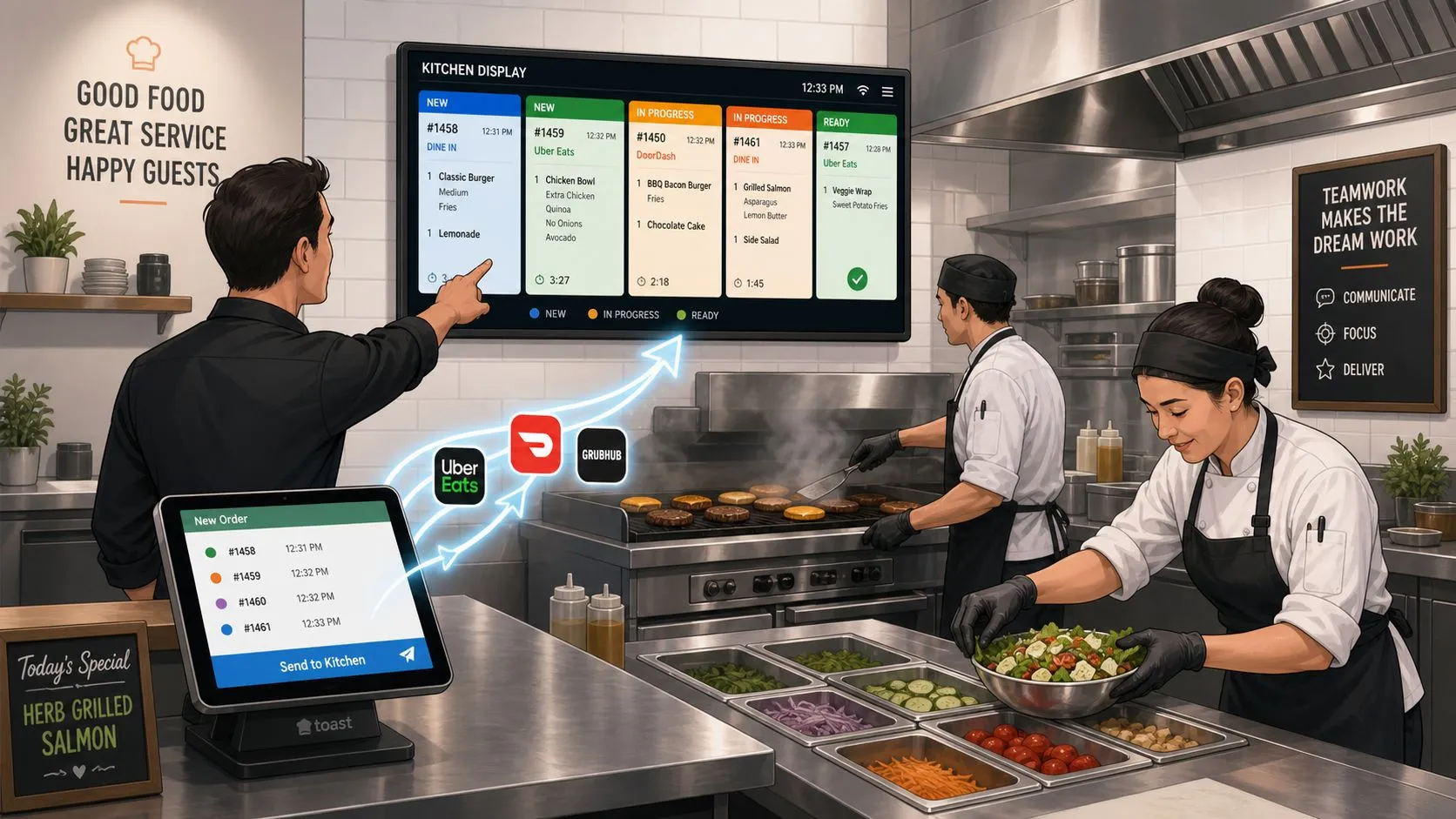
The Clover Kitchen Display System (KDS) is a digital screen that replaces paper tickets in the kitchen, displaying orders in real-time as they are entered into the Clover POS. Clover offers it in 14-inch and 24-inch HD touchscreen configurations, and the 14-inch model is built for kitchen heat with a 122°F (50°C) tolerance.
If you’re only thinking about the screen, you’re missing the bigger operational question. A Clover KDS can organize kitchen production well, but the true test is whether every order source reaches that screen cleanly, especially Uber Eats, DoorDash, and Grubhub.
What Is a Clover Kitchen Display System
A Clover Kitchen Display System is the kitchen-side screen for the Clover POS ecosystem. Instead of relying on printed tickets clipped to a rail or piling up near the expo line, the KDS shows incoming orders live on a screen and routes them to the right prep station. According to Pepper, it replaces printed paper tickets with a real-time, screen-based system that automatically routes orders to the appropriate preparation station, with benefits that include better order accuracy, reduced food waste, and faster delivery flow.
That sounds simple, but operationally it’s a big shift. Paper tickets force staff to read handwriting, sort urgency manually, and shout across the line when something changes. A digital kitchen screen turns that into a shared system everyone can read.
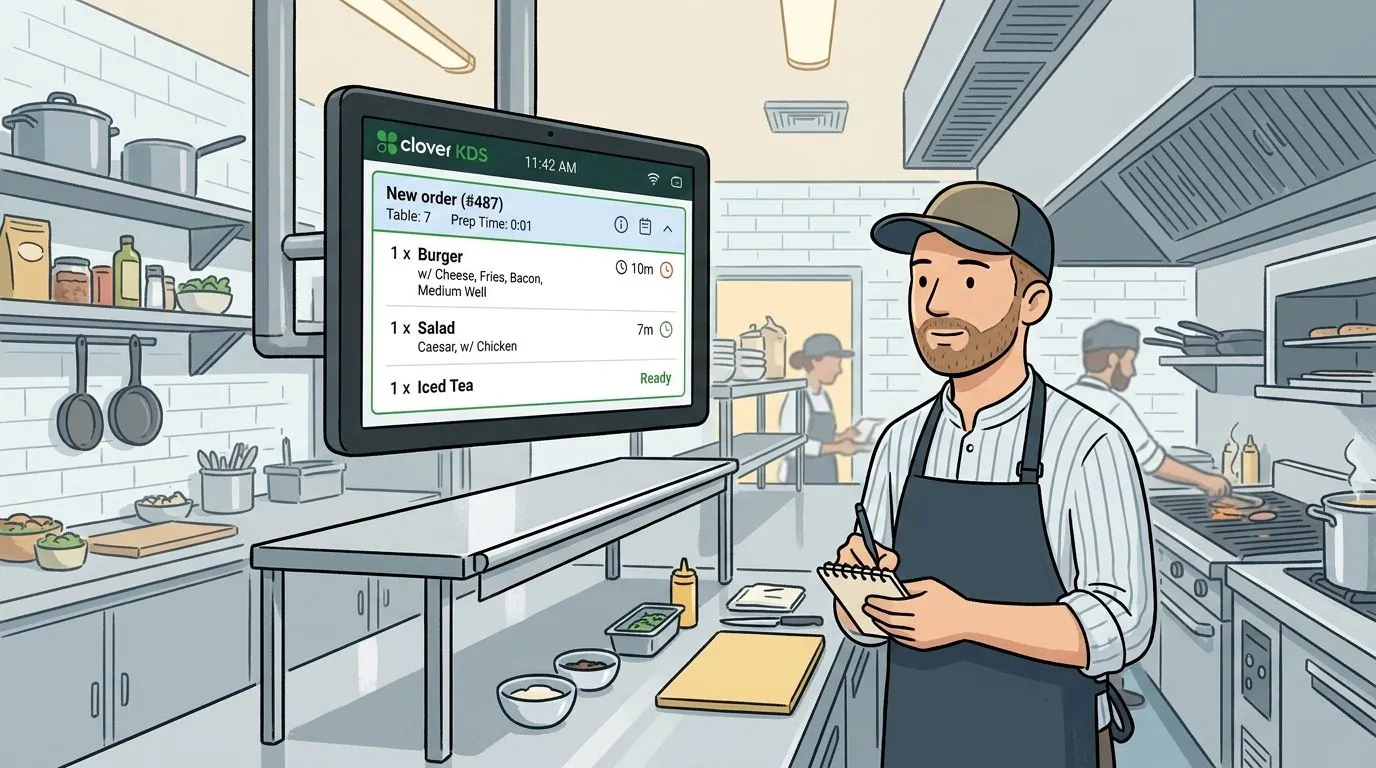
Why operators adopt it
The easiest way to explain it is this. Think of the KDS as air traffic control for your kitchen. Orders don’t just arrive. They get sequenced, displayed, and handled in a way that helps cooks work from the same information at the same time.
In a paper-ticket kitchen, common problems stack up fast:
- Tickets get lost: A dropped chit can become a remake, a comp, or an angry guest.
- Updates arrive late: A modifier change can miss the line if someone doesn’t catch the reprint.
- The loudest voice wins: Instead of a clear queue, staff react to whatever someone yells first.
With a KDS, the kitchen sees one live order stream. That matters most when you have several order channels feeding the same line.
Operator insight: A kitchen screen isn’t just a hardware upgrade. It’s a communication system between the register, the expo station, and every prep position.
For restaurants already running Clover, the KDS makes the POS more useful because the order doesn’t stop at payment. It keeps moving into production. If you want a broader view of how Clover connects to the rest of the stack, this guide on Clover POS integration is a useful companion.
How the Clover KDS Works in Your Kitchen
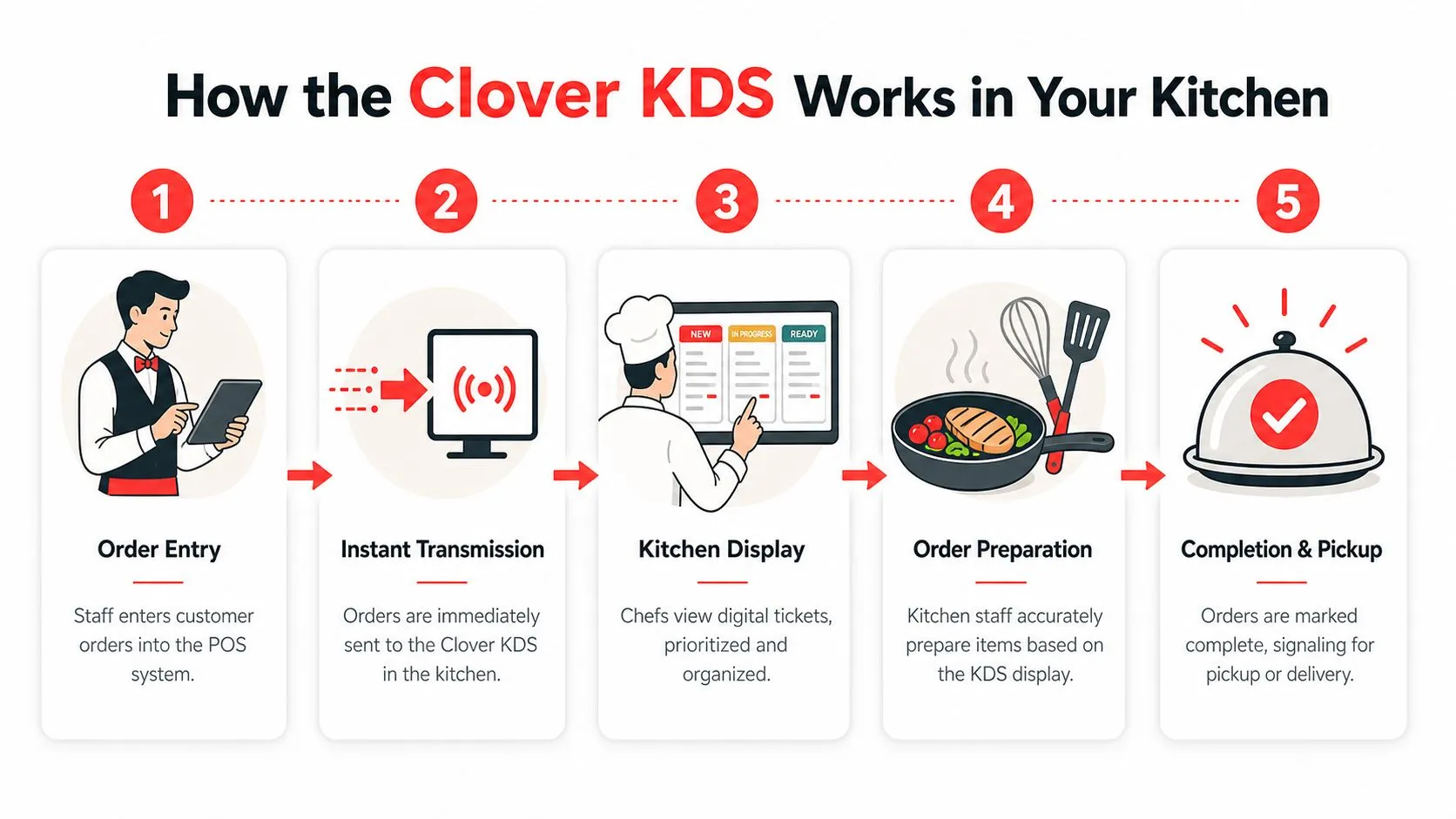
A Clover KDS turns an order into a live production task instead of a paper ticket that has to be read, passed around, and verbally confirmed. The order starts in Clover, lands on the kitchen screen, moves through prep by station, and gets marked ready for service, pickup, or delivery handoff.
What the hardware actually means
Clover offers the KDS in 14-inch and 24-inch touchscreen formats. For operators, that choice affects daily work more than the spec sheet suggests. A smaller screen can fit a tight line or single prep station. A larger screen gives expo or high-volume stations more room to see modifiers, timing, and order status without crowding the display.
Heat tolerance matters too, especially near grills, fry stations, or the pass. If the screen struggles in a hot kitchen, the whole line feels it fast.
How orders move on the line
The best KDS setups do not send every item to every cook. They route work to the right station, show each team what they need to make, and let the kitchen update progress on-screen as orders move. That keeps the rail cleaner and cuts down on the usual questions during a rush.
A typical flow looks like this:
- A cashier or server enters the order in Clover.
- The KDS receives it right away with modifiers attached.
- Each station sees its assigned items instead of the full ticket if routing is configured that way.
- Cooks bump items or orders as they finish them.
- Expo, runners, or front-of-house staff check status on the screen and use that update for dine-in, takeout, or delivery handoff.
That workflow matters even more once delivery app orders hit the same kitchen. If DoorDash, Uber Eats, and in-store orders all feed production, the KDS becomes the execution layer. It shows the kitchen what to make, but it still depends on clean order flow upstream. That is why operators should treat the Clover KDS as one part of the system, not the whole system. Tools like OrderOut connect third-party apps into a single workflow so the KDS receives cleaner, more consistent order traffic instead of a patchwork of tablets and manual re-entry.
Clover also supports features like Expo mode and runner ticket printing. Those options help kitchens that need one view for cooking and another for assembly, bagging, or pickup verification.
For a broader look at routing, station views, and kitchen workflow design, review this guide to restaurant kitchen display systems before you finalize your setup.
Key Benefits for Restaurant Operators
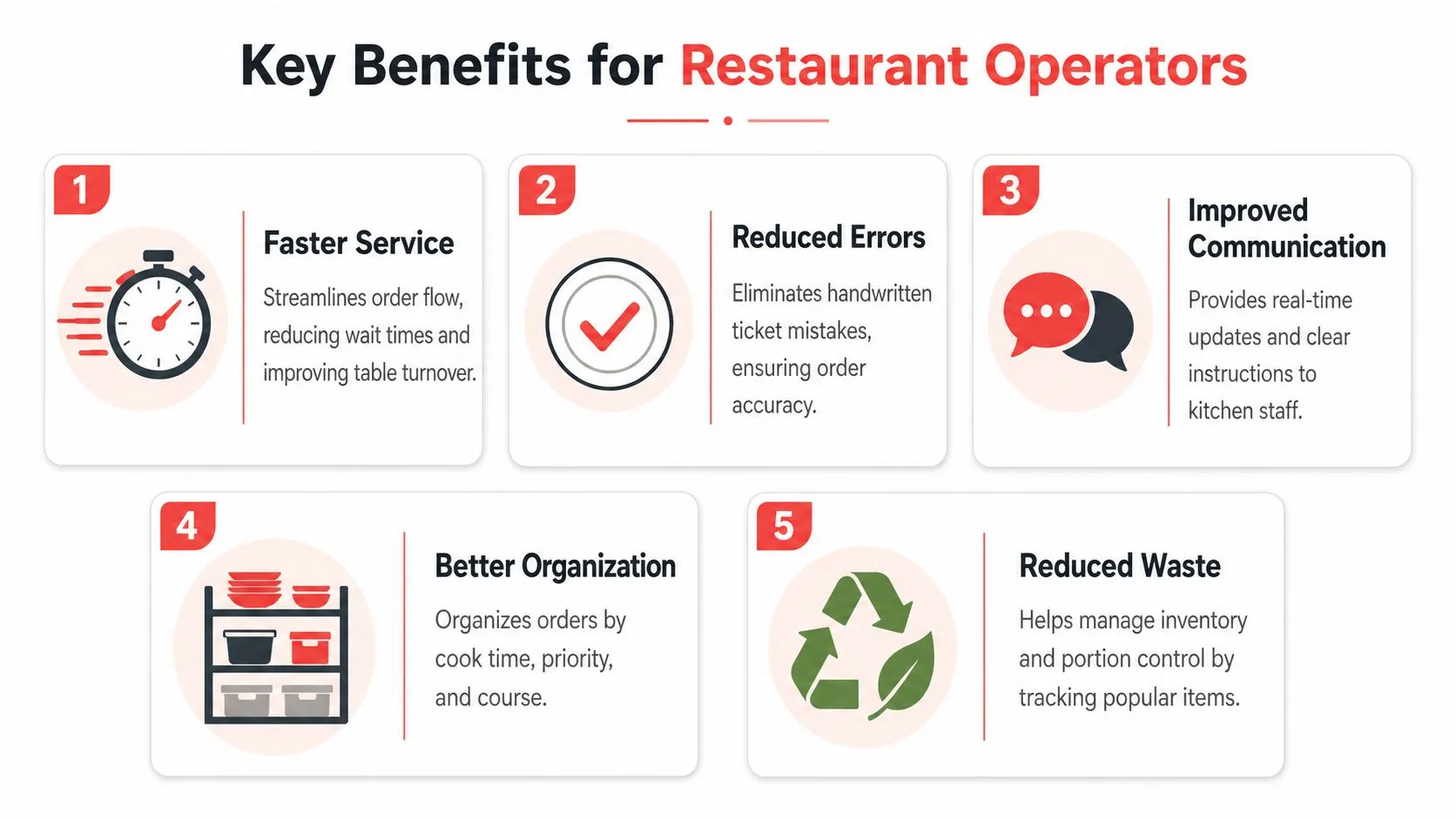
The main benefit of a Clover KDS isn’t that it looks modern. It’s that it removes avoidable friction from service. Every time a kitchen has to decode handwriting, ask for clarification, or hunt down a missing ticket, the line slows down and the chance of a remake goes up.
Accuracy gets better when the line can read the order
According to BentoBox, the Clover KDS has a temperature-resistant body with 122°F (50°C) heat tolerance, and the 14-inch unit uses a 1920x1080 TVDPI (160ppi) LCD display with a tiltable design. For operators, the practical takeaway is simple. A clearer screen is easier to read under pressure than older, lower-resolution displays or paper tickets curling up near the line.
That reduces common mistakes such as:
- Missed modifiers: Extra sauce, no onion, allergy notes.
- Wrong sequencing: Firing a side too early or too late.
- Pickup confusion: Marking the wrong order ready.
Speed improves when communication stops bouncing around
A kitchen with a solid KDS setup gets quieter in the best way. Staff don’t need as many verbal repeats because the screen becomes the reference point. Front-of-house enters the order once. Back-of-house sees it once. Expo sees status instead of asking each station where a ticket stands.
This also helps managers. Prep-time reporting and visible queue flow make bottlenecks easier to spot. If one station always lags when certain menu items hit, you can fix the station setup, adjust staffing, or clean up menu configuration.
Practical rule: If your KDS is messy, your menu build is usually messy too. Clean item names and modifier logic upstream so the kitchen sees a ticket that can be acted on immediately.
Waste and stress both come down
Most operators notice two soft benefits quickly. First, fewer remakes. Second, less line tension. Those don’t always show up as a neat dashboard number, but they matter every shift.
A KDS helps because it creates one visible production queue rather than several competing ones. If you’re looking at the broader payoff from digital ticket flow and cleaner handoff logic, this overview of order processing automation connects the back-of-house gains to the larger operating model.
Integrating Third-Party Delivery App Orders
What happens to your Clover KDS when half your orders arrive on delivery tablets instead of through the POS?
That is the break point for many restaurants. Clover KDS can keep the line organized, but only if incoming orders reach Clover in a usable format. Once DoorDash, Uber Eats, and Grubhub live on separate devices, the kitchen starts running two systems at once. One queue is on the KDS. The other is scattered across tablets, alert sounds, and manual re-entry.
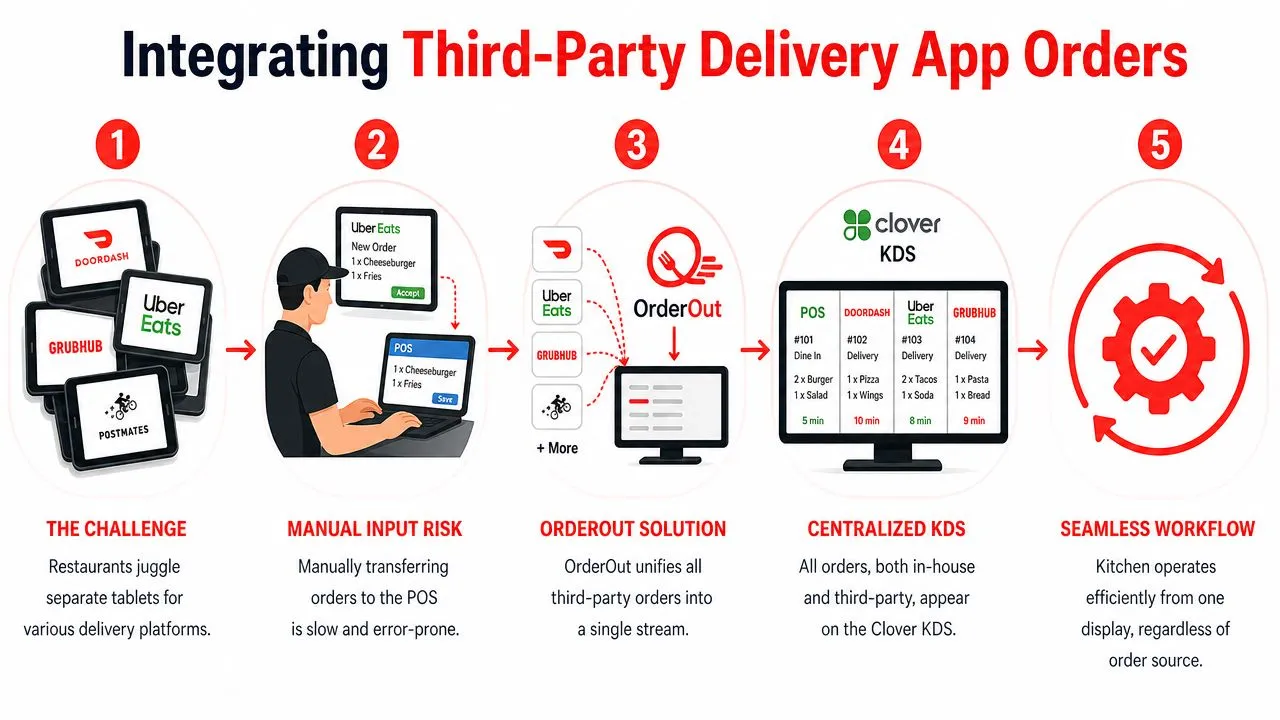
Why delivery tablets create friction
In practice, tablet workflows fail in predictable ways. A host misses an alert during a rush. A cashier retypes the wrong modifier. A third-party order gets delayed because no one realized it was sitting on a side screen instead of in the production queue.
Those errors are not caused by the KDS. They come from splitting order intake from kitchen execution.
The better setup routes third-party delivery orders into Clover first, so the KDS receives them with the rest of the house flow. That gives cooks one production queue, expo one status view, and managers one system for menu logic and reporting.
OrderOut’s Clover API integration article explains how item data, modifiers, pricing details, and other order metadata are normalized before Clover receives them. For operators, the practical point is simple. The kitchen sees tickets that match the POS structure instead of a patched-together version of the marketplace order.
What operators gain from a unified workflow
A connected setup changes the daily routine in a useful way:
- Orders enter one queue: Marketplace tickets land in Clover instead of sitting on separate tablets.
- The KDS becomes the kitchen’s reference point: Staff work from one screen, not from whichever device beeped last.
- Menu control stays centralized: Item names, modifiers, and pricing are easier to maintain when the POS remains the system of record.
- Handoffs get cleaner: Front-of-house, expo, and back-of-house are looking at the same order status.
That last point matters more than many operators expect. If third-party tickets bypass your normal flow, every handoff becomes a judgment call. Once those orders feed into Clover correctly, the KDS can handle delivery demand with the same discipline it uses for in-house orders.
If DoorDash drives a large share of your off-premise volume, this guide to Clover and DoorDash integration for restaurants shows how that channel fits into the same workflow.
For operators comparing ordering channels and customer-facing delivery tools, AppLighter’s guide to a delivery app is useful context. It helps frame the customer side of delivery while the KDS handles production inside the kitchen.
The main operational trade-off is straightforward. Running several tablets may feel workable at low volume because it avoids setup work up front. At higher volume, that shortcut usually costs more in missed tickets, delayed fires, and staff attention than the integration saves. A Clover KDS does its best work when third-party orders arrive through the same path as every other order.
KDS Setup and Best Practices
Most KDS problems aren’t caused by the screen itself. They’re caused by poor placement, weak network stability, and sloppy menu structure. Get those three right first.
Start with placement and visibility
Mount the screen where the station that needs it can use it without turning away from the work surface. That sounds obvious, but plenty of installs put the display where it looks tidy rather than where cooks can read it at a glance.
Use this checklist:
- Match screen size to station role: A compact station may work fine with a smaller display. Expo or a high-traffic line may need the larger screen for visibility.
- Keep glare in mind: Heat lamps and overhead lighting can make a good screen hard to read if you place it poorly.
- Protect the touch path: Don’t mount it where grease, splatter, or constant reaching across hot surfaces will become a daily problem.
Treat Wi-Fi as an operations issue
This part gets skipped too often. AppStar notes that users frequently report “terminals not talking” and screen failures when Wi-Fi is unstable. That isn’t a minor technical annoyance. It’s a service risk.
If the KDS depends on real-time sync, your network has to be treated like critical equipment.
A few practical habits help:
- Test the kitchen signal during live service: A network that looks fine before opening can behave differently during the rush.
- Separate troubleshooting from guessing: If tickets lag, don’t assume the screen is bad. Check connectivity first.
- Avoid overcomplicating the stack: Every extra device competing for weak wireless coverage adds another failure point.
A paper ticket rail is crude, but it doesn’t disconnect. Your digital workflow has to earn that reliability.
Clean menu data before you scale delivery
This matters whether you’re using native Clover workflows or feeding delivery orders into Clover from outside channels. If item names are vague, modifiers are inconsistent, or duplicate menu logic exists across platforms, the KDS will expose the mess.
A workable standard looks like this:
| Area | Best practice | Why it matters |
|---|---|---|
| Item names | Use short, unambiguous names | Cooks can read and act fast |
| Modifiers | Keep options consistent across channels | Fewer missed or confusing customizations |
| Station routing | Assign items to the right prep area | Prevents one giant mixed queue |
| Expo flow | Define who clears and checks orders | Better handoff accuracy |
For teams tightening pickup and handoff communication, order ready screen guidance can help clarify the last step after food leaves the line.
Frequently Asked Questions
What is the Clover Kitchen Display System
It is Clover’s digital kitchen screen for managing tickets inside the back of house. Orders appear on-screen instead of piling up on a printer rail, which helps the line work from a live queue and cut ticket handling errors.
The practical point is not the screen itself. It is what the screen does to pacing. Cooks can see what is firing, what is waiting, and what has been completed without sorting paper during a rush.
Does Clover KDS work with Uber Eats, DoorDash, and Grubhub
Yes, if those marketplace orders are flowing into Clover correctly.
That distinction matters. A KDS does not solve tablet sprawl on its own. If Uber Eats, DoorDash, and Grubhub are still arriving on separate devices, staff still have to watch multiple inputs and re-enter orders. Once those orders are pushed into Clover, the KDS can show them in the same production flow as in-store and direct online orders. That is the setup operators want because the kitchen works one queue instead of three or four disconnected ones.
Do I need extra tablets for third-party delivery
Many restaurants keep extra tablets only because their delivery apps are not connected to the POS. With an integration layer feeding those orders into Clover, the kitchen can work from the POS and KDS workflow instead of bouncing between app screens.
That changes more than countertop clutter. It reduces missed tickets, cuts re-entry mistakes, and gives expo a cleaner handoff process.
Is OrderOut free on Clover
OrderOut is available to install through Clover’s app ecosystem. The better question for operators is total operating cost.
Free install does not mean free complexity if the workflow is poor. What matters is whether the setup replaces manual tablet entry, keeps menus aligned across channels, and sends delivery orders into the same kitchen flow as everything else. If it does, the value usually shows up in labor saved and fewer order errors.
What’s the biggest mistake when setting up a Clover KDS
Operators usually miss one of two things. The first is network reliability. If the connection drops during service, the KDS stops being a live production tool and turns into another problem the shift lead has to manage.
The second is bad menu structure. Confusing item names, sloppy modifier rules, and weak station routing create screen clutter fast. The KDS will display exactly what the POS and delivery channels send it. If those inputs are messy, the kitchen slows down.
A Clover KDS works best as part of a larger order flow. The screen handles production. The POS records the sale. The delivery integration layer makes sure DoorDash, Uber Eats, and other marketplace orders enter that system cleanly so the kitchen is not forced back into manual work.
If you want a Clover kitchen workflow that includes marketplace orders instead of stopping at the POS, start with OrderOut for restaurants, review OrderOut pricing, or create your free account in the OrderOut dashboard.