
Friday night. The dining room is filling up, the phone keeps ringing, and the DoorDash tablet starts chirping again while someone at the counter asks for a side of ranch. One staff member grabs the tablet, reads the order, and starts punching it into Clover by hand. Another order lands before the first one is finished.
That workflow works for a while. Then it doesn’t.
Most clover doordash integration problems don’t start with software. They start with an operation that outgrows manual order entry. Tablets pile up. Modifier mistakes slip through. Staff bounce between guests in front of them and orders sitting on a screen. The kitchen gets a mixed signal about what came from where, and nobody is fully sure which system is the source of truth.
Restaurants that want to add delivery without adding chaos usually land on the same question: should you use DoorDash’s native Clover connection, or should you use a delivery POS integration that handles DoorDash alongside the rest of your channels?
The Problem with Manual DoorDash Order Entry
The biggest cost of manual entry isn’t the extra tapping. It’s the distraction.
When a restaurant runs DoorDash on a separate tablet and re-keys every order into Clover, staff stop doing higher-value work. They stop greeting guests quickly. They stop checking bags carefully. They stop catching small issues before they become refunds, remakes, or bad reviews. If you’re trying to streamline operations for business growth, this is one of the first bottlenecks to fix.
What tablet hell looks like in real life
A typical setup goes sideways in predictable ways:
- One person becomes the tablet catcher: They stand near the host stand or expo station waiting for alerts instead of helping the floor or line.
- Modifiers get lost in translation: “No pickles,” “extra sauce,” and combo choices are easy to miss when someone is reading from one screen and typing into another.
- Orders stack in two systems: The tablet says one thing, Clover says another, and the kitchen trusts whichever ticket printed last.
- Rush periods get worse, not better: Delivery was supposed to add revenue. Instead, it adds another manual task at the exact moment your team is busiest.
I’ve seen this most often in restaurants that started with one marketplace, made the tablet work for a while, then added another. The process doesn’t break all at once. It breaks gradually, with more small misses and more staff frustration.
Restaurants usually don’t need more order sources. They need fewer handoffs.
If you’re still deciding whether automation is worth it, this guide on restaurant order processing automation is a good primer on why manual re-keying becomes an operational drag long before owners fully admit it.
Why manual entry stops scaling
Manual entry depends on perfect attention. Real restaurants don’t operate in perfect conditions.
Staff get interrupted. A customer changes their order at the counter. A printer jams. A manager asks for a void. Meanwhile, the DoorDash order is still waiting to be entered. That creates a fragile workflow where a simple rush can lead to missed tickets, delayed prep, and bad handoff timing at pickup.
The fix is straightforward in principle. Orders should flow into the POS automatically, where the kitchen already works. The hard part is choosing the right kind of integration.
Understanding Your Clover DoorDash Integration Options
By the time a restaurant starts comparing Clover DoorDash integration options, the question usually is not “Can these systems connect?” The question is whether the setup will hold up on a busy Friday without extra menu work, missed modifiers, or staff workarounds.
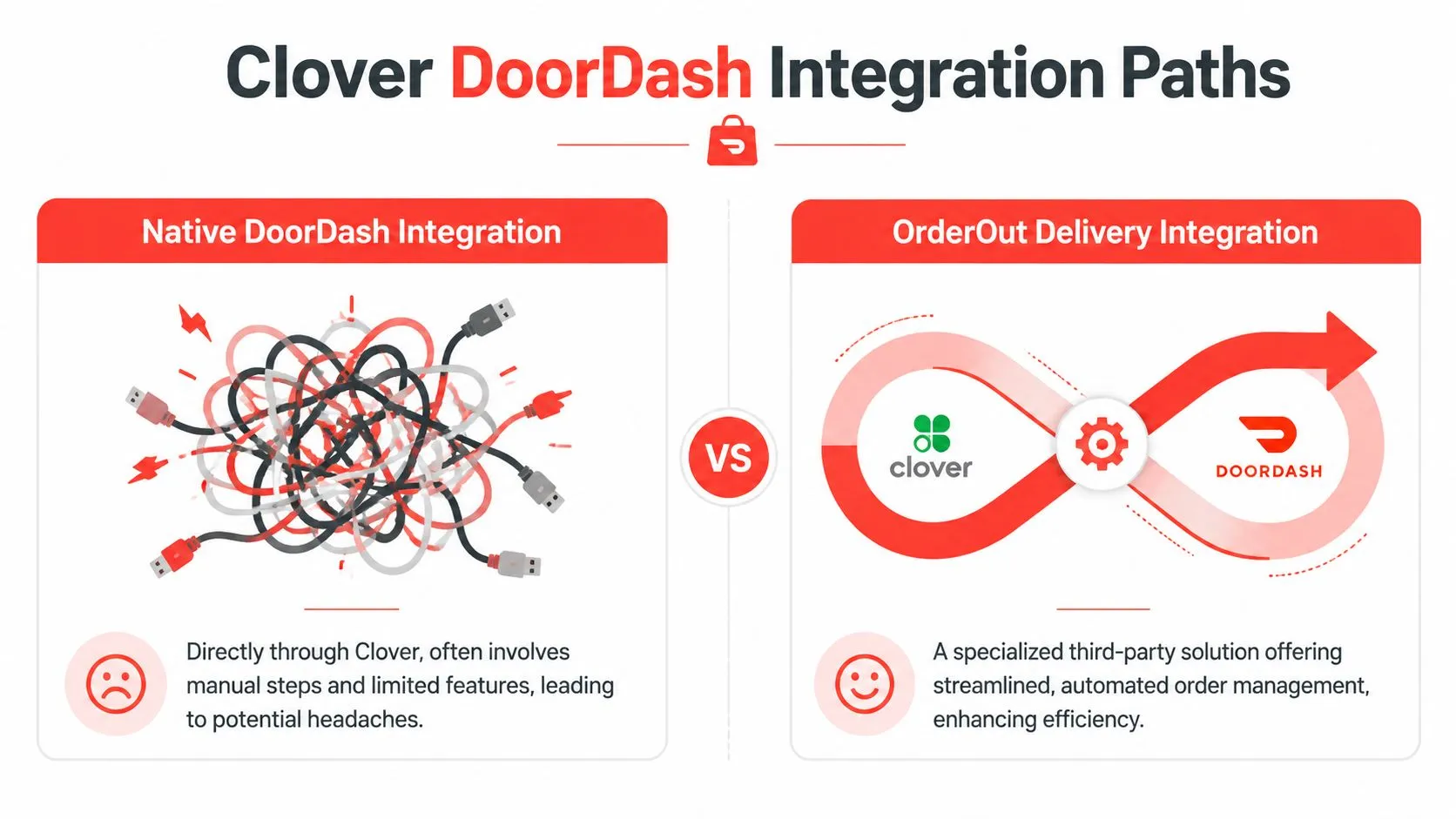
There are two common paths. You can use the native DoorDash connection inside Clover, or you can use a third-party delivery integration layer that manages order flow and menu mapping across channels.
Option one is the native Clover path
The native path appeals to owners who want the shortest route from DoorDash into Clover. For a simple operation with one marketplace, one menu, and limited daypart complexity, that can be enough.
The limitation shows up in the menu model. Native marketplace integrations often work best when the POS menu and the delivery menu are already close to identical. That sounds manageable until an operator needs breakfast pricing in the morning, lunch items later, modifier rules that differ by channel, or a separate delivery menu structure that does not mirror the in-store setup.
That is where many teams start making compromises. They simplify the DoorDash menu to fit the integration, create staff rules for items that do not map cleanly, or avoid changes because every update risks breaking something.
Option two is a third-party integration layer
A third-party connector gives restaurants more control over how DoorDash fits into the rest of the operation. That matters for stores running more than one delivery channel, brands with frequent menu changes, and operators who care about keeping one reliable flow into the kitchen.
This is usually the better fit for multi-channel restaurants. A pizzeria may get family orders from DoorDash, late-night volume from Uber Eats, and office catering inquiries from another source. Solving only the DoorDash connection leaves the staff managing three versions of reality.
If you want a broader technical overview, this guide to how Clover POS integrations work across connected restaurant systems explains the core setup decisions.
Key Decision Criteria
The choice comes down to operating tolerance.
| Integration path | Works well when | Starts to struggle when |
|---|---|---|
| Native DoorDash in Clover | You run a straightforward DoorDash setup with one menu and minimal channel-specific logic | You need dayparts, cleaner menu control, or a process that extends beyond DoorDash |
| Third-party delivery POS integration | You want one order flow across channels and tighter control over menu behavior | Your Clover menu and modifier structure still need cleanup before automation |
Serious operators should evaluate labor, failure points, and menu maintenance, not just setup speed. A connection that saves an hour at onboarding but creates weekly menu work and shift-level confusion usually costs more than it saves.
OrderOut stands out for restaurants that need a delivery integration built for daily operations, not just initial connectivity. The difference is less about getting orders into Clover and more about reducing exceptions, channel-by-channel fixes, and the hidden admin load that comes with native one-off integrations.
How the Native DoorDash Clover Integration Works
A common scenario looks like this: the owner turns on DoorDash inside Clover, assumes orders will start flowing, then finds out the account is still waiting on approval, menu behavior is not quite right, and the fee model is different from what the team expected. The native connection works, but it is narrower than many operators assume.
The setup path inside Clover
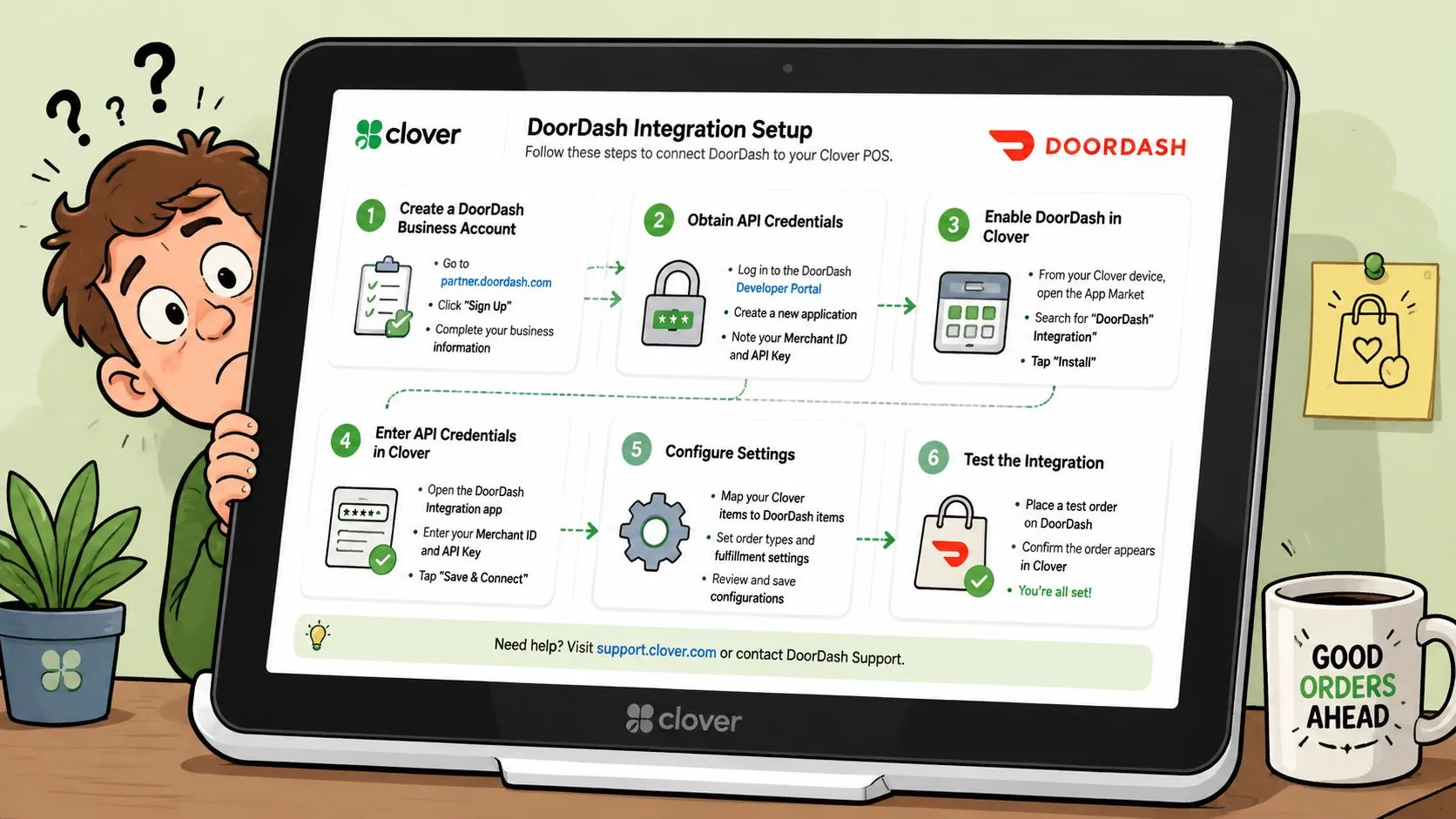
The starting point is inside Clover, not DoorDash. In Clover, the path typically appears under Settings > Business Operations > Online Ordering > DoorDash > Get Started. That part is straightforward.
The part that trips people up is activation on the DoorDash side. Restaurants can complete the Clover-facing steps and still wait on backend approval before the integration is usable. In practice, that means the native setup is not always a same-day go-live, even if the screen flow inside Clover makes it look that way.
That distinction matters operationally. A manager may think the work is done because the toggle is on. The kitchen and front counter only care whether orders are entering Clover correctly during service.
What the native connection actually gives you
At a basic level, the native integration is built to pass DoorDash orders into Clover and support online ordering tied to that setup. For a simple store with one menu, limited modifier complexity, and no channel-specific logic, that can be enough.
Where restaurants get caught is in the gap between connection and control. Native does not automatically solve menu structure problems, daypart edge cases, or the messy exceptions that show up once delivery is live on a busy Friday. If your Clover menu is already tight, the setup is easier. If your menu has workarounds, duplicate items, or inconsistent modifiers, the integration tends to expose those issues instead of fixing them.
Operators should also separate order flow from business strategy. A synced order is only one part of the job. The harder question is whether the setup matches how the restaurant wants to manage hours, item availability, prep behavior, and channel-specific differences over time.
Where the hidden costs show up
The fee stack deserves a hard look. Clover’s documentation on its DoorDash online ordering integration describes per-order delivery and dispatch charges, and some merchant materials also reference commission-based pricing tiers tied to delivery sales. The exact mix depends on the program and account setup.
That does not make the native option a bad fit. It means “integrated” should not be treated as shorthand for lower total cost.
I usually tell operators to review three costs before approving anything: direct fees, manager time spent maintaining the menu, and shift-level mistakes when orders do not land the way the kitchen expects. The first cost is visible. The other two usually get ignored until they start showing up in labor and comps.
Another limitation is marketplace visibility. Clover’s own materials note that restaurants using this setup may not appear on the DoorDash marketplace. For brands that only want DoorDash as a delivery layer for first-party ordering, that may be fine. For restaurants that expect discovery and new customer acquisition from DoorDash, that is a meaningful constraint.
The practical takeaway
The native Clover DoorDash connection works best as a basic, contained setup. It is a reasonable fit if the restaurant wants a direct path, accepts the fee structure, and does not need much channel-specific control.
Serious multi-channel operators usually need more than a live connection. They need cleaner menu mapping, fewer exceptions, and one system for delivery operations instead of one integration per marketplace. That is the gap a platform like OrderOut’s delivery integration software is built to address.
A Better Way with OrderOut Delivery Integration
The restaurants that outgrow the native setup usually hit the same wall. They don’t just need DoorDash sent into Clover. They need delivery to behave like one system.
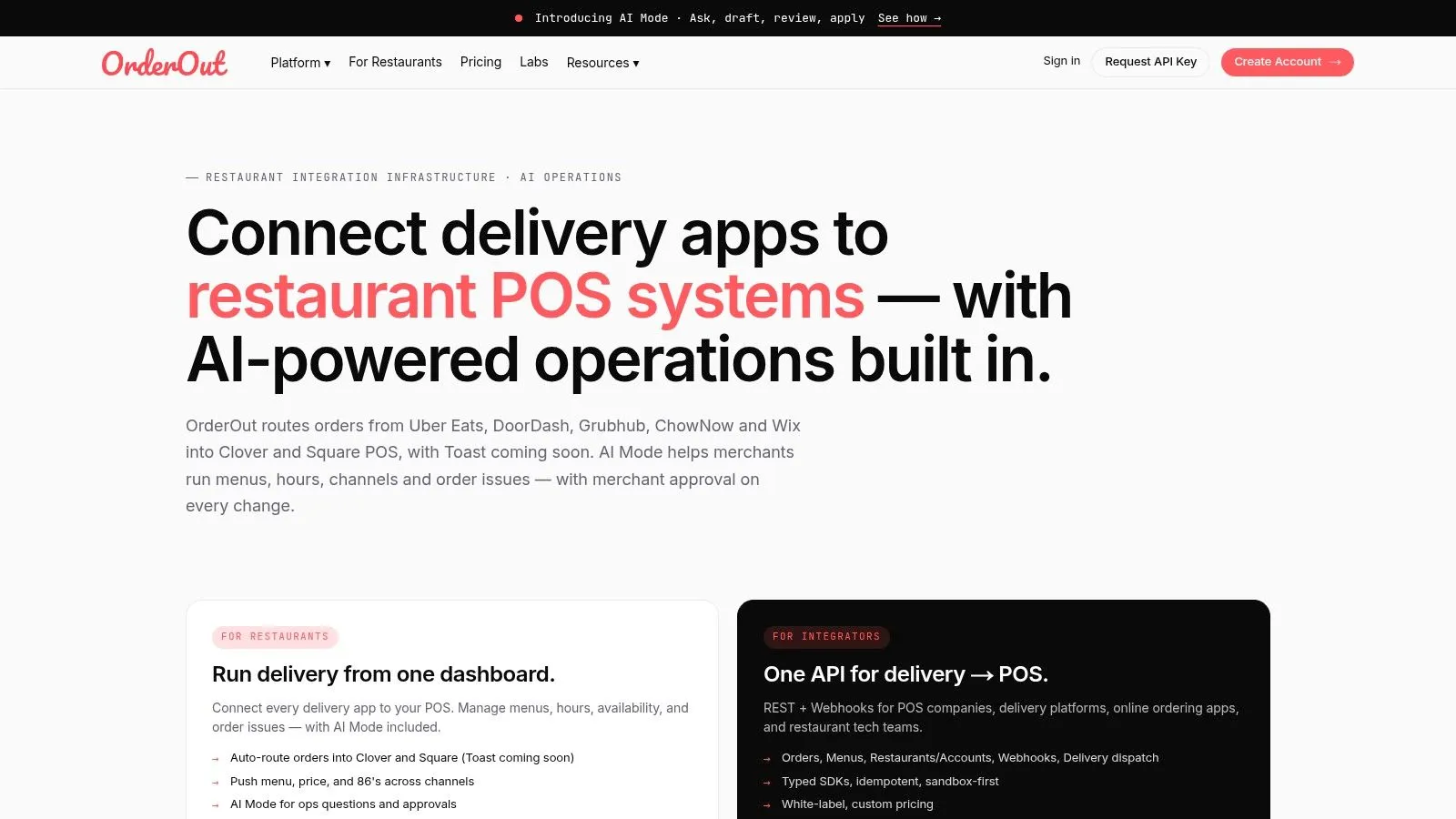
A more effective delivery POS integration solves the problem at the workflow level. Instead of treating each marketplace like its own mini-operation, it routes third-party delivery orders straight into the POS and uses menu mapping so items and modifiers land where the kitchen expects them.
That matters if you’re running DoorDash plus Uber Eats and Grubhub, or if your Clover menu is detailed enough that sloppy mapping creates kitchen confusion fast. You can review OrderOut’s restaurant technology platform to see the category of system this falls into. For the DoorDash-to-Clover path specifically, OrderOut’s DoorDash → Clover order routing page shows how orders flow directly into Clover.
Why menu mapping matters
In plain language, menu mapping means this: the item name on the marketplace has to connect cleanly to the item in your POS.
If your DoorDash menu says “Cheeseburger Combo” but your Clover menu breaks that into a base item, side choice, and drink modifier set, someone has to translate that structure. If that translation is weak, the order may inject in a messy way or create prep ambiguity. If the mapping is solid, the kitchen gets a usable ticket.
This is one of the hidden differences between “connected” and “operational.”
- Connected means the systems talk.
- Operational means the ticket arrives in a way your staff can trust.
- Scalable means you can add channels without rebuilding the workflow every month.
What serious operators actually want
Most owners don’t care about integration jargon. They care about whether the shift runs cleaner.
They want:
- One order flow into Clover: Not a tablet farm on the counter.
- Less re-keying: Staff should work the line, expo, and guests instead of copying orders between systems.
- Cleaner modifier handling: The kitchen needs instructions that make sense.
- Room to grow across channels: DoorDash today, Uber Eats and Grubhub tomorrow, without rebuilding everything from scratch.
This walkthrough shows the model in action:
For restaurants that want a direct path for third-party delivery into Clover, OrderOut’s Clover delivery integration is the relevant setup. It is free to install on the Clover App Market, and the point is straightforward: remove extra tablets, stop manual re-keying, and keep Clover as the operational source of truth.
Connecting DoorDash to Clover with OrderOut
Friday at 6:30 p.m. is a bad time to discover that your DoorDash combo meal does not map cleanly into Clover. The order still comes through, but the kitchen ticket is vague, the expo line starts asking questions, and a manager ends up checking the tablet to figure out what the guest bought. That is the difference between getting connected and getting the shift under control.
OrderOut setup works best when you treat it as an operations project, not just an app install. The connection itself is usually straightforward. The hard part is making sure DoorDash orders arrive in Clover in a format your staff can trust during service.
Step one is create the account and connect the restaurant
Start inside OrderOut, create the account, and attach the correct Clover location. If you want to see the flow before anyone on your team starts clicking through settings, review this OrderOut onboarding tutorial for Clover delivery setup.
Keep ownership tight here. One manager should handle setup, because split ownership is how restaurants end up with the wrong menu, the wrong location, or a half-finished connection that nobody wants to claim.
Step two is connect DoorDash
Once Clover is attached, connect DoorDash so incoming marketplace orders can route into the POS. This part is not complicated, but it is often where operators get overconfident.
If your DoorDash menu has drifted from what is built in Clover, the integration will expose that mess fast. OrderOut helps centralize the flow, but it cannot fix a menu structure that has been patched together over time without review.
Step three is map the menu like an operator
This is the work that determines whether the integration saves labor or creates a new kind of confusion.
Check the menu in four areas:
- Base items: Make sure DoorDash items point to the correct Clover products.
- Modifier groups: Sizes, toppings, add-ons, sides, sauces, and substitutions need exact matches.
- Combos and bundled meals: These fail more often than single items because the marketplace naming rarely matches the POS build.
- Tax and reporting logic: Orders should land in Clover in a way that keeps sales categories and bookkeeping clean. If your reporting is already messy, it helps to learn restaurant bookkeeping with ReceiptsAI.
A common failure looks like this. DoorDash sells a “Chicken Sandwich Meal,” but Clover is built with a sandwich item plus required side and drink modifiers. If that structure is mapped loosely, the order may inject into Clover while still producing a ticket the kitchen has to interpret manually. That defeats the point of the integration.
Step four is test live scenarios before service
Run test orders that reflect real guest behavior. Do not stop at one plain item.
Test a meal with modifiers, a heavily customized item, and anything your store sells that tends to cause questions on the line. Then confirm three things. The order reaches Clover. The ticket prints or displays clearly. The staff knows Clover is now the source they act on during service.
When you are ready to install, use the Clover App Market listing for OrderOut delivery integration and run setup while a manager is available to validate mappings in real time.
Best Practices for a Smooth Go-Live
Most integration headaches happen after the connection appears successful. That’s when a missing modifier link or an outdated menu category starts causing real damage.
Integration guidance consistently notes that if items or modifiers become unlinked, orders can fail to inject. That’s the part many setup articles skip. Going live isn’t the finish line. It’s the start of menu maintenance.
Use a short launch checklist
Run a disciplined first shift with the integration live.
- Send a test order: Make sure it reaches Clover exactly as expected.
- Check every modifier path: No onions, extra cheese, combo choices, sauces, and drink selections are where mistakes usually hide.
- Verify kitchen output: The ticket should be readable at the printer or kitchen display, not just visible in the POS.
- Assign one manager to monitor exceptions: Somebody should own the first live service period and catch edge cases fast.
A clean go-live depends less on the connection itself and more on whether someone verifies the menu like an operator, not just a technician.
Train staff on the new source of truth
When restaurants move off tablets, staff need one simple rule: trust the POS.
If a host or cashier still checks the DoorDash tablet “just in case,” the old workflow lingers and confusion stays in the building. Make it clear where orders appear, who owns exception handling, and how to escalate a missing item or failed injection. Good financial visibility matters too, especially once delivery volume rises. If you’re tightening the back office alongside delivery ops, this guide to learn restaurant bookkeeping with ReceiptsAI is worth a read.
Frequently Asked Questions
Does OrderOut work with Clover?
Yes. OrderOut connects third-party delivery orders into Clover so staff don’t have to re-key them by hand. If you want more background on the operational side, this OrderOut POS integration FAQ guide covers the common implementation questions.
Do I need extra tablets for DoorDash orders?
The goal of this kind of delivery POS integration is to remove extra tablets from the day-to-day workflow. Orders route into Clover so your team can work from the POS instead of juggling separate marketplace screens.
Is OrderOut free on Clover?
Yes. OrderOut is free to install on the Clover App Market. That makes it easy to get started and then focus your effort on menu mapping and operational setup, which is where most of the actual work lives.
Which delivery apps connect to Clover through OrderOut?
OrderOut is positioned around routing third-party delivery orders from channels such as DoorDash, Uber Eats, and Grubhub into Clover. That’s useful for restaurants that don’t want one-off fixes for each marketplace.
What matters most during setup?
Menu and modifier hygiene. If your marketplace menu doesn’t align with your Clover menu, you’ll feel it at the kitchen level first. The restaurants that get the most stable result usually test thoroughly, clean up naming mismatches, and train staff to treat the POS as the only place they need to watch.
If you’re ready to stop re-keying delivery orders and clean up your Clover workflow, start with OrderOut onboarding for restaurants. You can create an account and onboard for free in a few clicks.