
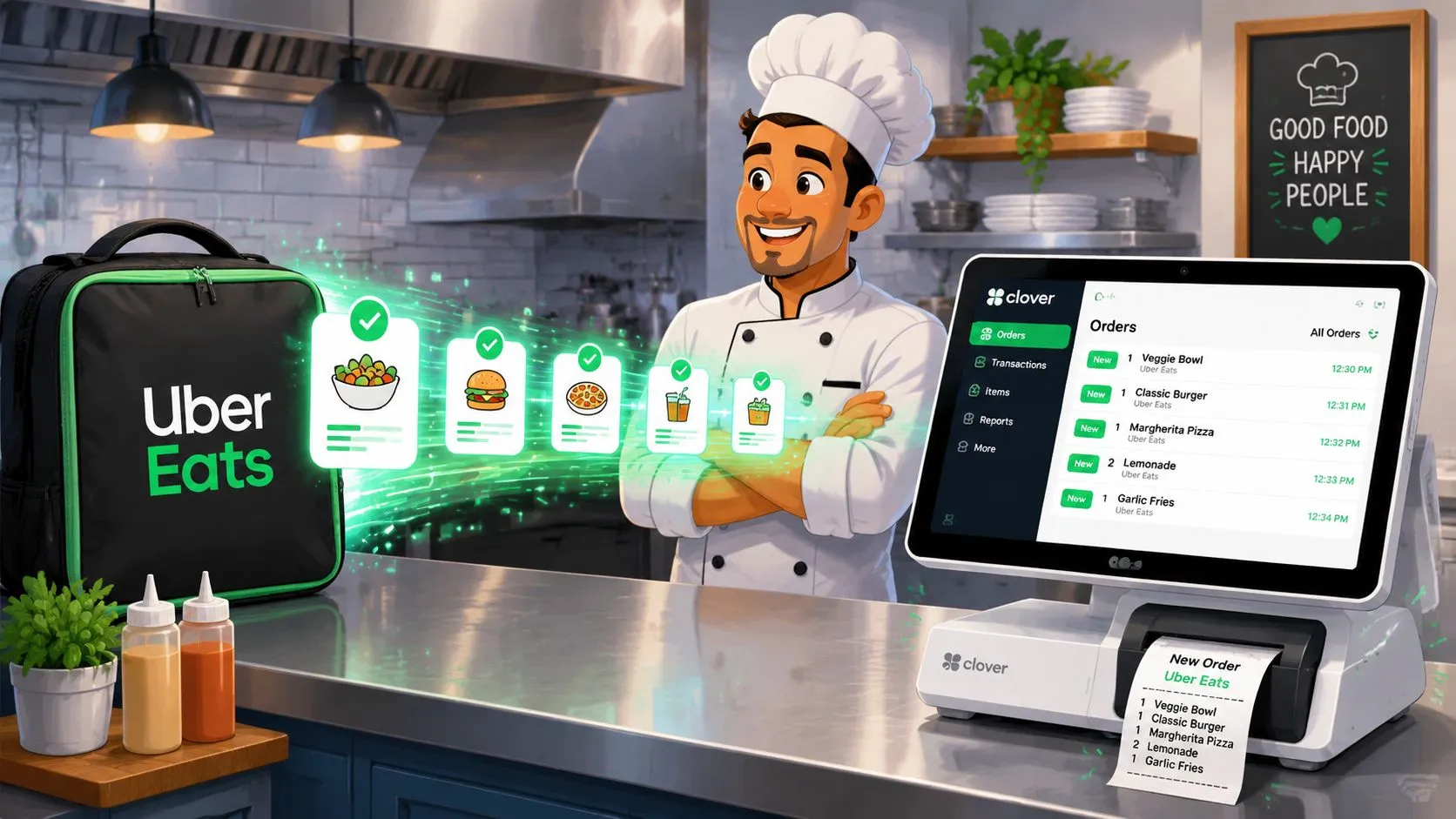
Dinner rush exposes bad systems fast. One tablet goes off for Uber Eats, another is lighting up for another marketplace, someone at the counter is asking for a refund, and a line cook is shouting that the modifier on the last ticket doesn’t match what the customer wanted. Meanwhile, a cashier is retyping an order into Clover instead of helping guests.
That workflow breaks down for the same reason every time. Too many systems are asking the staff to do the glue work manually.
A proper Uber Eats Clover integration fixes that by pushing marketplace orders into the POS instead of forcing your team to babysit separate screens. The point isn’t just convenience. The point is cleaner tickets, fewer hand-entry mistakes, and a calmer line when the dining room and delivery volume hit at the same time.
Ending the Chaos of Delivery Tablets
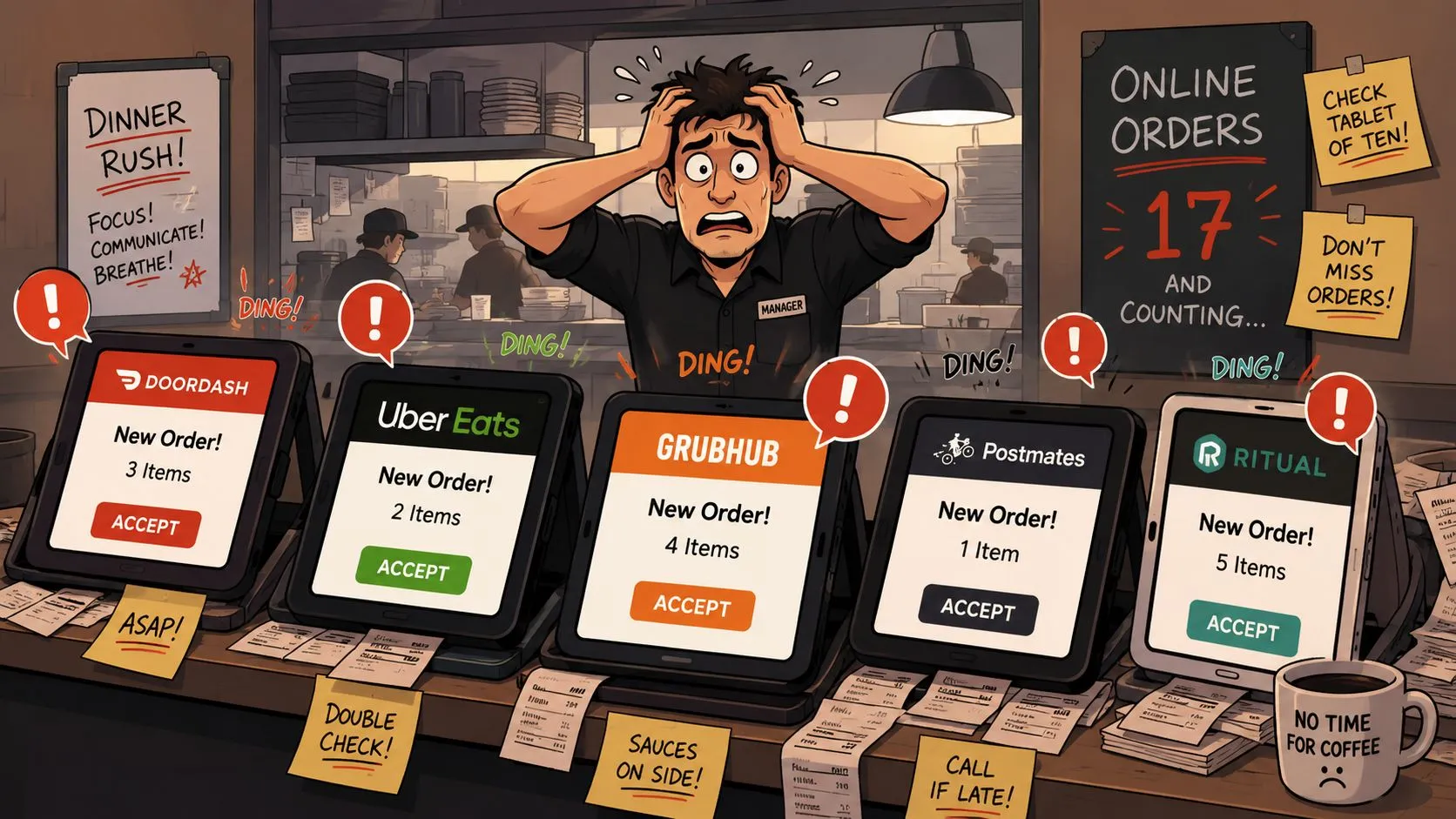
Most operators know the scene. Uber Eats pings. Someone glances at the tablet, accepts the order, then re-enters it into Clover. If the item names don’t match exactly, they improvise. If modifiers are long, they shorten them. If the kitchen is slammed, they rush.
That’s how order chaos starts. Not with one massive failure, but with a hundred small manual touches that create friction. A missed add-on. A wrong side. An item marked available on one screen but sold out in the store.
What tablet chaos really costs
The obvious problem is clutter. The underlying problem is split attention.
When staff have to watch a marketplace tablet and the POS at the same time, they’re doing duplicate work under pressure. The kitchen also loses consistency because tickets from walk-in orders and tickets from delivery orders don’t always enter the same workflow.
A direct POS connection changes that. Uber Eats itself moved in this direction when it announced what it called industry-first self-sign-up point-of-sale integrations with Clover in September 2022, designed to help restaurant partners onboard faster and manage menus, items, and ordering through a single platform in the U.S. and Canada, according to PaymentsDive’s coverage of the Uber Eats and Clover rollout.
Separate tablets don’t just create noise. They create extra decisions at the exact moment your staff have the least time to make them.
What good order flow looks like
In a healthier setup, an Uber Eats order lands inside Clover like any other order. The kitchen sees one operational stream. The manager updates one menu system. Staff stop acting as manual translators between platforms.
That’s why restaurants keep moving away from tablet-first operations and toward delivery POS integration. If you’ve lived through the daily pain of device overload, OrderOut’s own write-up on why tablets pile up in restaurants will feel familiar.
The big operational shift is simple. Instead of treating Uber Eats as a separate side system, you treat it as another order source feeding the same source of truth.
Why Direct Integration Is a Must Have
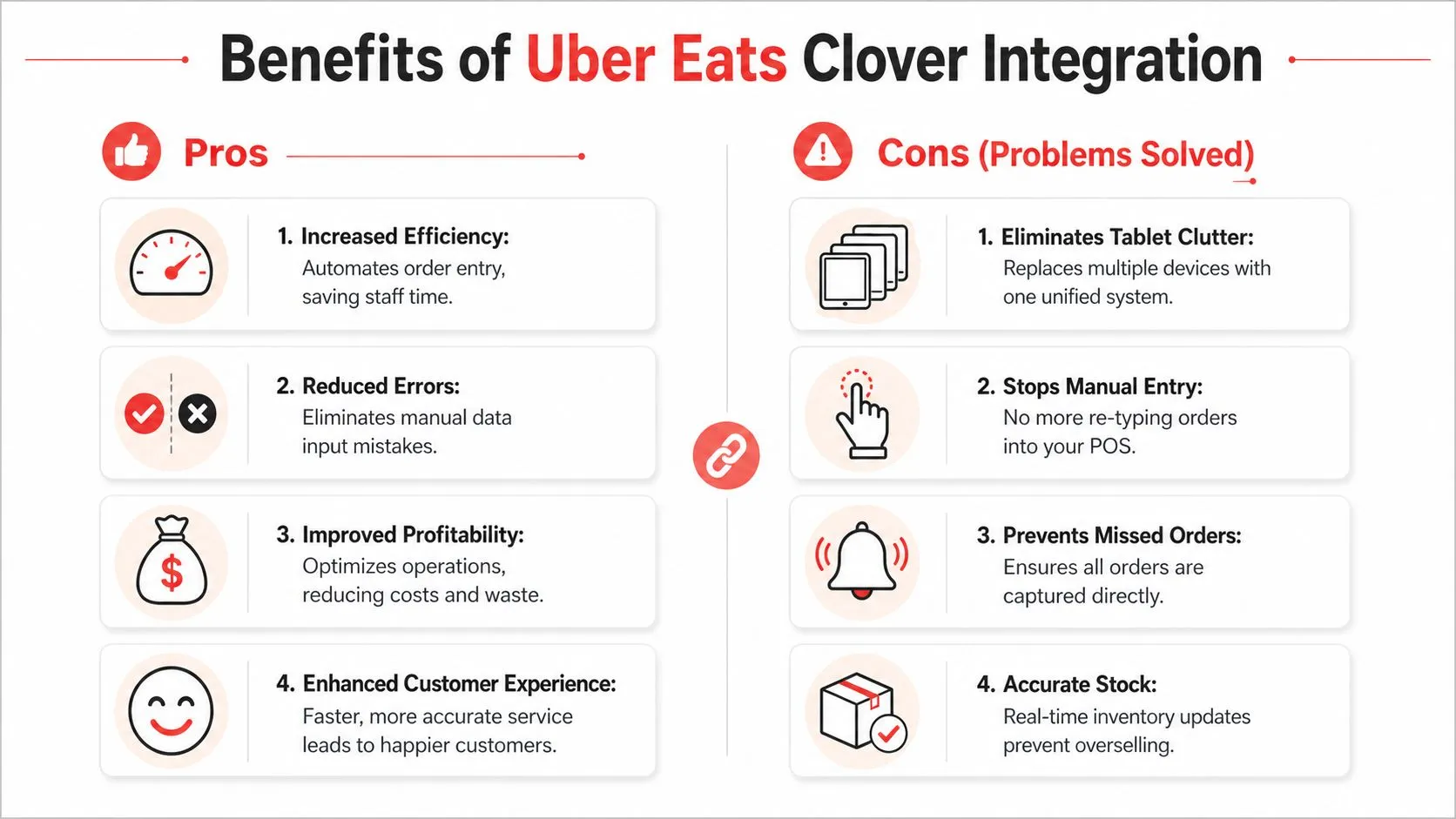
A lot of restaurant tech gets sold as convenience. This isn’t that. A direct Uber Eats Clover integration is an operations control tool.
If your team still retypes delivery orders, the risk isn’t theoretical. It shows up in remakes, confused expediters, and tickets that don’t reflect what the customer selected.
Accuracy gets better when the POS is the source of truth
Take a common order: burger, no onions, add bacon, side salad instead of fries, extra ranch, gluten-free bun. That’s easy for a customer to build inside Uber Eats. It’s much harder for a cashier to retype perfectly during a rush.
When the order enters Clover directly, the process is cleaner. The ticket doesn’t depend on someone reading a tablet correctly and translating every modifier on the fly. That matters even more when your menu has bundles, forced choices, and paid add-ons.
For operators trying to simplify the back end, integrated POS system workflows are worth understanding because they remove the duplicate handoff between marketplace and POS.
Scale makes small inefficiencies expensive
Uber Eats isn’t a side channel anymore. According to Business of Apps’ 2024 Uber Eats statistics, the platform generated $74.6 billion in gross bookings in 2024, served about 95 million users, and worked with more than one million restaurants across 11,500 cities worldwide. If a platform at that scale plugs directly into your POS, even modest operational improvements matter.
That doesn’t mean every restaurant needs the same setup. It does mean marketplace order handling deserves the same discipline you already apply to dine-in and pickup.
Practical rule: If Uber Eats is important enough to market on, it’s important enough to route into your POS properly.
What this changes on the floor
A strong Clover delivery integration improves day-to-day execution in ways staff feel immediately:
- Fewer handoffs: Staff don’t need to read from one device and type into another.
- Cleaner kitchen workflow: Delivery orders print and route with the rest of service.
- Less training overhead: New hires don’t need a separate “tablet process” to survive a busy shift.
- Better menu control: Changes are easier to manage when the POS drives the structure.
If your goal is to push marketplace orders into Clover instead of juggling standalone tablets, OrderOut’s Clover delivery integration is the kind of setup operators look for, and the broader third-party order engine for restaurants shows how these connections are handled across delivery channels.
Prepare Your Accounts for a Smooth Sync
Most integration problems don’t start during installation. They start earlier, with a messy menu.
If your Clover menu has duplicate item names, unclear modifier groups, or items that were built for in-store use only, that confusion carries downstream. Uber Eats can only present and route what the POS gives it.
Clean up the menu before you connect anything
Start inside Clover and review the menu as if you were a customer ordering on your phone.
Check these first:
- Item names: Use clear names that match what guests expect to see. “Chicken Sandwich” is safer than shorthand staff use internally.
- Modifier groups: Build clean structures for choices like cheese, temperature, sides, sauces, and add-ons.
- Pricing: Confirm the POS reflects the prices you want tied to the items being synced.
- Availability logic: Make sure seasonal or unavailable items aren’t still floating around in active categories.
The biggest mistake operators make is assuming menu sync will “clean up” a weak menu. It won’t. Sync spreads structure. If the source is sloppy, the destination is sloppy too.
Match your store details
Menu quality matters most, but account alignment matters too. Before setup, verify that the basics match across systems:
| Check | Why it matters |
|---|---|
| Store name | Prevents confusion when selecting the correct location |
| Address | Helps ensure the right Clover location matches the right Uber Eats store |
| Hours | Reduces storefront issues after activation |
| Admin access | Lets you authorize the connection without getting stuck mid-flow |
You’ll also want the right people involved. If the owner controls Uber Eats login but the general manager controls Clover, get both credentials lined up before starting. Integration setup slows down fast when MFA codes and permissions are split across multiple people.
Menu mapping isn’t busywork. It’s the part that determines whether delivery orders land cleanly or create ticket noise every day after launch.
Treat menu hygiene as a profit protection step
The “why” matters greatly. A clean setup prevents recurring headaches later. Modifier mismatches create refunds. Bad item names confuse packers. Weak category structure makes promotions and inventory changes harder than they should be.
The operators who have the smoothest launch usually do one thing right before anything else. They decide that Clover will be the operational source of truth, then they clean it up accordingly.
How to Connect Uber Eats to Your Clover POS
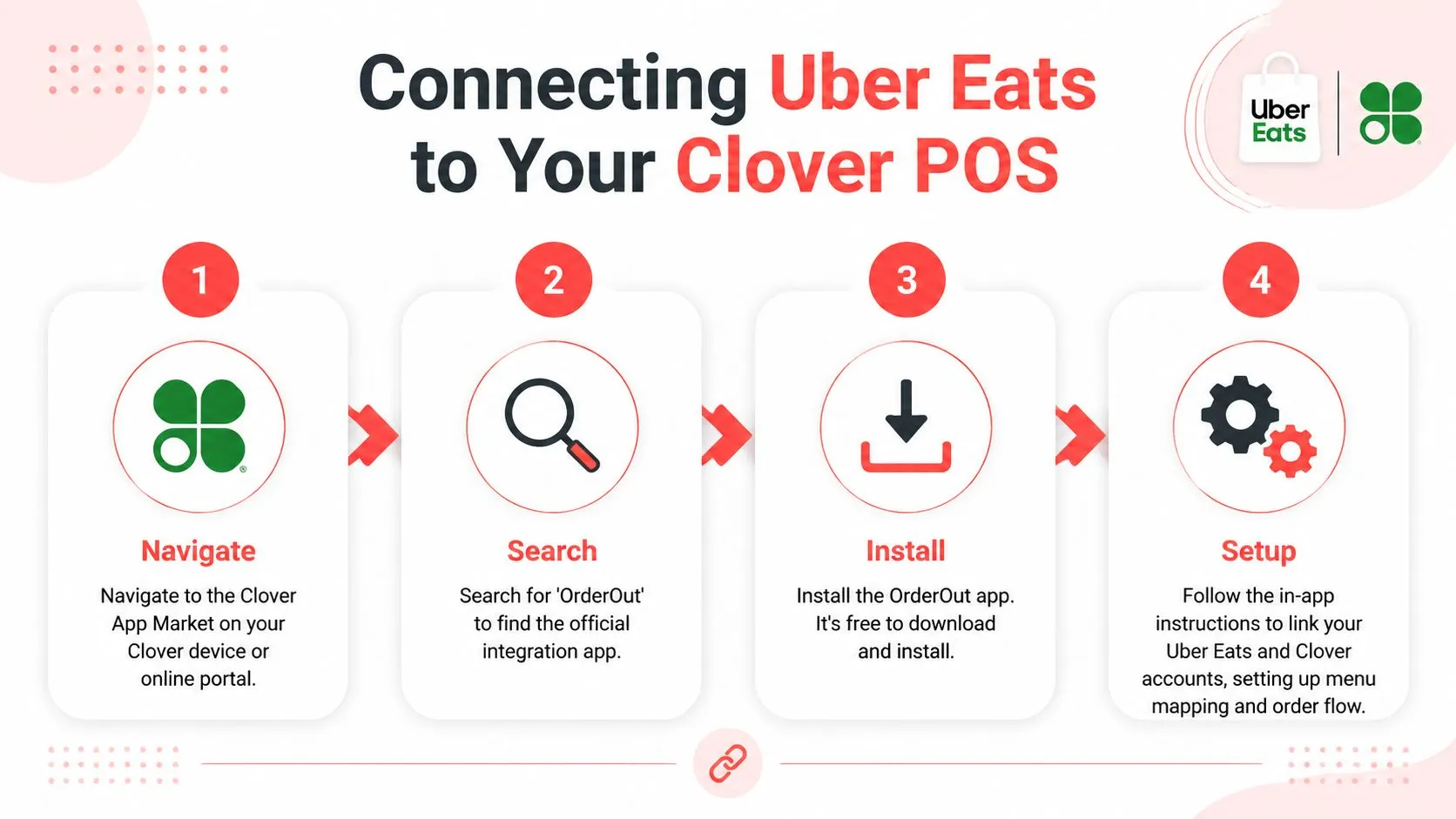
The connection process is straightforward when your accounts and menu are ready. The easiest way to think about it is this: install the connector, authenticate both sides, map the menu correctly, then verify that the store went live.
Start from Clover
Uber’s merchant documentation says the official activation flow starts from the Clover dashboard, and it also notes that the Clover menu must be finalized before activation. Uber further explains that setup includes authenticating into Uber Eats, selecting the correct store, choosing an activation date, and then verifying live status in Uber Eats Manager after launch in Uber’s Clover integration setup instructions for merchants.
That sequence matters. A restaurant can think it’s “connected” when the real benchmark is stronger: menu finalized, location selected correctly, activation date reached, and storefront verified as live.
Install the app and connect your accounts
If you want a Clover-side app workflow, start with the OrderOut app in the Clover App Market. It’s free to install on Clover.
From there, the usual flow looks like this:
- Install the app in Clover and open the setup.
- Sign into your delivery marketplace account with admin access so authorization can complete properly.
- Connect the correct Clover location if you operate more than one store.
- Review the imported menu structure before any orders are allowed to flow.
- Choose the activation timing and confirm that the store status changes to live.
If you prefer understanding the plumbing before turning anything on, Clover API documentation for restaurant integrations gives useful background on how POS-side connections are generally handled.
A quick walkthrough helps if your team wants to see the process visually before touching settings:
Don’t rush the mapping step
Often, many operators get impatient. They want the integration live now, so they click through menu review quickly.
That’s the wrong place to speed up.
When the system pulls menu data, it needs to know how Uber Eats items and modifier choices correspond to what Clover expects. If the marketplace says “Add Bacon” and Clover has a different modifier structure, someone has to define that relationship cleanly.
OrderOut handles this by mapping each marketplace menu to a normalized POS schema so orders inject into Clover in a usable format rather than as loose text. In plain terms, it turns delivery menu logic into something the POS can process reliably.
A successful launch is not “the app installed.” A successful launch is when the first real order prints exactly the way your kitchen expects.
Master Your Menu and Order Flow
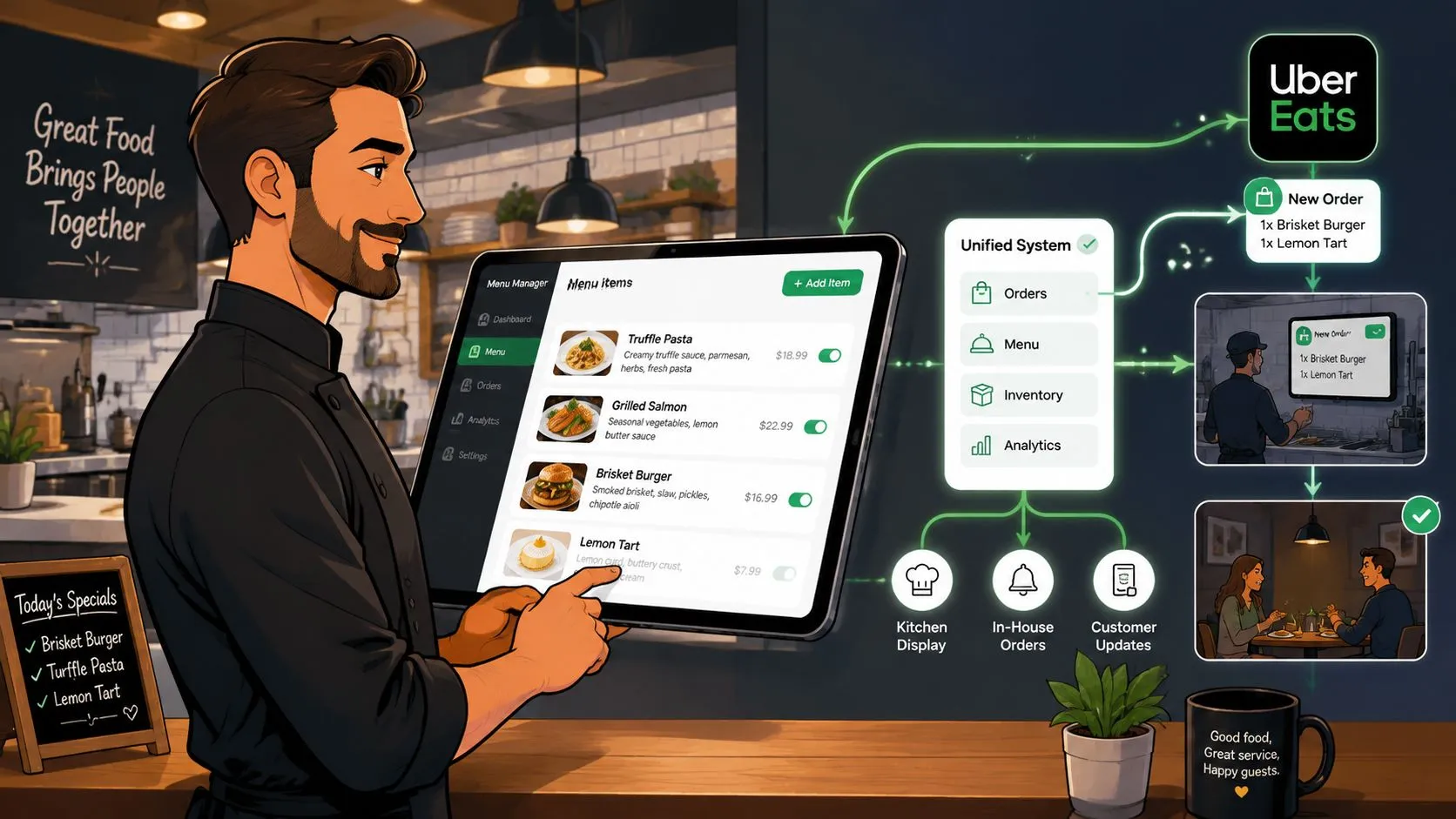
Once the connection is live, daily operations depend on one thing more than anything else: menu mapping.
That phrase sounds technical, but the idea is simple. The system needs to know that an item on Uber Eats matches the right item in Clover, and that every size, add-on, and modifier attaches to the right place when the order is injected.
Map items the way the kitchen works
Say Uber Eats shows an item as “The Big Burger,” but Clover has it as “1/2 lb Burger.” That’s fine if the mapping tells the system they are the same sellable item.
What causes trouble is partial matching. If the item maps but modifiers don’t, the kitchen gets a ticket that’s technically accepted but operationally messy.
Here’s what clean mapping looks like:
- Items match intentionally: Don’t rely on similar names. Confirm exact product pairing.
- Modifier groups stay organized: “Choose a Side” should be distinct from “Add Toppings.”
- Paid add-ons map as paid add-ons: Extra bacon and avocado need to land with the right price logic and print behavior.
- Special instructions stay readable: The kitchen should be able to act on the ticket without interpretation.
If you’ve ever had to change an order integration setup, you already know that small menu decisions upstream have outsized effects later.
Use Clover as the control point
The healthiest operating model is to manage core menu structure in the POS, not scatter edits across marketplace dashboards.
That gives you one system to update when something is out of stock, renamed, repriced, or temporarily hidden. It also keeps staff from making emergency changes in multiple places and then forgetting what changed where.
A simple daily routine works well:
| Task | Best practice |
|---|---|
| Item sold out | Mark it out in Clover first |
| Modifier issue | Fix the POS structure, then confirm the marketplace mapping |
| New promo item | Add it cleanly in the POS before publishing it broadly |
| Ticket confusion | Trace it back to the menu object, not the staff member who received it |
Don’t ignore modifier hygiene
Most delivery-order mistakes aren’t caused by the entree. They come from the extras.
“No onions” is easy. “No onions, sub side salad, dressing on the side, add cheddar, no tomato, extra pickles” is where weak mapping starts showing up. If your modifier groups are vague or duplicated, the order may still inject, but the ticket quality drops.
Good integration makes the kitchen faster because the ticket answers questions before anyone has to ask them.
When this part is dialed in, the restaurant gets more control, not less. The POS becomes the stable system behind the storefront, and Uber Eats behaves more like a channel than a separate operating environment.
Troubleshooting Common Sync Errors
Even a solid setup can hit occasional issues. The key is to diagnose the failure point instead of guessing.
Order accepted but nothing printed
Start with the basics. Confirm the order reached Clover at all, then check whether the issue is really printing rather than injection.
Run through this list:
- Network first: If Clover had a connection hiccup, the order may not have reached the normal print flow.
- Printer routing: Confirm the order type is tied to the right kitchen printer settings inside Clover.
- Item mapping: If one item or modifier wasn’t mapped correctly, the order may stall or land in an unexpected state.
Menu changes aren’t showing on Uber Eats
This usually points to sync logic, not a need to rebuild everything.
First, verify the change was made in the POS object that ultimately controls the live item. Then confirm the sync has had time to run and review the integration dashboard for any menu publish issues. If your team wants a technical overview of how marketplace-to-POS connections behave across channels, this article on Uber Eats, DoorDash, and Grubhub POS integration APIs gives useful context.
Store connected but not live
This is the one that confuses operators most. A store can authenticate successfully and still not be live for ordering if the menu wasn’t properly ready, the wrong location was selected, or activation status wasn’t verified after setup.
When that happens, don’t just reconnect blindly. Recheck store selection, menu readiness, and live status in the merchant tools. If those look correct, it’s time to escalate through support instead of repeatedly changing settings.
Frequently Asked Questions
Does OrderOut work with Clover?
Yes. OrderOut connects third-party delivery orders to Clover and is available as a free install in the Clover App Market. For operators comparing setups, the restaurant overview of OrderOut solutions, pricing for restaurant order management tools, and OrderOut FAQ for Clover and delivery integrations are the main starting points.
Do I need extra tablets for Uber Eats orders?
The goal of a delivery POS integration is to remove the need for staff to manage separate marketplace tablets as the primary workflow. Orders should flow into Clover so the POS stays the operational source of truth.
Is OrderOut free on Clover?
Yes. It’s free to install from the Clover App Market. The practical next step is to install the app, connect your accounts, and complete menu mapping before turning live orders on.
Which delivery apps connect to Clover through OrderOut?
OrderOut’s delivery workflow is built around third-party marketplaces including Uber Eats, DoorDash, and Grubhub feeding into the POS. If you want a channel-specific example, Uber Eats to Clover order injection shows the exact type of connection this article is about.
What if my team wants to understand the technical side?
Most restaurant operators don’t need API depth to launch. But if your reseller, IT lead, or consultant wants a plain-English primer on how systems send data into each other, GitDocAI’s guide on POST requests is a helpful background read because it explains a core pattern used in software integrations without assuming you’re a developer.
If you’re ready to stop retyping marketplace orders and clean up your Uber Eats Clover integration, start onboarding with OrderOut at the OrderOut dashboard for free restaurant onboarding.