
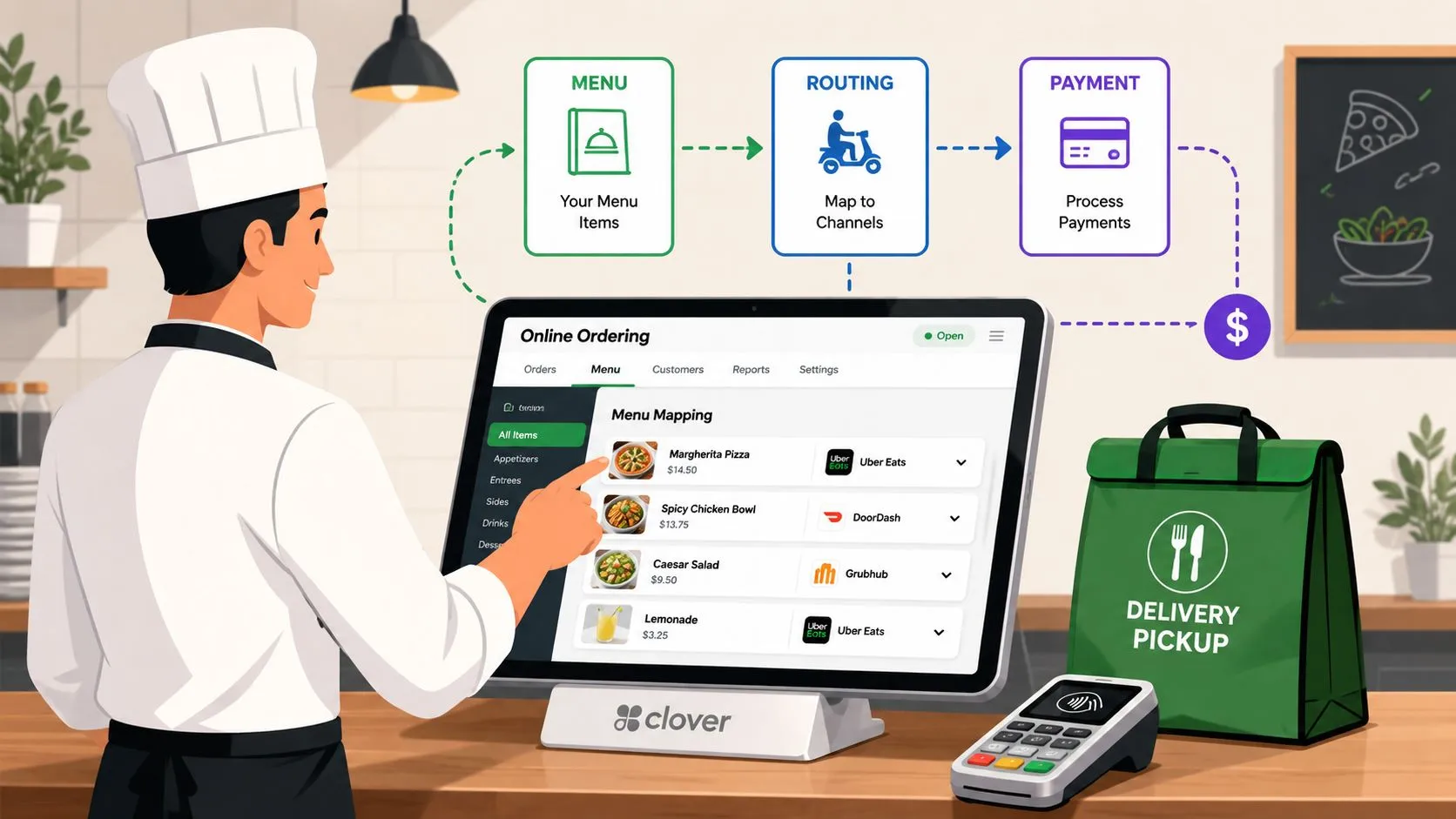
Clover POS online ordering lets restaurants accept digital orders through Clover, but the work starts after launch: keeping menus, modifiers, hours, fulfillment, and transaction costs accurate. A restaurant can connect online ordering quickly, then lose margin and staff time when a sold-out item stays live, a location uses the wrong service window, or an order arrives on a separate tablet and gets re-entered by hand.
That’s why I treat Clover online ordering as an operating workflow, not a switch in the dashboard. The right setup keeps Clover as the source of truth, routes orders to the correct station, and gives managers a repeatable process for changes.
Why Clover POS Online Ordering Matters for Modern Restaurants
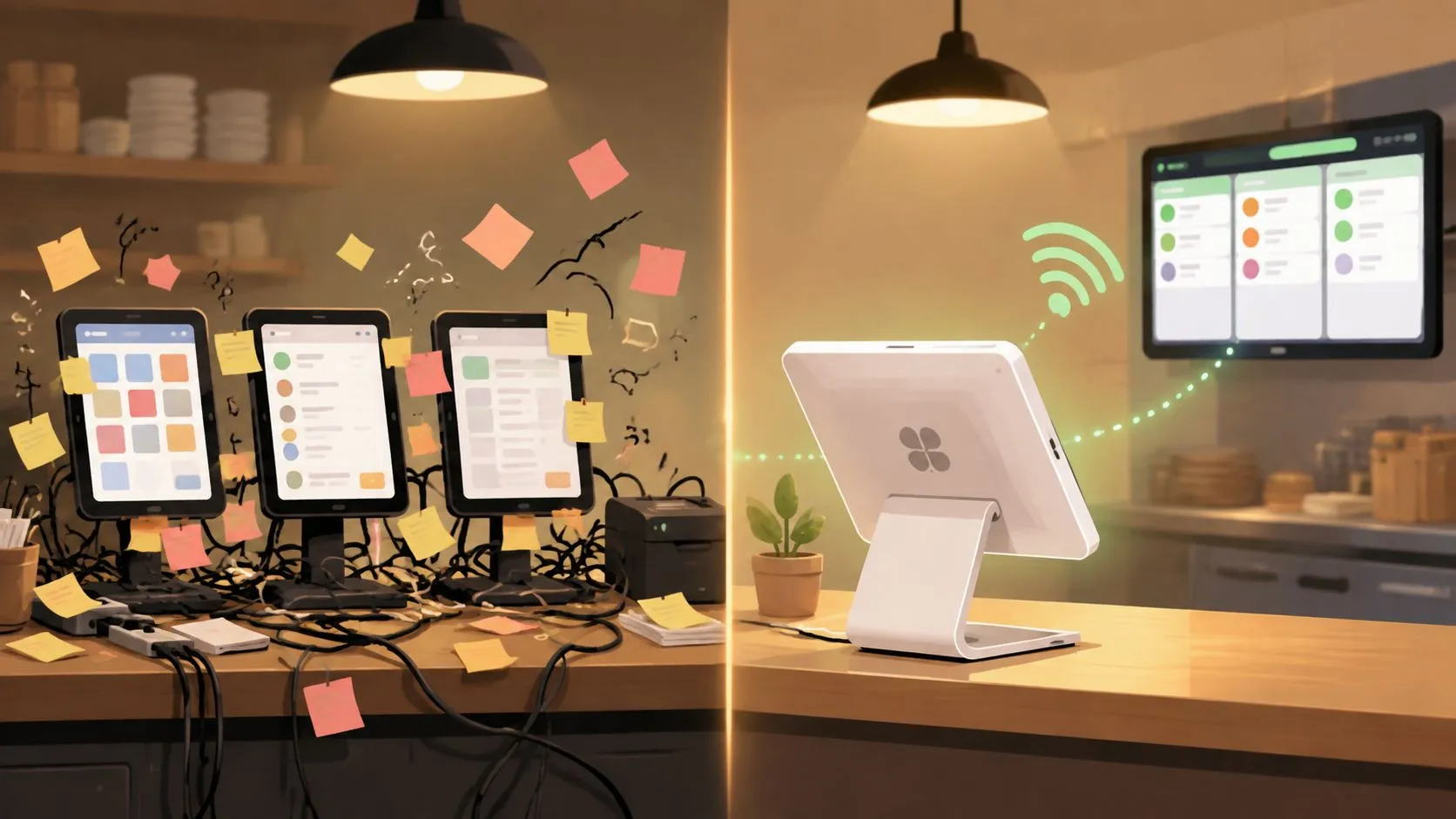
At peak service, a manager may be watching a Clover terminal while a DoorDash tablet flashes, a phone rings, and a staff member retypes an online order into the POS. Each separate channel creates another place for a price, modifier, or item status to go stale. The problem isn’t only inconvenience. Manual entry can cause missed modifiers, incorrect quantities, wrong pickup times, and remakes that interrupt the kitchen.
Industry guidance places average restaurant order accuracy at about 85% to 90%, and attributes 35% of order errors to manual re-entry from separate tablets or phone channels. Kwick2Go’s restaurant order accuracy guidance connects those errors to the operational value of direct POS integration. When a marketplace order enters Clover without re-keying, staff can work from the same order record used for payments, receipts, kitchen routing, and reporting.
The workflow problem behind online ordering
Consider a busy café with separate Uber Eats, DoorDash, and Grubhub devices. A cashier accepts an order on one tablet, reads it across to Clover, and then checks the printed ticket against the screen. If the customer selected a modifier that wasn’t entered, the kitchen may prepare the wrong item while the cashier is already handling the next order.
A direct delivery-to-POS connection changes the handoff. Orders from supported marketplaces can enter Clover as structured tickets, so the kitchen receives the same item and modifier information the guest submitted. OrderOut maps each marketplace menu to a normalized POS schema and is available to install free through the Clover App Market listing.
The operational benefit is qualitative but meaningful: fewer screens for staff to monitor, less duplicate typing, and clearer accountability when an order needs attention. Managers can spend more time managing capacity and exceptions instead of reconstructing what happened across disconnected devices.
Practical rule: If staff must read an order from one screen and rebuild it on another, the workflow is carrying avoidable risk.
Restaurants evaluating this model can also review a restaurant owner’s guide to integrated POS systems for broader guidance on making the POS the operating source of truth.
Choosing Between Native Clover Ordering and Third-Party Integration
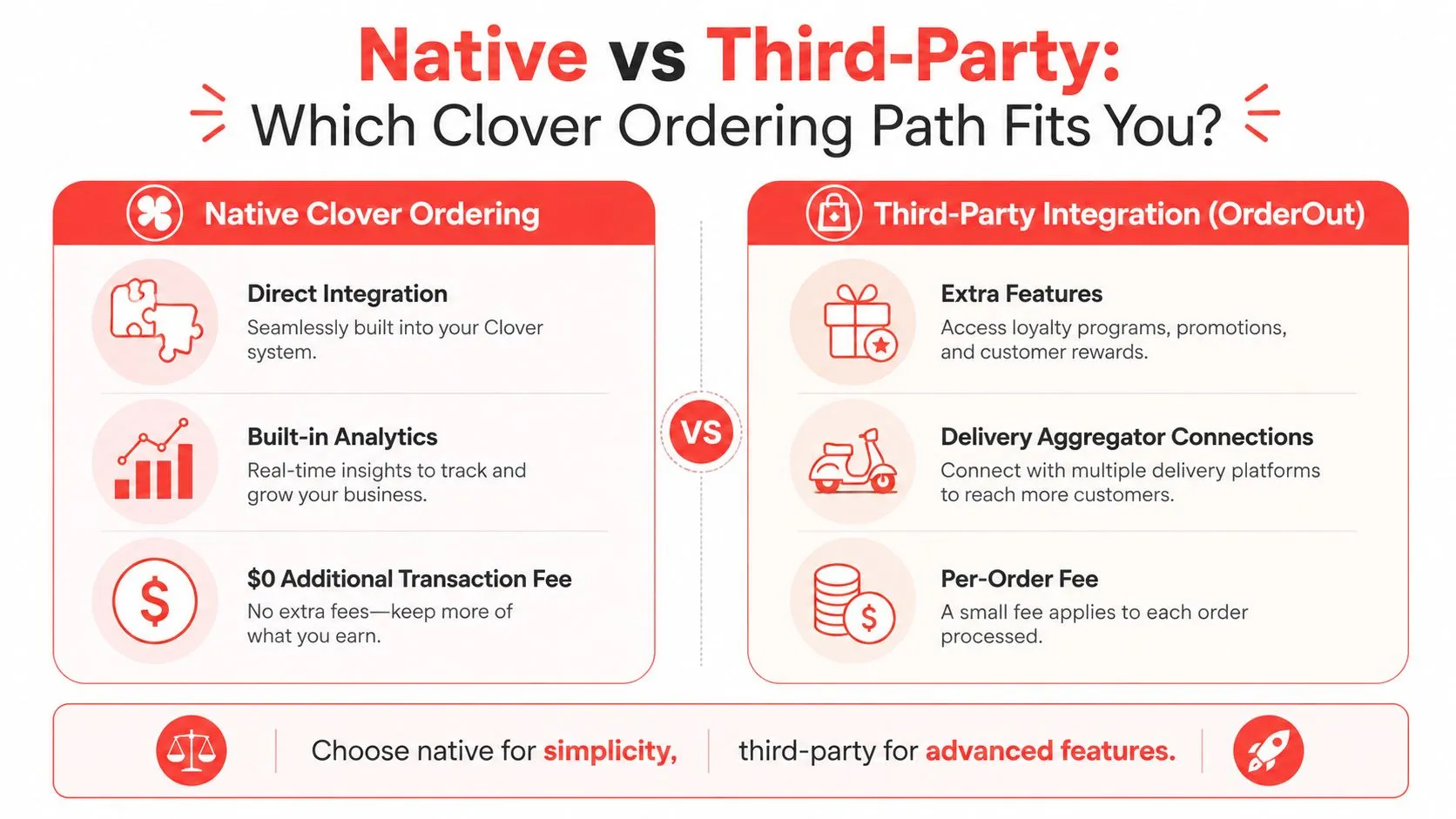
Native Clover ordering and third-party integration solve different problems. Native ordering is designed for direct sales through a restaurant-controlled ordering experience. A delivery integration connects marketplace demand, such as DoorDash, Uber Eats, or Grubhub, to Clover so staff don’t have to re-enter each order.
Clover’s online ordering can process orders and payments inside the POS workflow. One independent review reports online transaction pricing of 3.5% + $0.10, compared with 2.3% + $0.10 for in-store sales. Tech.co’s Clover POS review makes the margin implication clear: restaurants should model the cost before routing high-volume digital sales through a particular channel.
Native ordering fits direct demand
Native Clover ordering makes sense when the restaurant wants a branded ordering page, direct customer relationships, and control over the ordering experience. It can reduce reliance on marketplace commissions, but it doesn’t automatically solve delivery operations. Operators still need a plan for drivers, delivery zones, prep-time promises, refunds, customer support, and peak-period throttling.
Clover markets commission-free online ordering and integration with third-party delivery apps, while independent guidance notes that native ordering doesn’t provide delivery logistics or driver dispatch. The Clover restaurant POS overview supports the broader platform positioning, but operators still need to separate the ordering channel from the fulfillment responsibility.
Middleware fits marketplace consolidation
A middleware connection is useful when the restaurant already depends on several marketplaces and wants orders to land in Clover without extra tablets or manual re-keying. OrderOut’s model connects Uber Eats, DoorDash, and Grubhub orders to the POS by mapping marketplace menus into a common Clover structure.
| Feature | Native Clover Ordering | Third-Party Integration |
|---|---|---|
| Primary use | Direct branded ordering | Marketplace order consolidation |
| Customer relationship | Restaurant-owned channel | Marketplace-managed channel |
| Delivery logistics | Restaurant must arrange fulfillment | Marketplace or restaurant still manages fulfillment |
| POS workflow | Native Clover order flow | Orders injected into Clover |
| Main risk | Menu and fulfillment configuration | Mapping, modifier, and channel accuracy |
| Best fit | Restaurants building direct demand | Restaurants managing multiple delivery apps |
The choice depends on capacity. A pickup-focused restaurant with reliable in-house delivery may prefer native ordering. A restaurant already receiving demand from several marketplaces may prioritize integration first, then build direct ordering separately.
For a broader comparison of first-party and marketplace approaches, review the differences between in-house and third-party delivery. Restaurants comparing branded ordering platforms may also find this overview of TopFoodApp and Flipdish differences useful when assessing direct-ordering capabilities.
Setting Up Clover Online Ordering Step by Step
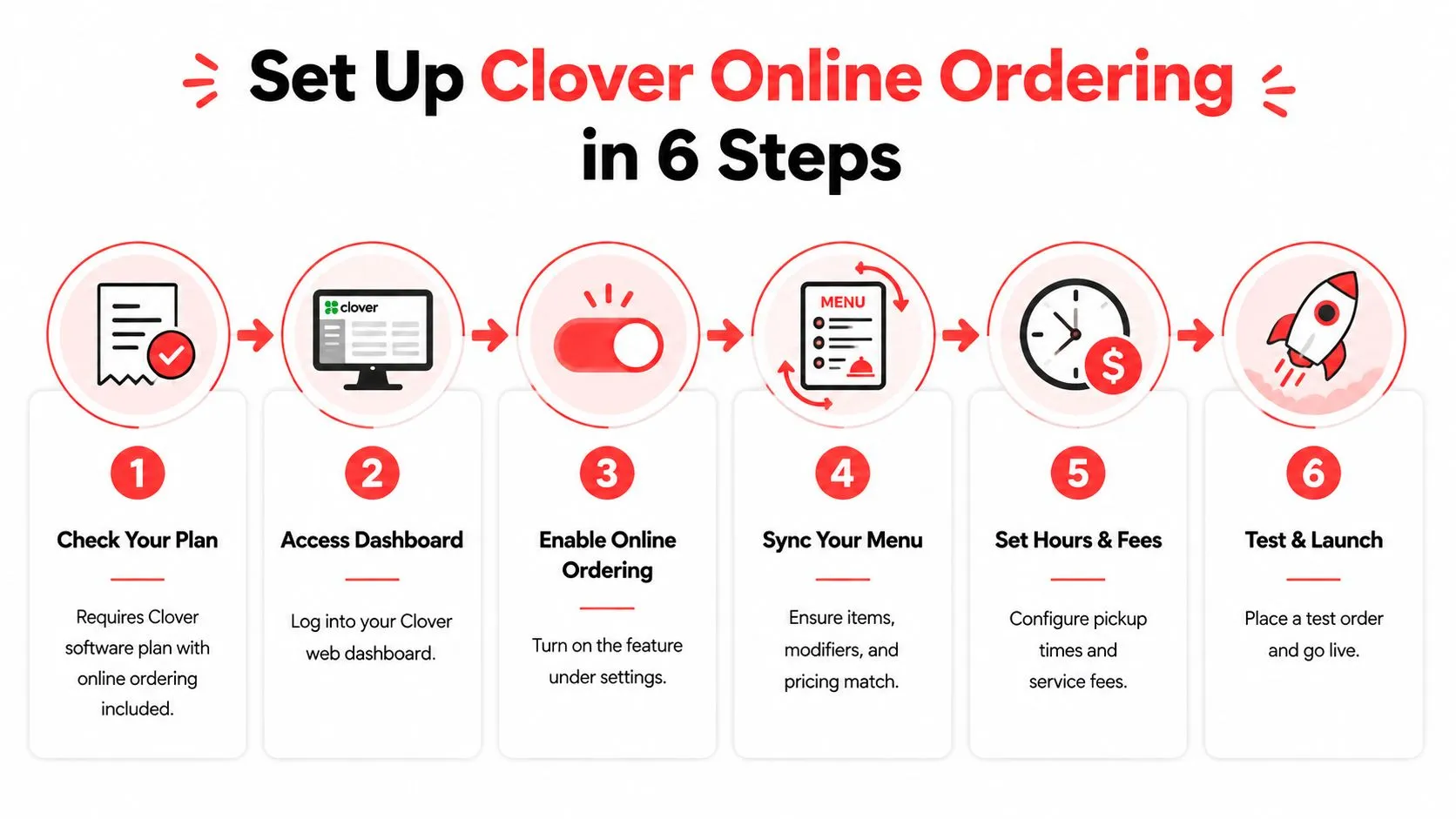
Before changing settings, confirm that the Clover account supports the ordering workflow you want. Clover support material states that Clover Online Ordering and delivery aggregators require the Counter Service or Table Service Restaurant software plan. That eligibility rule matters because owning Clover hardware alone doesn’t guarantee access to every restaurant ordering feature.
Check the account and operating model
Start by documenting how the restaurant fulfills orders. Decide whether the channel supports pickup, restaurant-managed delivery, marketplace delivery, or a combination. Then confirm the correct Clover restaurant plan, location permissions, printer or kitchen display routing, and payment settings.
Clover’s public product guidance emphasizes configuration through the dashboard, including business information and online ordering setup. The important operational question isn’t merely whether the feature can be enabled. It’s whether the selected location, menu, fulfillment method, and service hours reflect reality.
Build the menu before connecting channels
Clean the Clover menu before mapping any marketplace. Review item names, prices, modifier groups, required selections, add-ons, taxes, and availability. A marketplace can only send accurate orders when the destination POS has a clear structure to match.
DoorDash describes the integration process as a sequence that includes compatibility review, integration request, onboarding, menu mapping, and final verification. Its POS integration guidance for merchants also tells restaurants to confirm item names, pricing, modifiers, and store hours before going live.
Connect the ordering workflow
For direct Clover ordering, use the Clover dashboard to configure the ordering channel, fulfillment options, hours, and relevant fees. For third-party marketplaces, connect the approved integration and map each channel’s menu to Clover. OrderOut’s published workflow involves installing the app from the Clover App Market, opening the dashboard, and linking the marketplace account. The company states that the app is free to install on the Clover App Market.
Watch the routing settings closely. A pickup order shouldn’t print to a delivery dispatch station, and a beverage modifier shouldn’t disappear because it was assigned to the wrong item group. If the restaurant has multiple locations, configure each location independently unless the integration explicitly supports centralized controls.
Test before opening the channel
Place a test order for each major fulfillment path. Confirm the order appears in Clover, prints or displays at the correct kitchen station, includes modifiers, reflects the correct price, and carries the expected customer and fulfillment details.
Test an unavailable item, a complicated modifier, a scheduled order if supported, and an order from each location. Managers should also verify that cancelation, refund, and customer-support procedures are understood before launch. For deeper technical context, see the guide to Clover API integration.
Menu Mapping and Synchronization Challenges
Menu synchronization is where “easy setup” often becomes ongoing operational work. Clover’s online-ordering setup assumes that merchants can maintain menus, hours, and fulfillment settings correctly in the dashboard. Public guidance doesn’t clearly resolve every multi-location scenario, such as different holiday hours, location-specific menus, or temporary item outages.
The practical consequence is straightforward. A channel can appear connected while still producing incorrect orders if the menu structure isn’t maintained. Clover’s own online ordering product guidance emphasizes simple setup and business-information syncing, but operators still have to govern the changes that happen after launch.
What breaks most often
A few recurring mismatches create disproportionate disruption:
- Modifiers: A marketplace modifier may not match the Clover modifier group, causing an add-on to disappear or appear as a separate item.
- Pricing: A price updated in Clover may not immediately match a marketplace menu, creating guest complaints and staff corrections.
- Availability: A sold-out item may remain visible online after the kitchen stops accepting it.
- Hours: A holiday schedule or temporary closure can conflict with the hours shown on a channel.
- Routing: An item can reach the POS but print at the wrong station if categories and printer assignments aren’t aligned.
OrderOut’s normalized POS schema helps structure marketplace orders for Clover, but mapping still depends on menu hygiene. Integration removes manual re-entry. It doesn’t remove the need to maintain the source menu.
Multi-location control needs ownership
Assign one person to approve menu changes and define how location managers report exceptions. A multi-location brand might share core items while allowing each branch to manage local availability, hours, and service windows. That arrangement works only when managers know which settings are local and which are centrally controlled.
Use consistent item names and modifier logic across locations where the products are the same. Avoid creating near-duplicate items for minor wording changes, because those duplicates make mapping and reporting harder to audit.
A useful operating document should list every channel, location, menu owner, service hours, fulfillment type, and escalation contact. For a wider look at maintaining menus across ordering systems, consult restaurant menu management software guidance.
The launch checklist is not the maintenance plan. Assign responsibility for every menu, hour, and routing change before the first customer order arrives.
Operational Best Practices for Clover Online Ordering
A connected Clover workflow only performs well when the restaurant manages exceptions deliberately. The kitchen still needs a way to slow incoming demand during a rush, staff need to know where digital orders appear, and managers need to distinguish a POS problem from a marketplace or integration problem.
Start with a short shift routine. The opening manager checks online hours, high-risk items, printer or kitchen display status, and the marketplace connection. The closing manager reviews failed, canceled, delayed, or refunded orders and records anything that needs correction before the next service.
Protect the kitchen during peaks
Order throttling should be treated as a capacity control, not a last-resort failure response. If the kitchen is overloaded, temporarily reduce ordering availability, extend prep estimates where supported, pause a marketplace, or remove items that create bottlenecks. Keep staff aligned on who has authority to make that change.
Train employees on one clear workflow:
- Receive: Confirm that the order is visible in Clover.
- Prepare: Follow the Clover ticket or kitchen display, including modifiers.
- Verify: Match the completed order to the digital ticket before handoff.
- Resolve: Record missing items, payment issues, or customer changes through the correct channel.
Separate technical ownership
If an order never reaches Clover, check the marketplace connection and integration provider. If the order reaches Clover but doesn’t print, check Clover routing, printer status, or kitchen display configuration. If the menu is wrong, check the source menu and mapping rather than repeatedly restarting devices.
Restaurants should maintain a simple incident log. Record the location, channel, order symptom, menu item, time of discovery, and correction. That record helps managers identify recurring configuration failures without relying on memory during a rush.
Payment costs also deserve a monthly review. The independent fee comparison cited earlier shows why online transaction pricing can differ from in-store sales. Don’t judge the channel only by gross order volume. Review revenue, fees, labor effort, refunds, remakes, and fulfillment burden together.
For practical guidance on coordinating delivery workflows, use these delivery management best practices. The strongest operators treat online ordering as part of the shift playbook, not as a separate marketing feature.
Frequently Asked Questions
Does OrderOut work with Clover?
Yes. OrderOut connects supported third-party delivery channels, including Uber Eats, DoorDash, and Grubhub, to Clover so orders can enter the POS without manual re-keying. It’s available to install free through the Clover App Market.
Does Clover online ordering require a specific plan?
Clover support material says Clover Online Ordering and delivery aggregators require the Counter Service or Table Service Restaurant software plan. Confirm the plan on the account before configuring the ordering workflow.
Is native Clover online ordering the same as delivery integration?
No. Native ordering supports a direct restaurant-controlled ordering channel, while a delivery integration brings marketplace orders into Clover. Native ordering can still require the restaurant to manage delivery logistics, prep capacity, and customer support.
Why do Clover online orders show the wrong item or modifier?
The usual causes are mismatched menu names, modifier groups, prices, availability, or mapping rules. Compare the marketplace menu with Clover and test the affected item before reopening the channel.
What should I test before launch?
Place test pickup and delivery orders where applicable. Verify the item, modifier, price, payment, hours, location, kitchen routing, and staff handoff from the customer-facing channel through Clover.
OrderOut connects Uber Eats, DoorDash, and Grubhub orders directly to Clover, removing extra delivery tablets and manual re-keying from the shift. Visit OrderOut to review the Clover workflow, then start onboarding at dashboard.orderout.co, where restaurant owners can onboard free in a few clicks.