
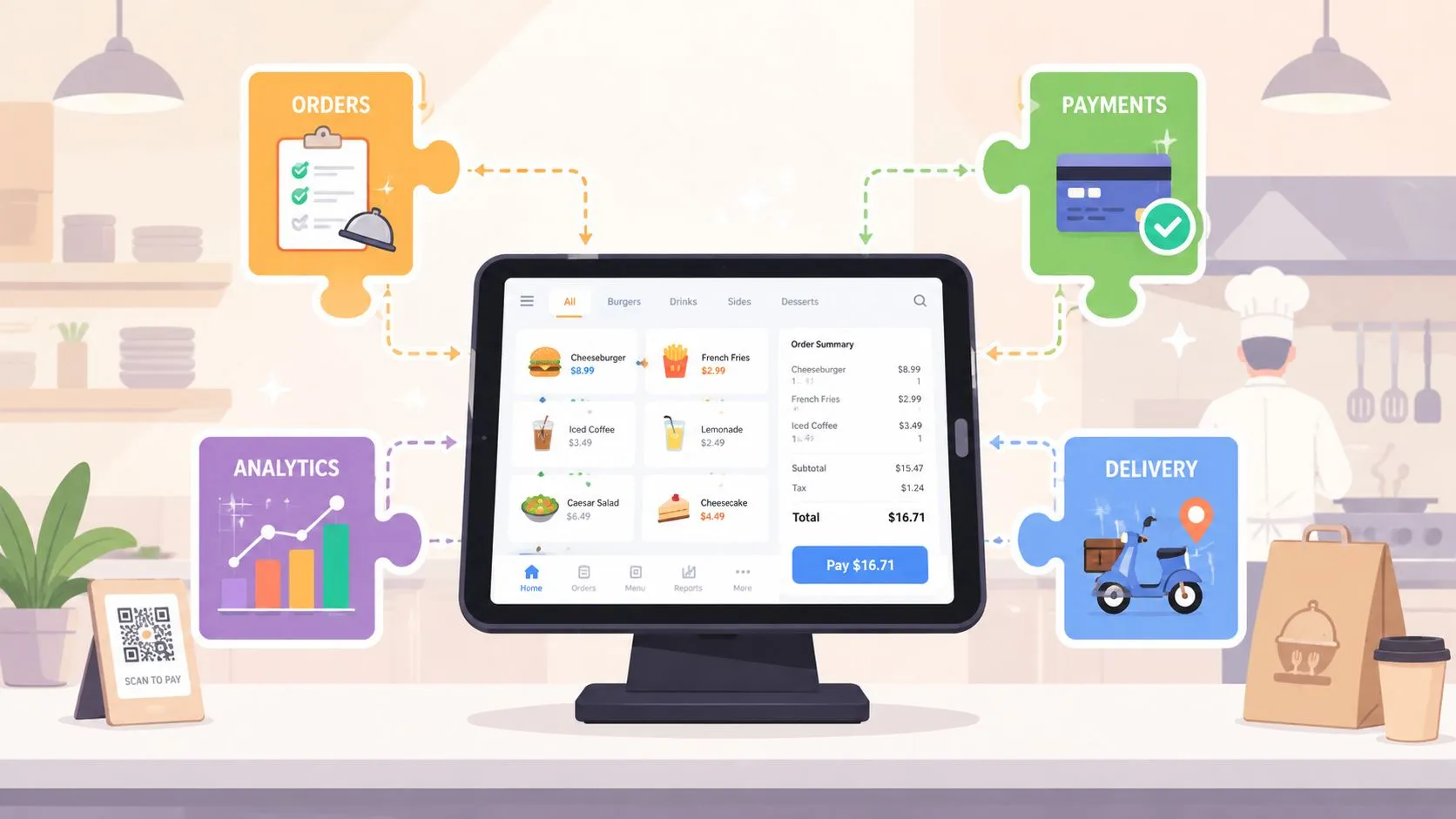
A POS system tablet is a touchscreen terminal that runs point-of-sale software, and in a restaurant it should be the one screen that handles orders, payments, and reporting instead of forcing staff to juggle extra devices. In 2024, the tablet POS systems market was already valued at USD 8.5 billion, with growth projected toward about USD 30 billion by 2034 and a 13.4% CAGR from 2025 to 2034, which tells you this isn’t a fringe setup anymore, it’s mainstream restaurant infrastructure (Market.US).
What matters on the floor is simpler. A good tablet POS should cut counter clutter, keep delivery orders in one queue, and stay usable when the dinner rush starts stacking tickets, receipts, and drivers at the same station. If your counter has become a graveyard of charging cords and delivery tablets, you already know the problem.
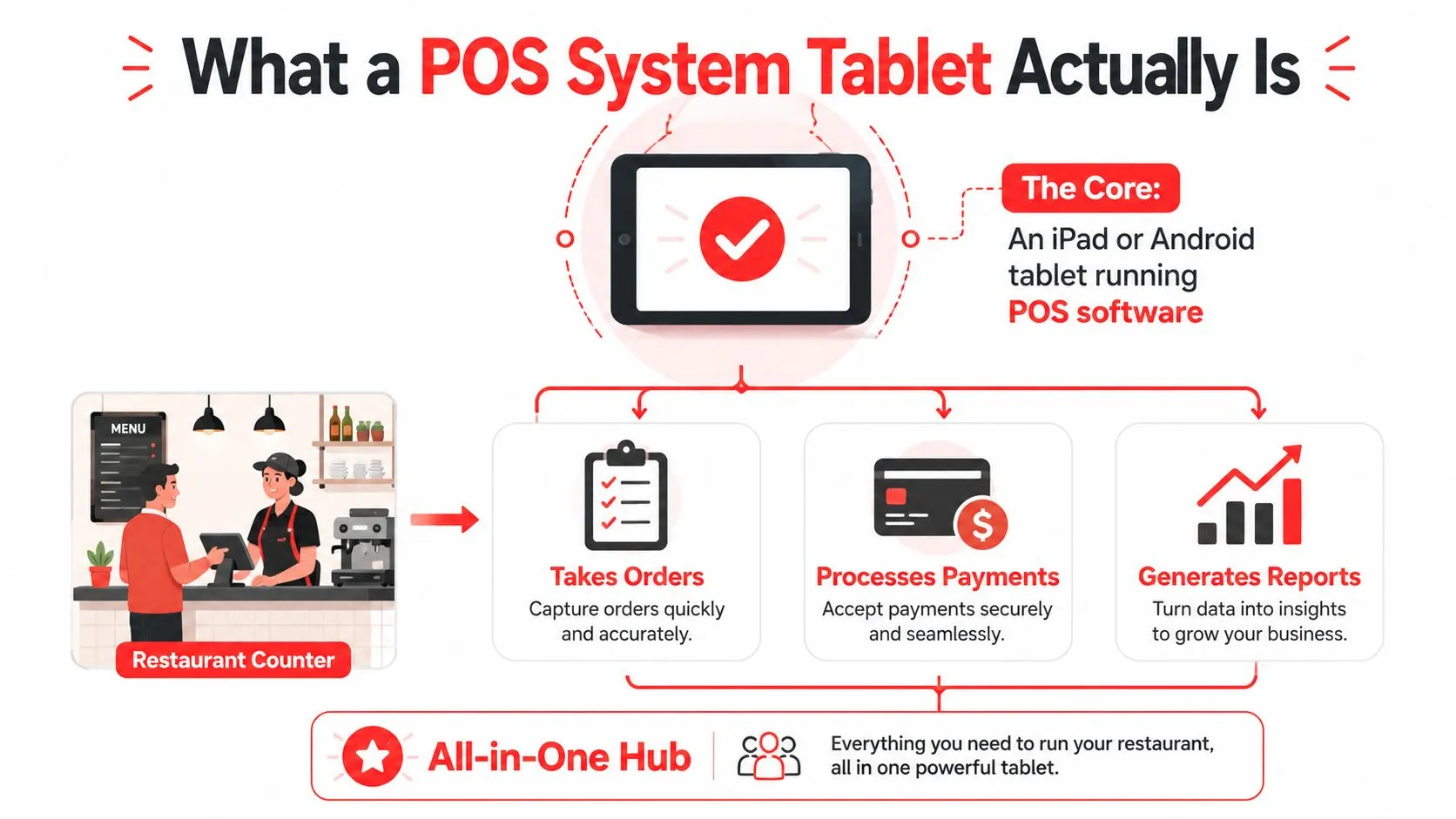
What a POS System Tablet Is
A busy counter exposes the job fast. Staff need one screen that takes orders, processes payments, and logs sales without making them bounce between separate devices. A POS system tablet does that job on a touchscreen running point-of-sale software, usually as the main register or as part of a larger setup. In restaurant use, it can be an iPad, an Android tablet, or a purpose-built terminal mounted where the line moves.
Restaurants switch to tablets for practical reasons, not because they look modern. They are simpler to deploy than old register stacks, they can move with the work, and software updates do not require tearing apart the counter. That matters for fast-service lines, patios, food trucks, and pop-ups, where the point of sale cannot stay stuck in one bulky spot.
A clean counter should run on one screen and one queue. When it gets messy, the staff ends up with a tablet for DoorDash, another for Grubhub, another for Uber Eats, and a main POS that still has to be updated by hand. That setup slows service and creates avoidable errors during the rush.
Practical rule: if your team reaches for another device before the POS tablet during a rush, the tablet is not the hub. It is just more clutter on the counter.
That is the test. A tablet can handle front-of-house orders, payments, or delivery integrations, but only if the software turns it into the device your staff uses first and trusts most. For a restaurant-focused overview of how tablets fit into daily service, see OrderOut’s guide to tablets in restaurants.
Tablet POS Versus Other POS Form Factors
A tablet POS sits in the useful middle ground between a fixed countertop terminal and a phone-only setup. That middle ground is where most restaurants need to live, because they need a screen big enough for orders and modifiers, but not a giant, proprietary register that eats up counter space.
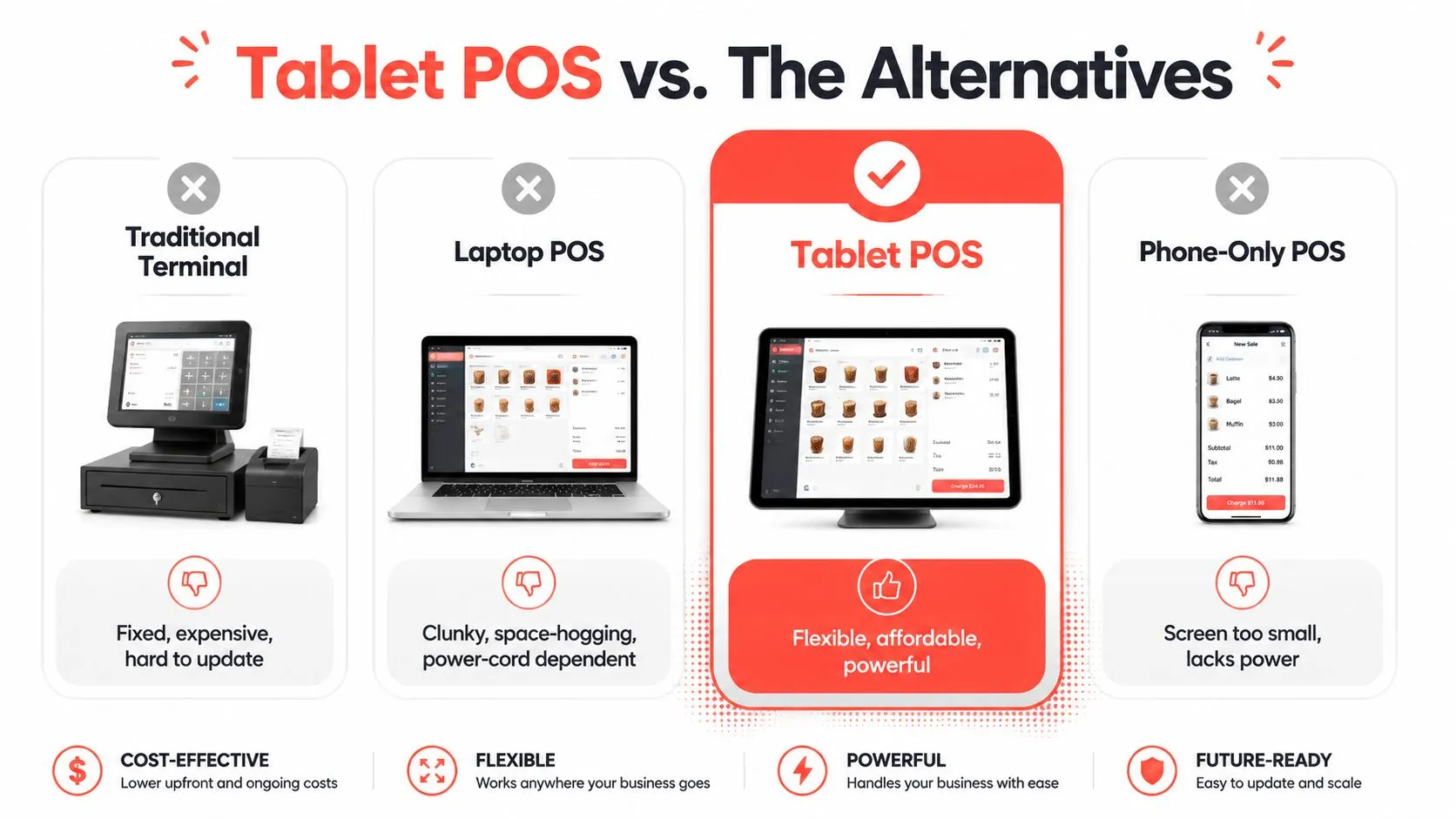
A traditional terminal makes sense when you need heavy peripherals and a fixed checkout lane, but it usually comes with higher hardware commitment and less flexibility. A laptop POS is portable, yet it’s awkward at the counter and not built for handoff between cashier, expo, and manager. A phone-only POS is fine for tiny operators or backup use, but the screen space is too tight once tickets get complex.
What restaurant operators usually miss
The wrong comparison is price alone. The right comparison is whether the device fits the work rhythm of a restaurant, order capture, payment, staff training, and day-to-day movement across the counter.
A tablet is usually the better bet when the restaurant wants flexibility without giving up a real working screen.
That’s why a tablet POS often wins for small and mid-sized restaurants. It can act like a register when mounted, like a handheld when staff need to move, and like a compact control center when paired with the right software stack. For a restaurant-specific comparison of iPad-based setups, see OrderOut’s iPad POS guide.
Hardware Specs That Matter at the Counter
The spec sheet only matters if the tablet holds up through service. Restaurant buyers should care about one question first. Does the device stay responsive when printers, readers, delivery apps, and payment screens are all active at once? If it stutters there, the rest of the brochure is noise.
Start with speed and memory
A restaurant tablet needs enough processor headroom and memory to keep order entry moving while the counter is under pressure. ParTech’s tablet hardware lineup shows the kind of build operators should look for, with efficient processors, 8GB LPDDR5, and 128GB UFS aimed at keeping the interface quick during live service (ParTech). On the lower end, entry-level POS tablet designs often rely on ARM chips with 1GB to 4GB RAM and 8GB to 32GB storage, which is usually enough for basic ordering but can slow down once the tablet is juggling payments, loyalty, routing, and peripherals at the same time (HopeStar Monitor).
The practical test is simple. If staff can move from ticket to ticket without waiting on the screen, the tablet is doing its job. If the counter team starts tapping twice because the first touch did not register fast enough, the hardware is already costing time.
Then check the screen and ports
For restaurant use, a screen in the 10.1 to 12.1 inch range is the right size for readable order entry, and 10-point capacitive touch is standard on many units (HopeStar Monitor). Brightness matters too. Restaurant tablets built for front-of-house use can reach up to 700 nit, which helps at sunlit counters and pickup windows (ParTech).
The port layout matters just as much. A tablet with USB OTG and Ethernet via RJ45 is easier to build around when you need printers, scanners, or a steadier network path. If the tablet only offers limited expansion, the counter turns into adapter clutter fast. That is how a clean setup becomes a mess of dongles, splitters, and cables nobody wants to troubleshoot during a rush.
| Spec Category | Entry-Level Android Tablet | Restaurant-Grade POS Tablet | Operator Outcome |
|---|---|---|---|
| Processor and memory | Lower-power ARM, 1GB to 4GB RAM | Efficient x86-class chip, 8GB LPDDR5 | Faster app switching, fewer stalls |
| Display | 10.1 to 12.1 inches, basic brightness | Sunlight-readable, up to 700 nit | Easier order entry at bright counters |
| Connectivity | Basic wireless, limited ports | Ethernet, USB options | Cleaner peripheral setup |
| Ruggedness | Basic consumer build | IP65 sealing, 1.8 m drop protection | Better spill and impact resistance |
For a broader buying checklist, compare hardware against OrderOut’s POS system requirements guide.
Why the Tablet POS Should Be Your Source of Truth
A tablet POS only works well when it’s the main system, not a sidecar. If the tablet is just displaying part of the operation while other channels live elsewhere, staff end up doing duplicate work and the counter becomes harder to manage, not easier.
That is the delivery tablet trap. A restaurant can wind up with one tablet for DoorDash, one for Grubhub, one for Uber Eats, and one main POS, each ringing separately and each demanding attention at the worst possible time. The operator experience gets worse fast, because tickets are scattered and staff are forced to translate each order into the main system by hand.
When delivery orders inject directly into Clover or Square, the tablet becomes the operational source of truth. That’s the difference between reacting to tablets and running the counter from one queue.
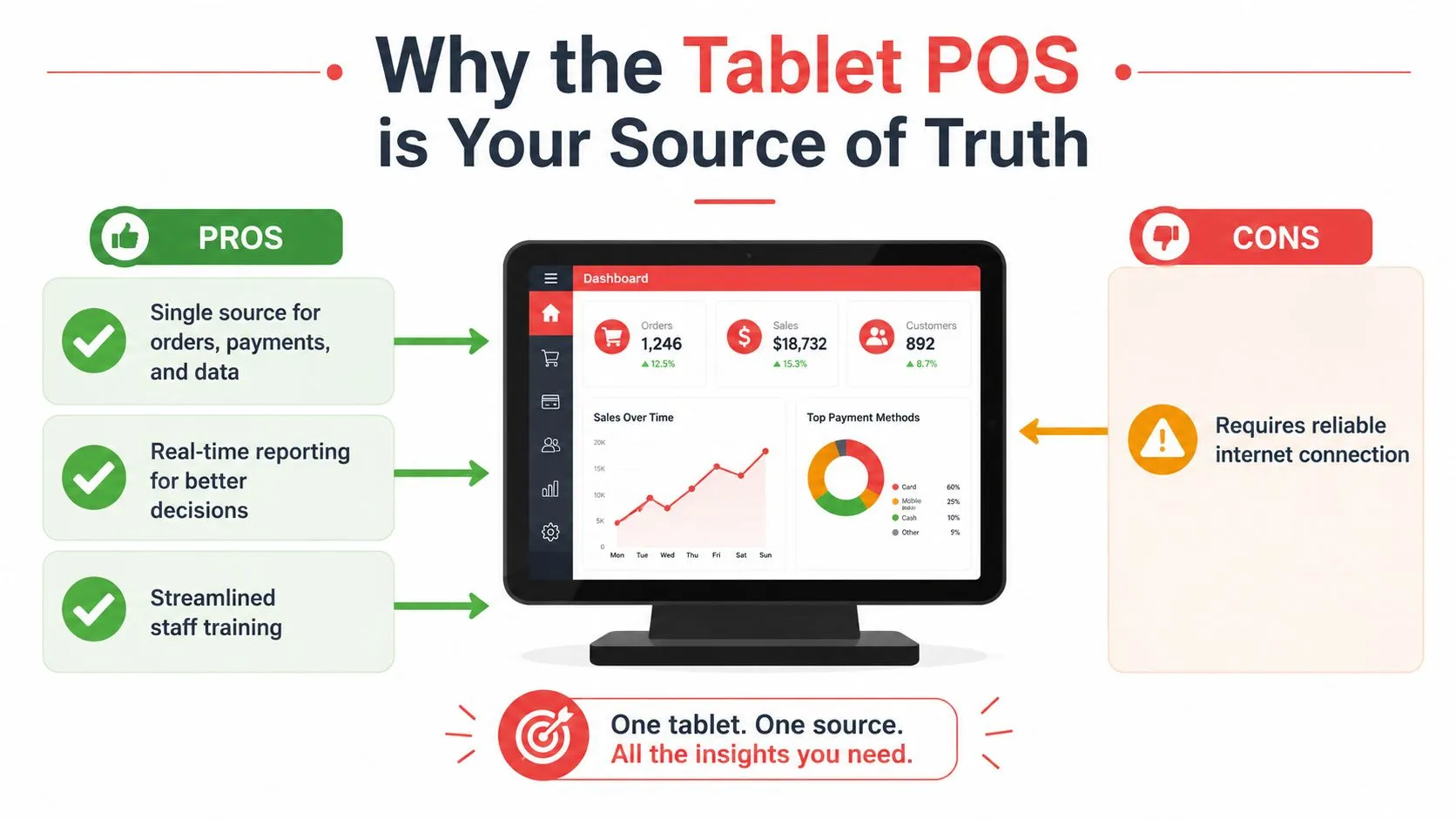
Practical rule: if the order enters the POS once and stays there, you’ve reduced friction. If staff have to retype it, you’ve created a second job.
For delivery-heavy restaurants, OrderOut’s integrated POS guide is the right way to think about this shift. OrderOut routes third-party delivery orders into Clover and Square so restaurants can keep one queue instead of juggling separate tablets, and that consolidation is what keeps the counter readable.
| Outcome | Multiple Delivery Tablets | Single POS With OrderOut Injection |
|---|---|---|
| Order intake | Staff watch several screens | Staff watch one POS |
| Re-keying | Common | Removed |
| Counter clutter | High | Low |
| Ticket flow | Easy to miss | Centralized |
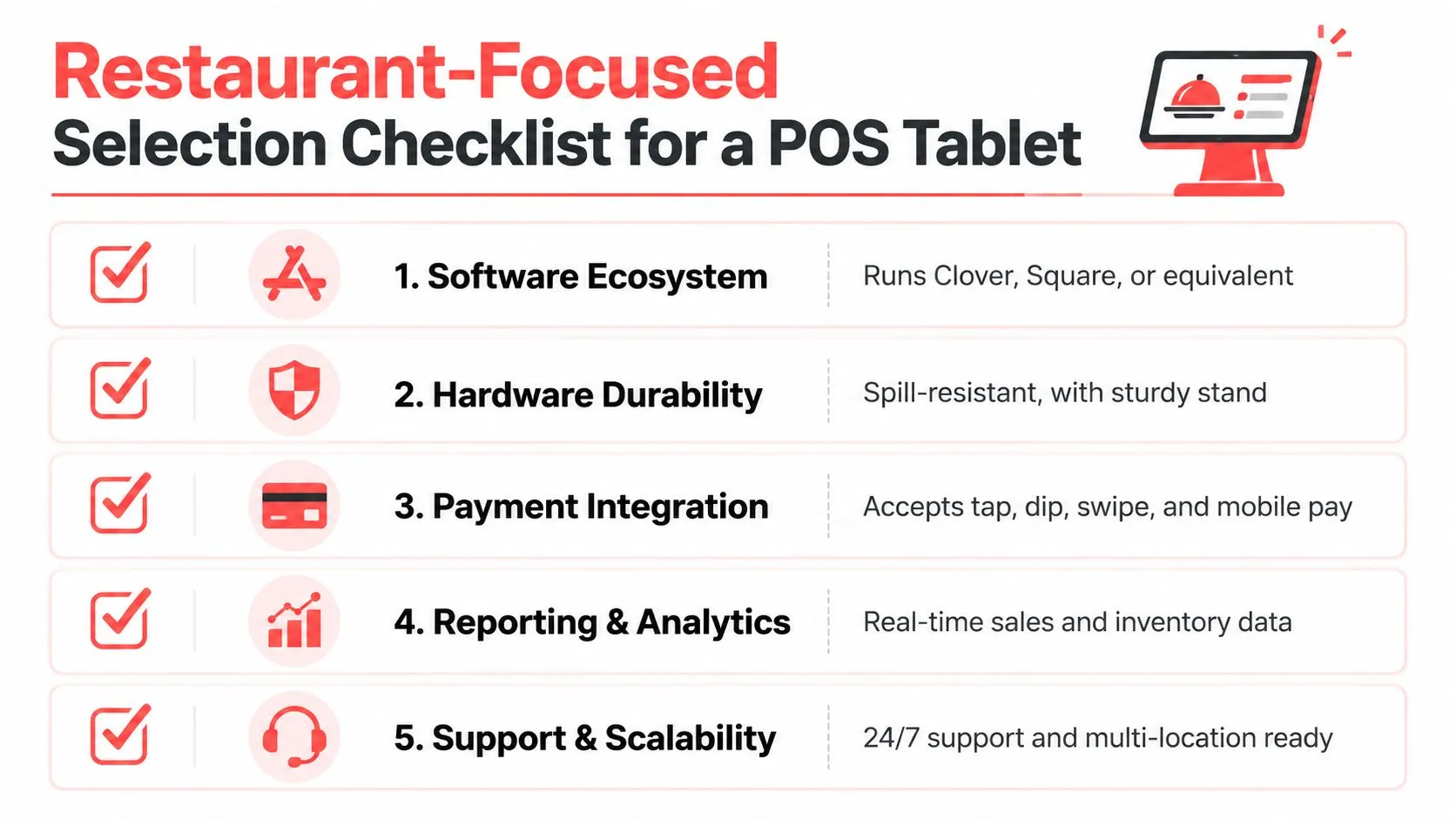
Restaurant-Focused Selection Checklist
A restaurant should choose a tablet POS the same way it chooses a fryer or a hood, by asking what fails first under pressure. The nice-looking demo is not the test. The actual buying test is whether the tablet still behaves the same way two years from now when the team has changed, the menu has grown, and the lunch rush is louder.
Judge the software fit first
If the tablet runs software your staff already knows, training is easier and mistakes drop. Clover and Square are familiar to a lot of operators, so a tablet that lives inside that ecosystem usually gets adopted faster than a random standalone device.
Then look at the expensive attachments
Printers, cash drawers, scanners, and payment readers are the counter test. If the tablet cannot talk cleanly to those pieces, the operator ends up buying adapters, workarounds, and extra support calls.
Ask what happens when Wi-Fi drops
A restaurant cannot pretend the network is perfect. If the tablet freezes or loses key functions during a rush, the whole line slows down and staff start improvising, which is exactly when mistakes creep in.
Don’t stop at sticker price
The upfront hardware number rarely tells the whole story. POS costs can include hardware, software, processing, setup, support, and add-ons, and a provider that looks cheap at first can get expensive once you add the parts a restaurant needs (GoDaddy).
The cheapest tablet is the one that does not force a reboot at 7 p.m. That is the actual buying test.
Interest is already there. One industry survey cited in the brief found many respondents would consider replacing current software with a tablet POS system, but cost and rollout concerns still slow adoption (Century Biz Solutions). That is why the checklist matters. It exposes the hidden pain before the purchase.
For restaurant operators who want a delivery-first setup, OrderOut’s Clover delivery integration is one practical option to compare against the hardware. If you want a broader look at consolidating delivery apps into one POS, this guide to connecting multiple delivery apps to one POS is the right comparison point.
Deployment, Security, and Maintenance Essentials
A tablet POS fails when the network, mounting, or user access is sloppy. The hardware can be solid and the software can be good, but if the deployment is loose, the system still turns into a daily headache.
Keep the network simple
A wired backhaul with Wi-Fi failover is more dependable than relying on Wi-Fi alone. The tablet should have a stable connection path so staff aren’t guessing whether a stalled order is a network problem or a payment problem.
Lock down access like a restaurant, not an office
Keep the tablet OS and POS app updated, restrict access by role, and separate guest Wi-Fi from the POS network. Payment processing should go through PCI-aware hardware, not some open browser workflow that a manager has to babysit during rushes.
Give maintenance a rhythm
Once a month, review reports, check printer paper and cables, and confirm the order integration is still mapping menu items correctly. If something has drifted in the menu build, it’s better to catch it on a slow afternoon than during Friday dinner.
Practical rule: if a spill, reboot, or bad login can shut down the register, the tablet is under-protected.
Ruggedized hardware helps because it cuts down the maintenance load before it starts. That’s where IP65 sealing and 1.8 m drop protection matter in real service, especially at counters where drinks, hands, and cords all meet at once (ParTech).
From Tablet Sprawl to a Single Counter Terminal
A mid-size restaurant on Clover starts the night with a clean counter and ends it with a mess of blinking delivery tablets. DoorDash rings on one device, Grubhub on another, Uber Eats on a third, and staff keep turning away from guests to retype orders while kitchen tickets pile up in the wrong places.
Then the operator cuts the clutter. Clover stays at the counter, OrderOut gets installed from the Clover App Market, and the delivery feeds start landing in the same POS queue the team already uses. The main change is not flashy hardware, it’s that staff stop bouncing between screens and the kitchen stops dealing with duplicate entry.
A single Clover terminal can do the job when the software is wired correctly. The same idea applies to Square, where delivery orders should flow into the existing POS instead of forcing another device onto the counter.
For operators who want the direct route, OrderOut’s guide to connecting multiple delivery apps to one POS shows why this setup matters. OrderOut maps each marketplace menu to a normalized POS schema so DoorDash, Grubhub, and Uber Eats orders inject cleanly instead of being re-entered by hand. That keeps the tablet useful as the source of truth instead of turning it into another screen in the pile.
Frequently Asked Questions
Does OrderOut work with Clover?
Yes. OrderOut is free to install on the Clover App Market and can inject delivery orders from platforms like DoorDash, Grubhub, and Uber Eats directly into Clover. That means the restaurant can keep one POS workflow instead of juggling extra tablets.
Does OrderOut work with Square?
Yes. OrderOut is also available on the Square App Marketplace and uses the same basic approach, sending third-party delivery orders into the POS instead of asking staff to re-key them. For a Square shop, that keeps the counter simpler and the ticket flow easier to manage.
What does a restaurant need to set it up?
The key step is mapping each marketplace menu to a normalized POS schema so the items, modifiers, and order structure land correctly inside the POS. Once that mapping is in place, the delivery orders can inject cleanly into the restaurant’s existing workflow.
Will staff need a lot of training?
Usually not much. Orders show up inside the POS they already use, so the learning curve is mostly about trusting one queue instead of watching separate tablets. That’s easier than teaching a team to manage a brand-new side system during service.
Is a POS system tablet enough on its own?
Not by itself. The tablet is only useful if the software, peripherals, and network setup are right, and if the restaurant uses it as the actual operating hub. A good tablet plus messy workflow still creates chaos.
If your counter is buried under extra delivery tablets, fix the workflow before you buy another screen. OrderOut connects Uber Eats, DoorDash, and Grubhub directly into Clover or Square so your POS tablet can do the job it was meant to do, and you can see how it fits your setup by visiting OrderOut. Then start onboarding at https://dashboard.orderout.co and map your delivery menus into one clean POS flow.