
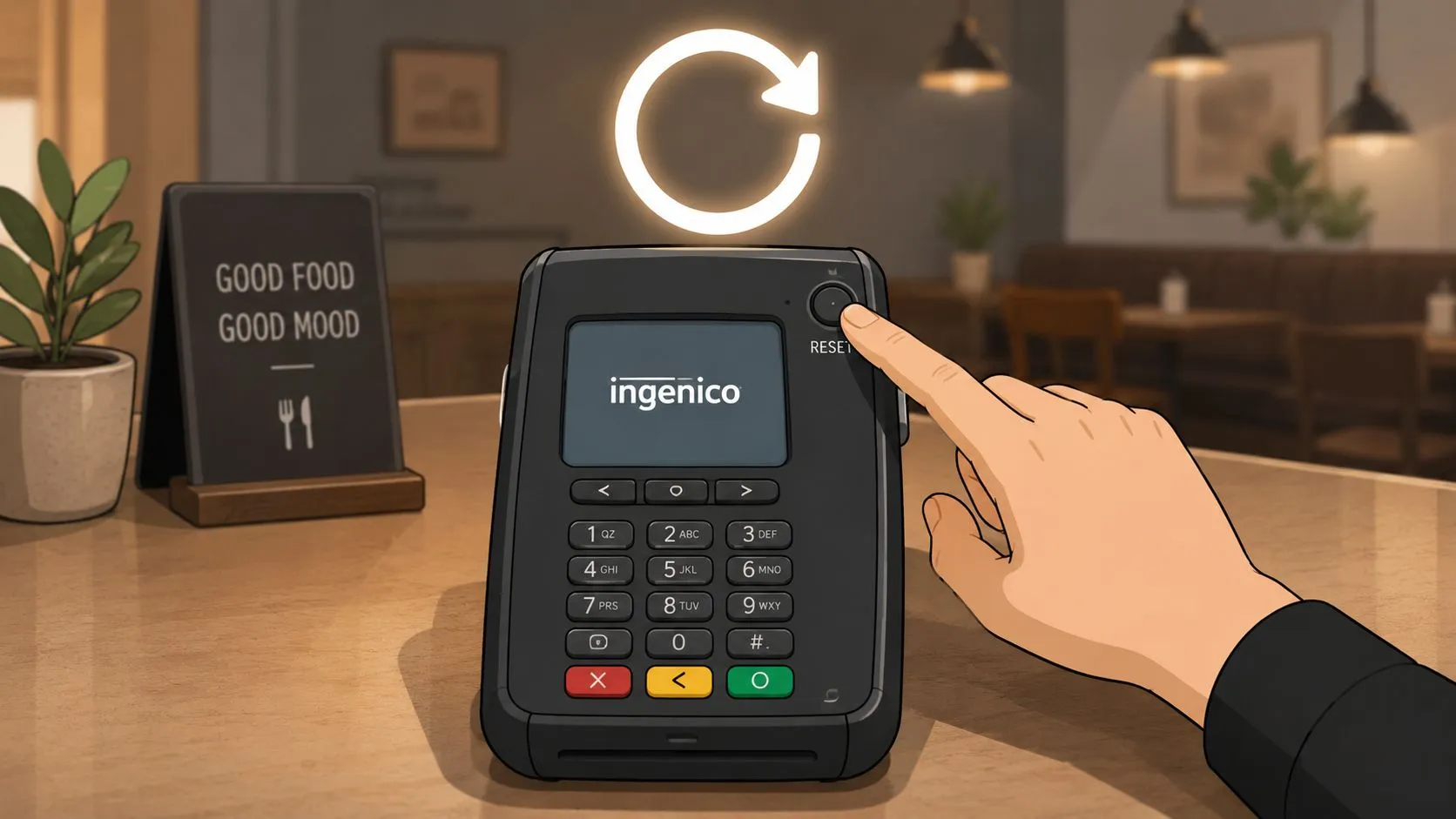
An Ingenico card reader reset usually means a soft reboot using the dot and Clear keys together for about 3 seconds, after any active sale has closed. For some lane-series terminals, the equivalent reset uses the yellow key and the # key, while other models use a different function-key combination.
That distinction matters when a terminal freezes during a Friday-night rush. A reboot can restore the payment application without changing merchant settings, but a factory reset can remove configuration and leave the device waiting for processor support. The safest approach is to identify the reset type first, then prove the reader is working by checking connectivity and processing a test transaction.
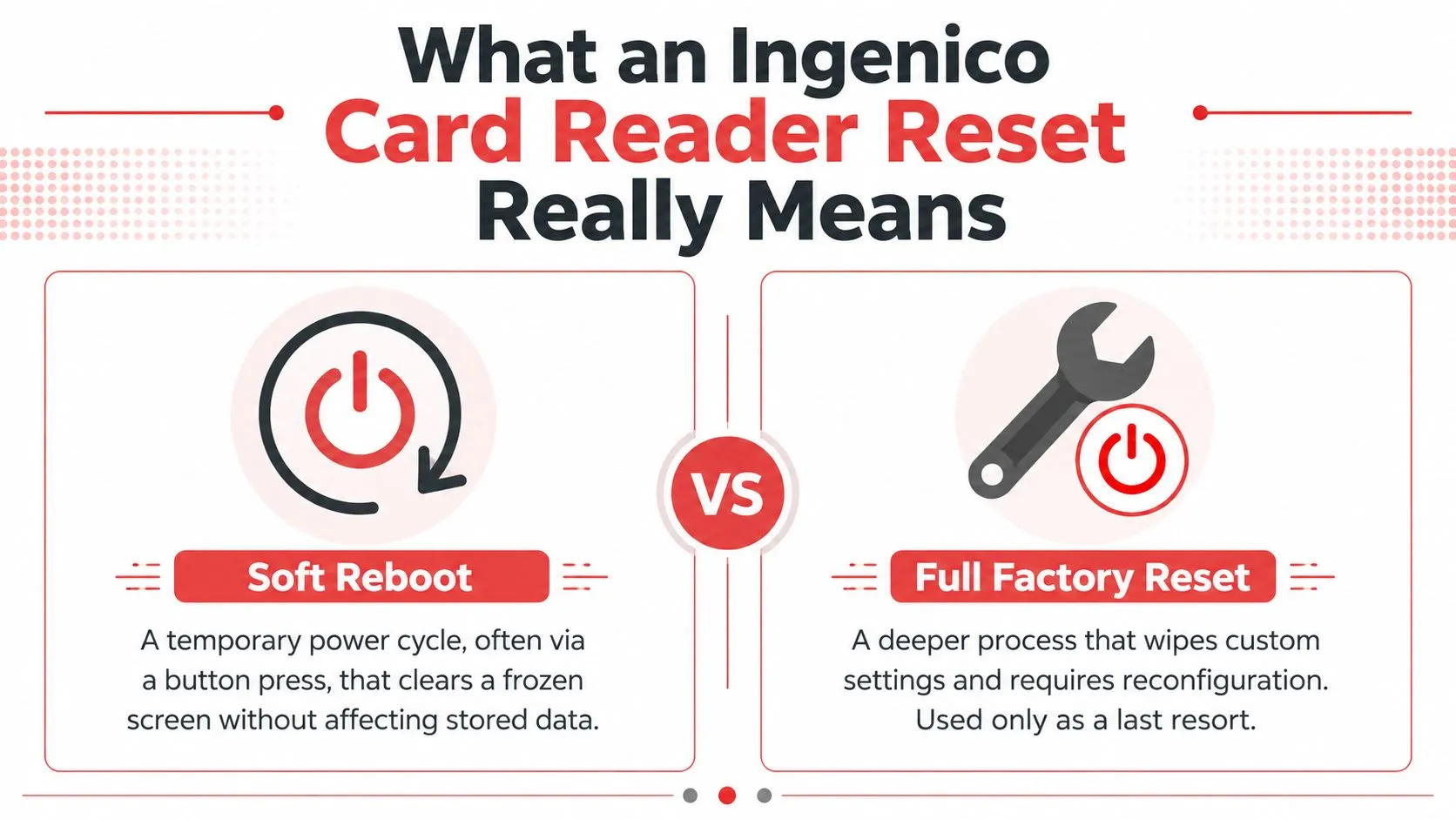
What an Ingenico Card Reader Reset Really Means
Restaurant teams often use “reset” to describe several different actions. On an Ingenico terminal, those actions aren’t interchangeable.
A soft reboot turns the terminal off and starts it again. For many models, holding the dot and Clear keys together for about 3 seconds triggers this restart. It clears a frozen screen or temporary application state without deliberately erasing merchant configuration.
A power cycle goes one step further physically. You disconnect power, wait, and reconnect the terminal so its hardware and software start from a clean state. This is useful when the keypad, contactless reader, or display isn’t responding to normal key input.
A software refresh reloads the payment application from the terminal menu. A factory reset is the high-risk option. It can clear custom settings and require reconfiguration, so it shouldn’t be the first response to an ordinary freeze.
Choose the least destructive option
Most restaurant resets are soft reboots. They don’t represent a wipe of the payment environment, and the terminal isn’t intended to function as a general store of cardholder data. Still, never reboot while an authorization is actively being processed. Close the sale in the POS and confirm the terminal has returned to an idle state first.
The correct choice depends on the symptom:
- Frozen application: Start with a soft reboot.
- Unresponsive keys or reader: Use a power cycle if the soft reboot doesn’t respond.
- Corrupted or missing payment application: Consider a menu-based software refresh.
- Lost merchant configuration: Stop troubleshooting locally and contact the processor or POS provider before attempting a factory reset.
If you want the larger operational context, this distinction fits into the broader role of a restaurant POS system. The reader is only one part of the payment path, and a working screen doesn’t automatically prove that the POS and acquirer connection are healthy.
Soft Reboot by Ingenico Model Family
Before touching the keys, finish or cancel the active transaction. If a customer is waiting at the card prompt, don’t assume the authorization failed just because the screen looks stuck. Check the POS first, then restart only after the sale is closed or support confirms it can be abandoned.
The most common field method is to hold the dot key and Clear key together for about 3 seconds. The terminal should power off and immediately begin restarting. Some models use another combination, so identify the device family from the label, casing, or terminal information screen rather than guessing.
| Ingenico Model | Key Combo | Hold Time | Notes |
|---|---|---|---|
| iCT 250 | Dot and Clear | About 3 seconds | Common soft-reboot combination, but confirm the deployed configuration |
| iCT 220 | Dot and Clear | About 3 seconds | Release when the screen goes blank and the restart begins |
| iPP 320/350 | Dot and Clear | About 3 seconds | Follow the same transaction-closed rule |
| iCMP | Yellow and # | About 5 seconds | Bluetooth device guidance commonly uses this combination |
| Lane/3000 | Yellow key and #, or model-specific lane path | About 3 seconds | Lane-series behavior can differ by deployment |
| Desk/5000 | Dot and Clear | About 3 seconds | The terminal may take time to reload its payment application |
The iCMP is a notable exception. Support material for that family uses the yellow key and # key together for approximately 5 seconds, until the screen goes blank. A model-specific guide for an Ingenico restart also warns that the payment program and network link can take up to about 1 minute to load after a restart, so don’t interrupt the boot sequence prematurely. Unzer’s Ingenico restart guidance documents the restart behavior and the need to wait for the application and connection to return.
Know when to release the keys
The visual cue is simple. Release the keys when the display goes blank or the terminal visibly begins its restart. Holding the combination longer won’t make the reboot more effective and can create confusion if the device enters a different maintenance path.
If nothing happens, stop repeating the same combination. Check the model, check whether the device is receiving power, and verify that the key labels match the expected family. Regional deployments and processor configurations can alter the available functions.
A well-maintained restaurant POS system requirements checklist also helps separate a reader problem from a wider issue involving power, network access, pairing, or the POS application.
Practical rule: A soft reboot should be your first move because it gives you the best chance of restoring service without changing the terminal’s merchant setup.
Power Cycle When the Soft Reset Does Not Work
Use a power cycle when the terminal doesn’t acknowledge the soft-reboot keys, the keypad remains unresponsive, the contactless screen is frozen, or a swipe produces no response. It clears the device’s temporary state at the power connection rather than relying on the terminal’s operating system to accept a command.
Start at the POS, not the reader. Close the open tab or ticket, end the active sale on the terminal, and confirm no authorization is still pending. Then disconnect the external power connection. On a countertop unit, unplug the power adapter. On a device powered through a base or PoE connection, remove it from the base or disconnect the appropriate cable.
Wait a full 30 seconds, then reconnect the power and allow the terminal to complete its boot sequence. Don’t tap a card during startup, and don’t launch another sale until the idle payment application appears.
If the reader stays dark, follow a simple branch:
- Cable check: Reseat the power, USB, base, or Ethernet/PoE connection firmly.
- Outlet check: Confirm the outlet, power strip, or network switch is live.
- Display check: A dim backlight suggests a display or contrast issue. No display at all points more strongly toward power, cable, or hardware trouble.
- POS check: If the terminal boots but the POS can’t find it, treat that as a pairing or communication issue rather than another reset failure.
A restaurant IT support workflow should record whether the reader failed at power, application, network, or POS pairing level. That detail saves time when the processor or payment vendor takes over.
Software Refresh From the Terminal Menu
A software refresh is different from restarting the device. It reloads the terminal’s payment program while preserving the merchant setup when the deployment supports that function. Use it when the application repeatedly fails to load, returns to an error screen, or appears damaged after ordinary restarts.
Menu labels vary by model and processor. On supported Ingenico devices, the general path is:
- Open MAIN MENU.
- Select TERMINAL.
- Choose PROG LOAD or the equivalent software-download option.
- Enter the authorized password.
- Leave the terminal connected until the refresh finishes and the main screen returns.
The exact wording can differ on iCT, iWL, and iCMP families. Don’t treat a generic menu path as permission to explore every administrative option. If you can’t identify the correct menu item or password, call the payment provider.
A terminal may download updates after the first transaction when it has been idle and connected through Ethernet or Wi-Fi, according to OrderOut’s terminal support guidance. That behavior is different from a factory reset, which is intended to remove configuration rather than just reload an application.
| Option | Menu Path Approx. | Merchant Config | TMS / Key Injection | When To Use |
|---|---|---|---|---|
| Soft reboot | Physical key combination | Preserved | Preserved | Frozen screen or temporary application issue |
| Software refresh | Main Menu, Terminal, Prog Load | Normally preserved | Deployment-dependent | Payment application won’t load correctly |
| Factory reset | Administrative or service menu | May be removed | May require reprovisioning | Only when directed by the processor or POS provider |
Why factory reset is a last resort
A live Clover or Square deployment may depend on processor settings, terminal identity, pairing information, and security provisioning. A factory reset can disrupt those relationships and leave a working POS unable to use the reader until the provider reprovisions it.
Don’t select a factory or memory-reset option merely because the word “reset” appears in the menu. An Ingenico 5100 manual describes MEMORY RESET as an action used to delete configuration for a selected merchant, while other manuals describe restarts and interface resets as separate functions. The Ingenico 5100 operating manual illustrates why the menu terminology must be treated carefully.
Post-Reset Validation Checklist for Restaurants
A terminal that reaches its home screen isn’t necessarily ready for service. The payment application can reload while the network link, POS pairing, or acquirer session remains unavailable. Validate in a fixed order so the cashier doesn’t discover the remaining fault with a customer standing at the counter.
Start with the terminal
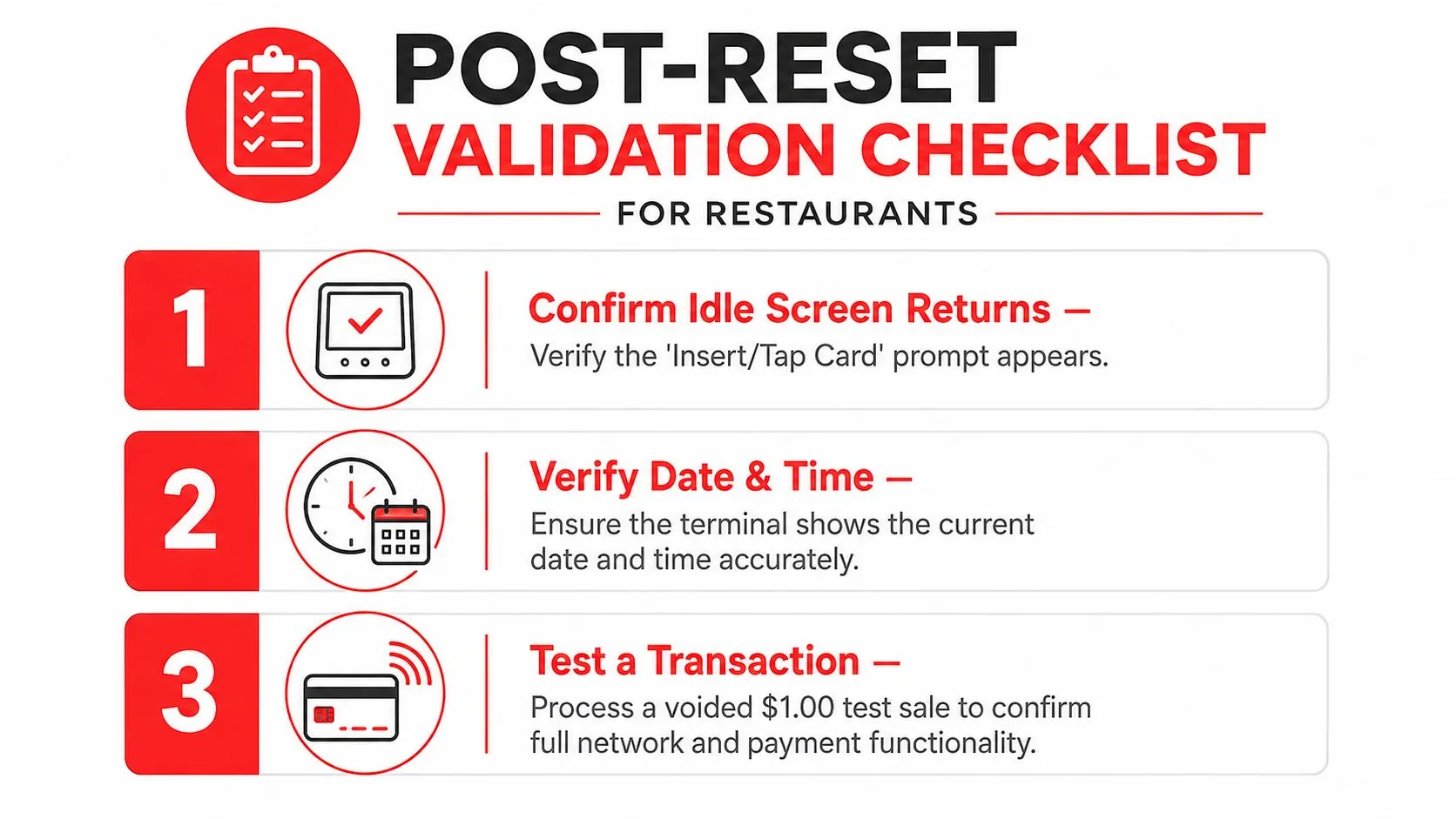
First, wait for the idle payment prompt. You should see the normal instruction to insert or tap a card, not a loading message, error screen, administrator menu, or blank display.
Next, check the date and time. A terminal that has lost its clock can produce confusing batch records and transaction timestamps. Correct the setting only through the approved POS or processor workflow, because time settings can be controlled by the deployment.
Then check connectivity. Look for the network indicator and confirm the terminal has an active Ethernet, Wi-Fi, or cellular connection as appropriate. A local screen response proves only that the device is running, not that it can reach the payment host.
Prove the payment path
Run a small test transaction using a cashier-approved ticket or a transaction that can be voided under your normal procedures. The test should confirm that the POS sends the tender request, the terminal accepts the card, the processor responds, and the POS receives the result.
The supplied checklist visual refers to a voided $1.00 test sale, but test amounts and void procedures depend on the processor and merchant policy. Follow your provider’s approved process rather than creating an unapproved charge.
Finally, confirm the cashier-facing signal. The terminal should appear ready in the POS, the correct tender type should be available, and the receipt or test report should return normally. If the last batch or settlement indicator looks unusual, don’t force another settlement. Compare it with the POS batch status and ask the processor whether a prior batch already closed.
A restored interface is only the first checkpoint. The reset worked when the POS, network, processor, and cashier workflow all agree that the reader is ready.
Reconnecting the Reader to Your POS and Delivery Flow
A restart can leave the hardware healthy but disconnected from the register. Clover Station and Square Register deployments may use a wired connection, Bluetooth pairing, or a terminal ID configured inside the payment application. The correct repair depends on how the reader was installed.
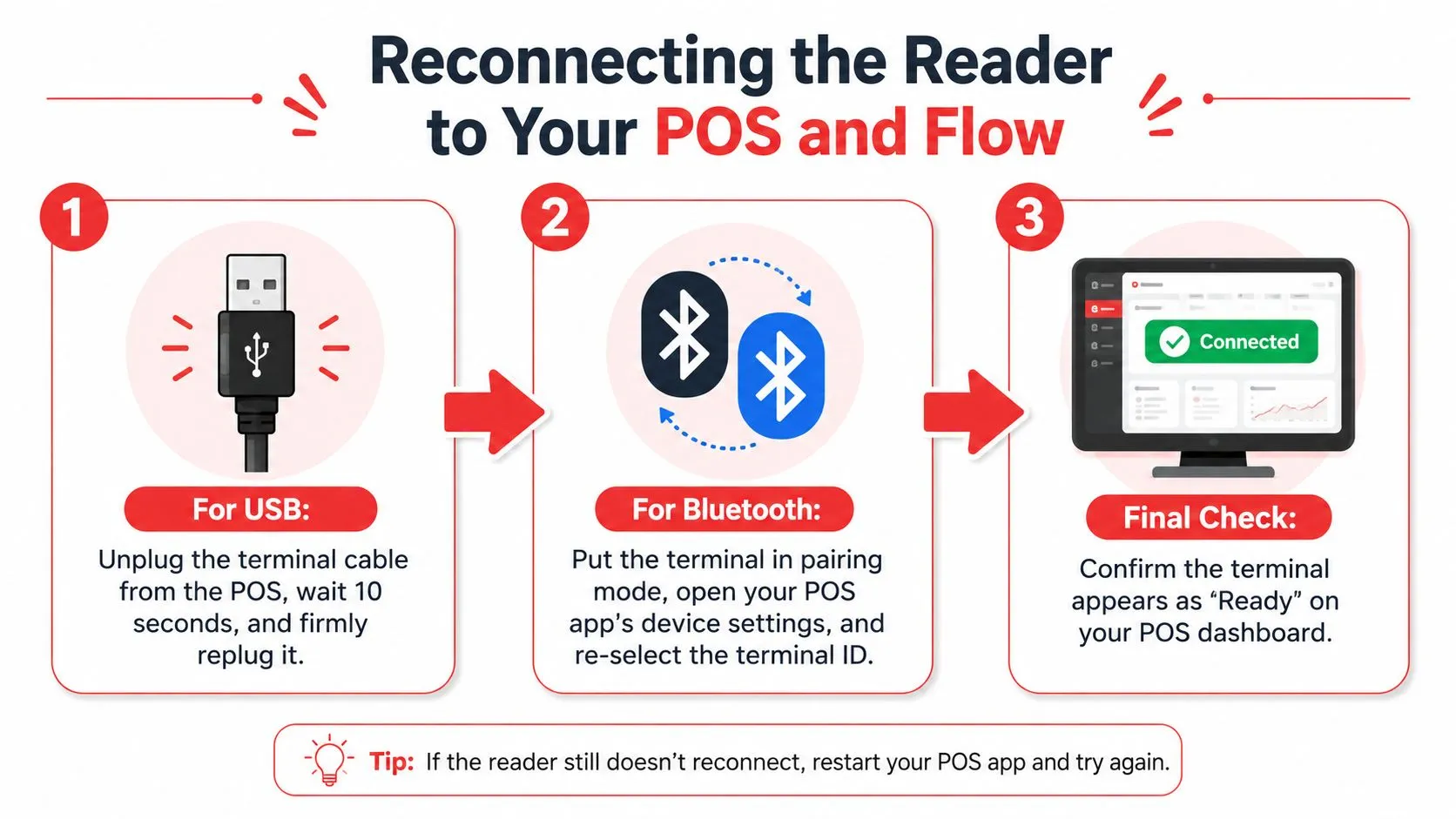
For USB-connected hardware, unplug the terminal cable from the POS, wait 10 seconds, and reconnect it firmly. For Bluetooth units, put the reader into pairing mode, open the POS device settings, and select the matching terminal ID. Don’t pair the first device name you see. Match the identifier shown on the reader or deployment record so one register doesn’t accidentally claim another lane’s terminal.
After reconnecting, open the cashier payment screen and confirm that the reader appears as ready. Check each tender type you use, such as chip, contactless, and swipe, then run the approved test transaction. If the terminal works locally but the POS still shows it as unavailable, stop resetting and escalate the pairing or integration issue.
The same discipline applies to delivery operations. A third-party delivery order that sits on a separate tablet can force staff to read the order, re-enter it into Clover or Square, and then handle payment or reconciliation across disconnected screens. An integrated flow instead normalizes Uber Eats, DoorDash, and Grubhub orders into one POS schema before sending them into the POS, which reduces manual re-keying and keeps the POS as the operational source of truth.
That matters during a reader problem because staff have fewer parallel systems to check. If a DoorDash order enters Clover cleanly, the cashier can work from the same menu, modifier, and payment workflow as other tickets. The reader reset remains a hardware task, not another opportunity for delivery staff to copy an order incorrectly.
A practical overview of payment processing integration can help managers map the reader, POS, processor, and delivery-order layers before a busy shift exposes a gap.
For restaurants using Clover, OrderOut is free to install from the Clover App Market. It connects third-party delivery orders to the POS without requiring extra delivery tablets or manual re-keying. Restaurant operators can also review the broader third-party order engine approach when deciding how delivery marketplaces should fit into the register workflow.
Frequently Asked Questions
Does an Ingenico reset remove merchant configuration?
A soft reboot normally preserves the terminal’s merchant configuration. A software refresh may also preserve configuration when supported by the deployment, but a factory or memory reset can remove settings and require provider assistance.
If the terminal returns to an administrative screen, loses its terminal identity, or asks for setup details it didn’t request before, stop trying random menu options. Contact the processor or POS vendor and provide the model, terminal identifier, and exact screen message.
Does a reset erase stored card data?
A normal reboot doesn’t function as a card-data deletion process. The important distinction is between restarting the payment application and using an administrative memory-reset or factory-reset function, which can affect merchant configuration and security provisioning.
Don’t assume a factory reset is harmless because the device doesn’t display customer information. Payment security settings and processor credentials are operationally sensitive, so let the authorized provider direct that procedure.
How long should a soft reboot take?
The restart itself should begin after the correct keys are held for the required interval, but the payment application and network connection can take longer to return. One support guide notes that loading the program and network link can take up to about 1 minute after restart, so wait for the idle payment screen and connectivity indicator before declaring failure.
If the display remains blank beyond the normal boot sequence, move to cable and power checks. If the application loads but cards still fail, test the POS connection and network path rather than repeating the same key combination.
Do the same key combinations work on refurbished or rebranded units?
Not reliably. The casing may resemble an iCT, iWL, iPP, Lane, or Desk model while the processor configuration uses different key mappings or administrative menus. Refurbished equipment can also retain a deployment profile that changes what a key combination does.
Use the model label and provider documentation as the authority. For broader troubleshooting context, consult relevant frequently asked questions from Steel City IT, then confirm any reset action with your own payment provider.
When should a restaurant call support?
Call support when a power cycle produces no display, the reader repeatedly loses its pairing, the payment application won’t load, the terminal shows a lane or configuration error, or the POS can’t complete a verified test transaction. Escalate immediately before using a factory reset on a live merchant terminal.
You can also use OrderOut’s restaurant technology FAQ when the reader problem is part of a wider POS and delivery workflow issue. The processor remains the right contact for terminal provisioning, keys, merchant identity, and authorization failures.
OrderOut connects Uber Eats, DoorDash, and Grubhub orders directly to Clover or Square, so staff don’t have to manage extra tablets or manually re-enter delivery tickets while you troubleshoot payment hardware. Visit OrderOut to connect your delivery workflow, then start onboarding free in a few clicks at dashboard.orderout.co.