
The Grubhub merchant dashboard is the control surface where restaurant operators manage orders, menus, hours, promotions, payouts, and store settings for Grubhub, while the kitchen keeps moving. On a Friday rush, that matters because the person at the expo line doesn’t need another login screen, they need a place to mute a sold-out item, correct a store hour, and verify what just hit the queue.
A lot of operators treat the dashboard like a passive portal until something breaks. That’s the wrong mental model. Used well, it’s a working operations layer, and used badly, it becomes one more place where the front of house, back of house, and delivery apps drift out of sync. If you’re also evaluating an AI reception layer for phone-heavy dining rooms, the AI receptionist for dining venues can be a useful comparison point for how much operational load can be removed before service gets messy.
For merchants who want to go deeper on the platform relationship itself, OrderOut’s guide to partnering with Grubhub is a useful companion to this operational view.
What the Grubhub Merchant Dashboard Is
The Grubhub merchant dashboard is the browser-based, tablet-friendly control surface restaurant partners use to run their Grubhub account. Incoming orders land there, menu items get edited there, hours get adjusted there, and financial activity gets checked there. Grubhub’s own merchant portal also shows Customer Insights in Grubhub for Restaurants, including total sales, total orders, average daily orders, and average order value, with time comparisons and charting by day, week, month, or a full year. Grubhub merchant portal
In a working store, that puts the dashboard between the marketplace and the line. A ticket comes in, the kitchen is already deep in a Friday rush, and someone has to react without disappearing from the pass for ten minutes. If the setup is clean, the manager can adjust hours, pause ordering, or check what is live without guessing. If it is not, every small correction turns into manual cleanup.
Practical rule: treat the dashboard as a place to verify and correct operations, not as the kitchen’s source of truth.
The limitation is straightforward. The dashboard shows what Grubhub sees, but it does not fix menu drift, missed status updates, or a store that is closed in the building but still open online. That gap is why operators start looking for tighter workflow tools, especially when delivery volume competes with dine-in attention. For restaurants also comparing on-site helpers, the AI receptionist for dining venues is one example of how order capture can move closer to the POS instead of living in separate channels.
For merchants who want a more operational look at the partnership itself, partnering with Grubhub is a useful companion read.
Navigating the Main Panels at a Glance
The left navigation is the mental map. Once you know where each panel lives, the dashboard stops feeling like a maze and starts feeling like a sequence of job-specific tools. The layout shifts a bit between the tablet app and the full web login, but the same core tabs usually stay in place, so the operator doesn’t have to relearn the whole system every time they switch devices.
Orders for the live queue
This is where the day starts and where most mistakes happen. The Orders tab is the live ticket queue, the place to accept, confirm, reject, and track orders as they move from incoming to complete.
Menus and item controls
The Menus tab is where item-level edits live, including availability changes and 86 toggles. If a modifier is wrong here, every order after it inherits that mistake until someone fixes it.
Schedules and store hours
The Schedules tab controls open hours, pauses, and closure behavior. Operators use it to prevent orders from arriving after the kitchen has already shut down.
Customer Insights and financials
The Customer Insights tab helps you read what diners are doing over time, while Financials is where payouts, adjustments, and order-related money details live. Those are separate questions, even if they show up in the same week.
Promotions and settings
The Promotions tab is for funded offers and active campaign management. Settings is where store profile details, devices, and user roles sit, which is important when there’s more than one manager touching the account.
Click through every tab once during a slow shift. That one habit pays off later, because you’re building memory before service pressure starts making decisions for you.
If you want a broader automation lens for what a dashboard can and can’t do across systems, Cyndra’s write-up on end-to-end dashboard automation is a helpful parallel read.
Order Management From Incoming Ticket to Closed
A Friday rush exposes the truth fast. In Orders, a ticket appears, the manager confirms it, the kitchen starts, and the order moves toward pickup, completion, payout review, and diner feedback. Grubhub’s dashboard works best when the handoff is disciplined, because the flow only looks mechanical until a person has to keep it moving.
What the statuses do
Operators usually move through New, Accepted, Ready for Pickup, Picked Up, and Completed. Each status changes what the restaurant, the driver, and the marketplace believe is happening, so a sloppy click can create a real timing problem downstream. Grubhub’s order-management API lets merchants fetch new unconfirmed orders in RESTAURANT_CONFIRMABLE status from the prior 15 minutes, then move them to CONFIRMED or REJECTED through the API. Managing orders
The settings around those states matter just as much. Accept timers force a quick decision, prep time shifts pressure onto the line, and auto-accept can help during rush periods if the store trusts the setup. Set them poorly and the kitchen gets hit before it is ready, or sits on orders that should already be moving.
Where the hands-on work still lives
The receipt printer still matters, even with a digital queue. So does the detail panel for refunds, voids, substitutions, and late-driver issues. If a guest calls in the middle of service because something is missing, the manager often has to work the order screen while the line keeps firing, and that manual touch costs time the cook line does not have.
Status control gets cleaner when the order handoff is tied to the rest of the operation. That is where a POS connection or a routing layer such as OrderOut’s delivery order management guide comes into the conversation, because the dashboard stops being a lone tablet and starts acting like part of the service stack.
Every extra click in the order flow is a second stolen from the cook line.
Analytics and Financials for Day to Day Decisions
A manager looking at the Customer Insights and Financials panels during a slow hour should use them to answer simple questions. Is order volume holding up, is basket size drifting, and are refunds or adjustments starting to eat into the week? Grubhub’s insights view shows total sales, total orders, average daily orders, and average order value, with comparisons across days, weeks, or months up to a full year. That gives a workable read on direction, but it does not explain every operational swing by itself.
What operators should read, and what they should ignore
Order count shows whether the channel is active. Average order value shows whether guests are building baskets or just grabbing one item. Ratings and review trends point to service problems before they harden into a reputation issue. Financial statements show what settled, but they only cover Grubhub activity, not the whole restaurant mix.
That limitation matters on mixed-channel stores. If the restaurant also takes direct orders or uses other delivery partners, Grubhub reports can make total delivery performance look lighter than it really is. Owners get better answers by treating the dashboard as one input, then lining it up with the rest of the week’s sales and labor picture.
A simple review rhythm
A Monday review works because the weekend is still fresh in everyone’s head. Pull the prior week’s refund reasons, check prep-time adherence, and compare order volume with what the kitchen felt during rush. If those three line up, the dashboard is reflecting the floor. If they do not, the issue is usually upstream, in menu setup, timing, or staffing.
For reconciliation work, OrderOut’s reconciliation guide helps separate sales activity from settlement activity. That matters when the books show one story and the tablet shows another, especially after refunds, adjustments, or delayed payouts.
A practical readout is usually better than a broad table. For example, if Customer Insights shows steady order count but lower average order value, the menu may need better bundles or modifier logic. If Financials shows healthy gross sales but weaker settlement totals, the next step is to inspect refunds, commissions, and adjustments before assuming demand fell. If ratings dip at the same time prep times stretch, the issue is probably service flow, not marketing.
Menus, Schedules, and Store Settings
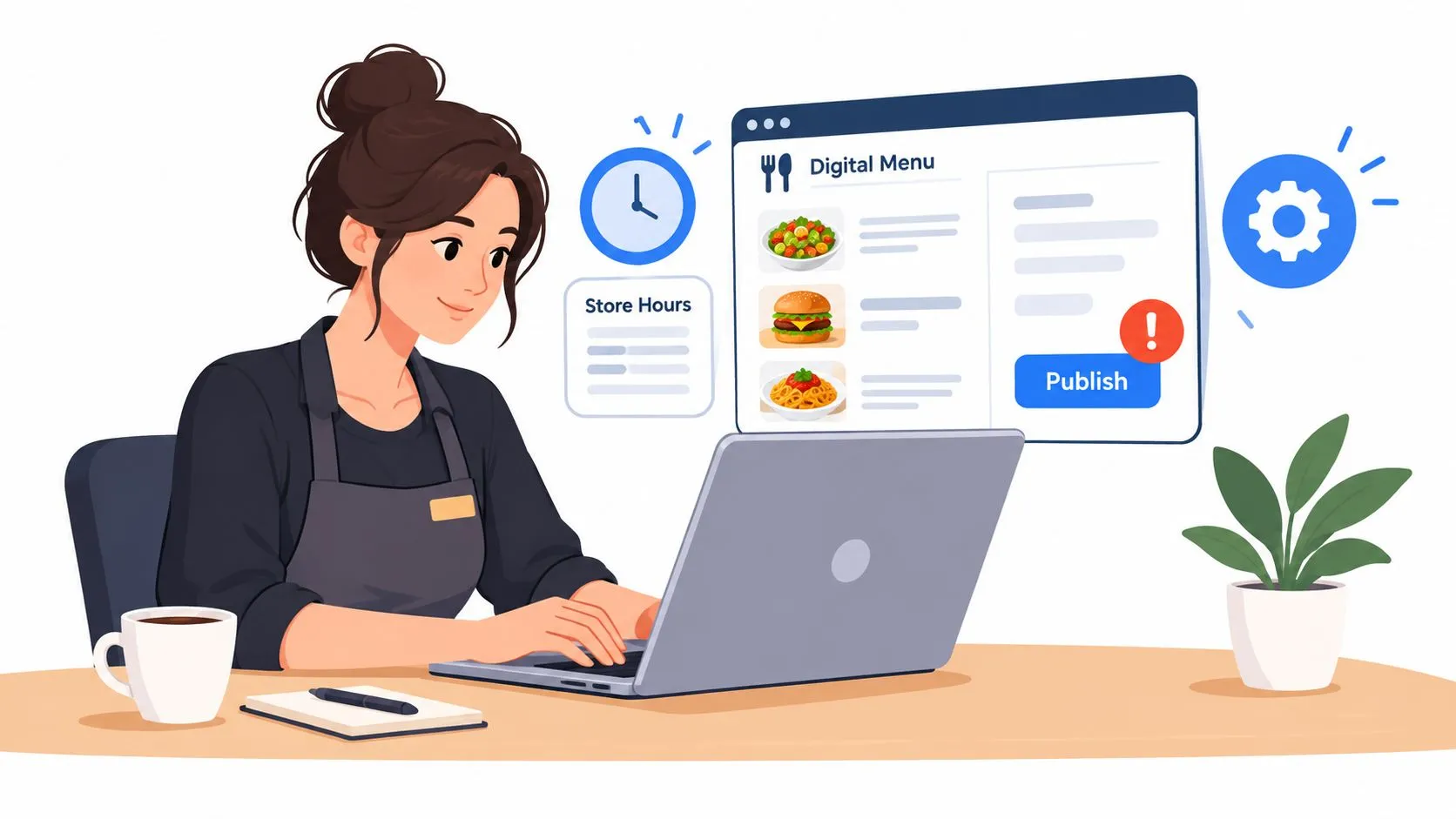
A Friday rush is not the time to discover that a modifier group is too strict or that holiday hours never got updated. In the Grubhub merchant dashboard, menus, store details, and hours sit close enough together that one bad edit can affect live orders fast. The Merchant schedules controls and store settings are useful because they let operators open, close, and override hours from one place, but that same control surface also makes sloppy changes visible to customers immediately.
What to audit every week
Menu structure usually comes down to categories, modifier groups, minimum and maximum selections, item availability toggles, and 86 controls. The weak spots are predictable. Required modifiers can be too restrictive, seasonal items can stay live after they should be gone, and delivery pricing can drift away from dine-in logic without anyone catching it. If nobody checks the live menu, the dashboard will publish whatever is sitting there.
Schedules need the same discipline. Lead time, daily hours, pause windows, and early-close behavior should match actual labor and prep capacity. Operators also need a clean rule for the difference between closing for the day and temporarily turning orders off, because those are different moves when the kitchen is under pressure.
What decays
Photos and descriptions go stale when staff changes. Holiday hours get missed because they look obvious in the moment and easy to forget later. Delivery prices can also get out of sync with margin reality if the final customer-facing numbers are never checked against the POS.
Audit rule: compare the live Grubhub menu to the in-house POS every week, then review photos and descriptions on a slower cycle so stale content does not linger for months.
For a practical framework on keeping menu data consistent across channels, OrderOut’s restaurant menu management guide is a useful reference.
The dashboard can publish the menu. It cannot protect you from loose approval habits.
Exception Handling When the Dashboard Misbehaves
Friday rush is where the Grubhub merchant dashboard shows its real value. If the screen is slow, an order is missing, or the store state looks wrong, operators need a fast triage habit, not a perfect interface. Grubhub’s own help material still centers on missing orders, preorder adjustments, lost-order cases, and store-state confusion, which is a good reminder that recovery work is part of the job. Grubhub solve issues
What to do when the flow breaks
If an order shows as accepted but never reaches the kitchen, verify the live ticket view, printer path, and store status before blaming the guest. If a menu change did not publish, check whether the item is still blocked by schedule rules or approval settings. If the store looks suspended or inactive, the issue may be account status, not the menu.
Manual recovery still matters. Refunds, voids, and adjustment reviews usually live in the order detail screen or the financials area, and a late substitution request often needs case-by-case handling. When the tablet freezes, the priority is to keep the store selling through whatever backup access the team already knows, then hand off to the right support path instead of burning the whole rush on troubleshooting theater. A clear escalation routine from OrderOut’s restaurant IT support guide helps staff know who handles what before the line backs up.
A practical incident checklist
- Confirm the store state: Check whether the location is open, paused, or stuck closed.
- Check the ticket path: Verify the order reached the queue and the printer or KDS.
- Review financial exceptions: Look for preorder adjustments and unexpected reversals in Financials.
- Audit the menu push: Make sure the item was not blocked by availability, modifier, or schedule logic.
- Escalate cleanly: Contact the correct Grubhub support channel once the store is stable enough to keep selling.
That checklist works best near the prep station. A cook does not need every support policy in their head, but they do need a simple order of operations when the screen goes sideways. The dashboard can still serve as the control surface for exception handling, yet it only helps if the team knows where to check first and when to stop guessing.
Where POS Integration Changes the Equation
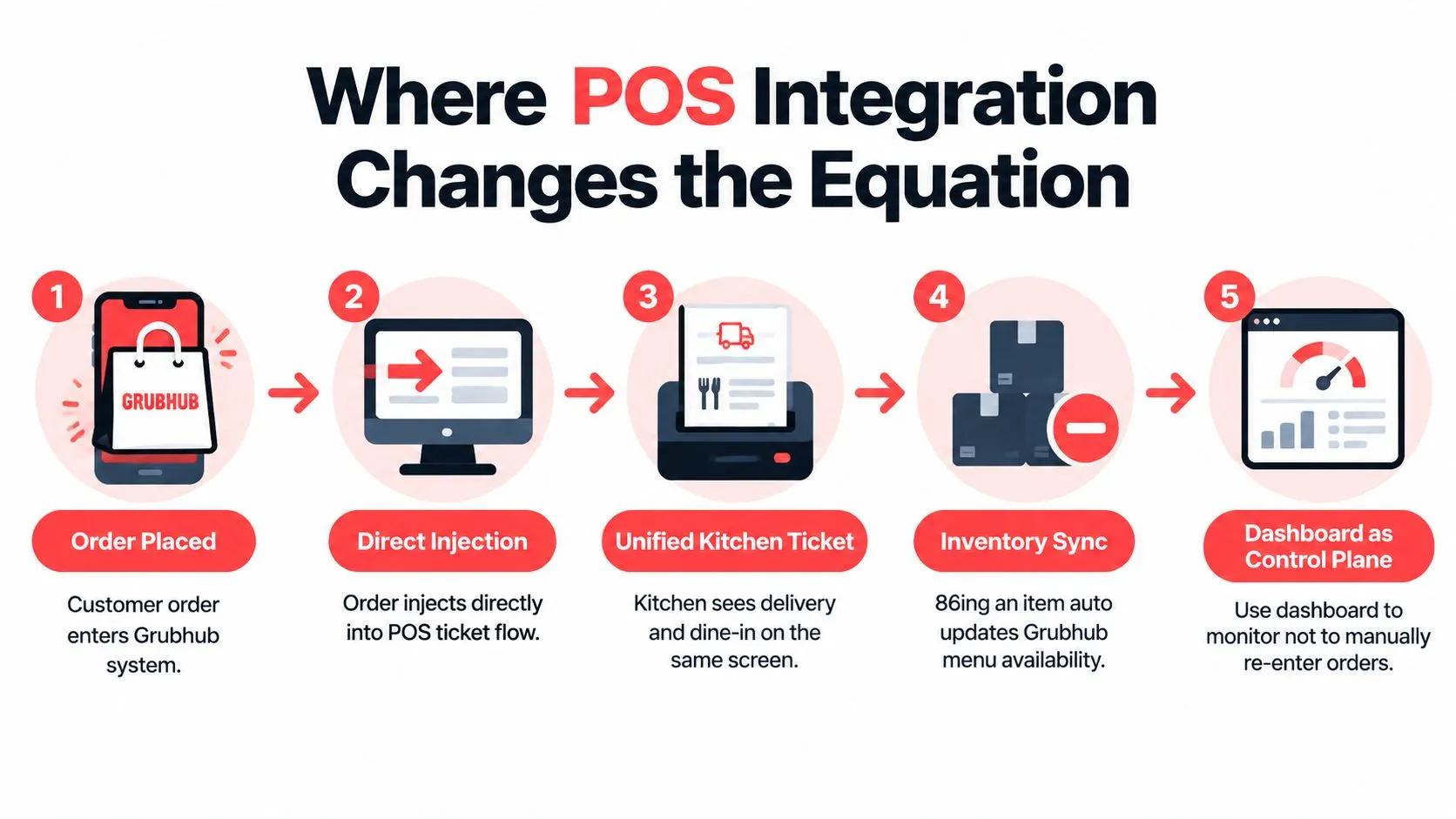
Once a restaurant starts pushing real volume, the dashboard works better as a control surface than as the place where every order should be managed by hand. Grubhub’s POS Integration API lets third parties handle menu management, order management, and delivery management inside existing workflows, with polling by status, webhook notifications, status updates, rejection handling, and adjustment or cancellation requests. Grubhub POS Integration API feature overview
What changes when orders hit the POS directly
Direct POS injection puts delivery orders into the same ticket flow as dine-in. The kitchen watches one screen, one printer path, and one operational record, instead of switching between a Grubhub tablet and the POS. Set up correctly, it also keeps inventory and 86ing aligned, so delivery orders become part of the line, not a separate task pile.
The handoff layer matters because every marketplace formats menus a little differently. OrderOut maps each marketplace menu to a normalized POS schema, then sends Grubhub, DoorDash, and Uber Eats orders into Clover or Square, so staff are not re-keying tickets from one tablet into another system. In that setup, the Grubhub dashboard still matters, but more for analytics, menu edits, and exception review than for day-to-day fulfillment. OrderOut’s Clover delivery integration OrderOut’s 3rd-party order engine
When it’s worth the move
The decision usually comes down to workflow, not theory. If the team is already juggling multiple tablets, fixing menu drift by hand, and reconciling orders after service, the dashboard has outgrown a standalone role. If the operation is small enough that one person can keep up without missed handoffs, the native dashboard may still be enough.
For operators comparing channel stack options, OrderOut’s restaurant overview is the cleanest place to start.
Frequently Asked Questions
How do I reset a Grubhub merchant login if the recovery email is dead?
Check whether another owner or manager still has access to the merchant account. If the recovery inbox is no longer active, update account ownership before the password becomes the next outage point. Restaurants should avoid tying access to one person’s email, because a routine login problem can turn into a service interruption.
Where do I find payout and adjustment details?
Open Financials for payout and adjustment activity. The merchant portal also keeps customer and sales metrics in the same environment, but payouts and refunds belong on the financial side of the dashboard, not in the live order queue. If the numbers look off, compare the dashboard record with the bank deposit and the order detail screen before assuming the payout is wrong.
Why do some orders show as missed even after I accepted them?
The handoff likely broke after acceptance. The order may have accepted in the dashboard but not printed correctly, or the kitchen may not have seen the ticket in time. Check the queue, the printer, and the store state before treating it as a customer-service problem.
What’s the difference between pausing the store and marking an item out of stock?
Pausing the store stops ordering at the location level. Marking an item out of stock removes one menu item while the rest of the store can still sell. Use the first option when the kitchen cannot absorb more volume. Use the second when only one product or modifier is unavailable.
Can Grubhub work better if orders flow into the POS instead of staying on the tablet?
Yes, especially for restaurants that run other marketplaces too. When Grubhub orders enter the POS, the kitchen works from one flow instead of a separate tablet workflow, and that cuts down on manual re-entry. For operators comparing integration options, OrderOut’s Grubhub-to-POS approach for Clover is a practical example of how that setup works.
Sign into the Grubhub merchant dashboard during a slow shift, click through Orders, Menus, Schedules, Customer Insights, Financials, Promotions, and Settings, and check whether the live setup matches how the kitchen runs. That review usually shows where the dashboard still helps, and where the operation has outgrown it.